Outlook Desktop App Closes Immediately After Opening


If your Outlook Desktop App automatically closes immediately after opening let me tell you that you are not alone as in 2026 thousands of users are reporting that they launches Outlook normally, shows the loading screen for a second and then suddenly it shuts down without any error message. Now this situation becomes even more frustrating when you are in urgently need to access your emails, attachments or any work data but the application simply not stay open.
Because of this many users start searching why does Outlook open then close immediately when the problem appears suddenly after a Windows update or simply system restart. In some cases Outlook may crash immediately due to a corrupted PST file, a corrupted add-in, a profile error or a cloud sync conflict. Others have noticed that the Outlook desktop app crashes every time when they try to launch it even after restarting their system multiple times.
From recent troubleshooting on Windows 10 and Windows 11 systems one thing is clear – this issue usually starts without any warning and can block complete access to mailbox data. But the good news is this problem is fixable and you just need to follow the right troubleshooting steps in the correct order without risking your Outlook data. In this guide you will know the exact reasons for Outlook crashes on startup and you will get practical and safe solutions that actually work.
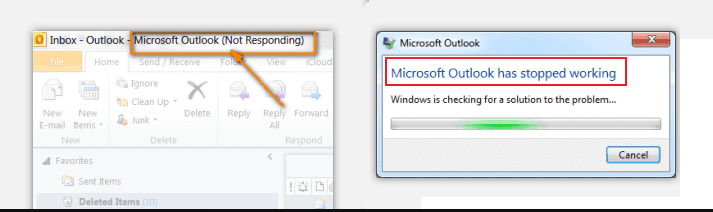
Now some other forms of this error are:
- Outlook has stopped working
- Crashing on startup,
- Crashing in safe mode
- Outlook not responding
- Crashing while sending emails or loading profile
- It crashes because of rundll32 / olmapi32.dll / kernelbase.dll / wwlib.dll / ntdll.dll
Case Study Based on Users Queries
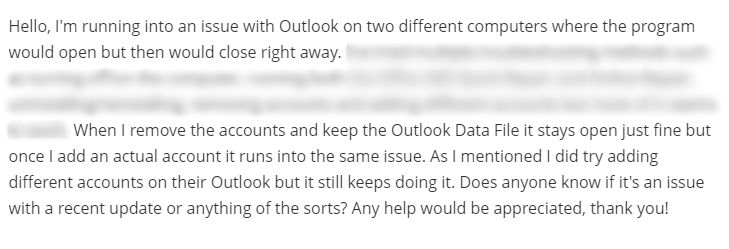
How to fix Outlook automatically closes after opening – asking this query recently a user reported that Outlook opened and closed instantly on two systems after he added an email account and Outlook stayed open without the account but yes it crashed as soon as the account synced.
After my investigation the issue was linked to a cloud synced data file and profile conflict. Now recreating the profile and moving the data file to a local drive resolved this crash immediately and a scenario increasingly seen in recent Microsoft Outlook updates.
Why Does Outlook Open Then Closes Immediately?
If you are wondering why Outlook opens and then immediately closes so let me tell you this issue is usually caused by a conflict or corruption within the system and this is not an application failure. Based on recent troubleshooting you can check below the most common causes:-
- Corrupt Outlook profile:- A damaged or misconfigured profile can prevent Outlook from loading properly.
- Faulty add-ins:- Using third party add-ins may crash Outlook during startup.
- PST/OST file corruption: Damaged Outlook data files can force the app to close it immediately.
- Recent Windows or Office update bugs: After you update your Windows well sometimes it conflicts with the Outlook startup process.
- PST stored in OneDrive or cloud sync folders: Well this is the growing issue reported in 2025-2026 where the Outlook crashes on launch due to sync issues.
- Graphics acceleration conflict: Hardware acceleration sometimes triggers instantly shutdown and especially if you are using an older system.
- Antivirus blocking Outlook: Overprotective security tools may stop Outlook from loading completely.
Outlook Crashing After Windows Update – Quick Fixes
In early 2026 I noticed that many users reported that Outlook started crashing or closing instantly after they had recently updated their Windows. According to multiple support cases and community reports this issue mainly occurs when Outlook data files are stored in synced cloud locations like OneDrive or when profiles become unstable after the system updates.
Microsoft recently released several fixes including one that linked the crashes to update conflicts with Outlook data file access and the background sync service.
Quick Fix For You – Tried and Tested by Our Experts
- Move your PST file to local drive: If your Outlook data file is stored in OneDrive or any cloud synced folder you need to move it to a local path like:
C:\Users\Documents\Outlook Files
- Restart Outlook and your system: After moving your file now you need to restart your system and reopen Outlook normally.
- Repair Outlook profile: Open Control Panel → Mail → Show Profiles → Add new profile → And set as default.
These simple steps have resolved many cases where the Outlook desktop app closes immediately after opening or whether the Outlook desktop app keeps crashing right after the Windows updates.
How to Fix Outlook Automatically Closes After Opening Error?
The issue may occur due to various reasons. So the solution may differ. You can perform below listed solution according to requirement:
- Inspect Your Security Software
- Try Uninstalling and Re-installing Microsoft Office
- Repair Outlook Data File with Our Automated Tool
- Try to Add Your Outlook Account Again, After Removing It
- Open Outlook in Safe-mode
- Disable All The Add-ins in Microsoft Outlook
- Disable Hardware Graphics Acceleration
Now let’s learn about each solution in detail:
1. Inspect Your Security Software
There are certain security tools and software in Windows, which can cause the Outlook app automatically closes after opening error. Now it is possible that either you have set some settings or some form of settings have comes as default in these software, which is causing Outlook to crash.
Now you can fix the error by disabling the Anti-virus/ other security software. Then re-open Outlook and check if it still crashes. In case the Outlook app automatically closes after opening error persists, try another solution.
2. Uninstall And Then Re-install Microsoft Office
Now if you have any of these versions of Outlook- 2010, 2013, 2016, 2019, then first try uninstalling MS-Office and then re-install it. Follow these steps to perform the process:
- Navigate to “Control Panel” and click on “Programs and Features”.

- Click on “Microsoft Office” tab and then click on the “Uninstall” option.
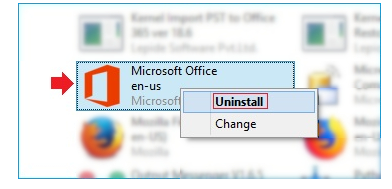
After completing the “Uninstallation” procedure, re-install MS Office”. Now check to see if the “Outlook desktop app closes immediately after opening” error still persists.
3. Repair Your Outlook Data File with Our Automated Tool
If your Outlook is crashing because of a highly corrupt / damaged file, then you can use our Outlook PST Repair Software. With our tool, you can easily make your Outlook data file healthy.
You can also recover Password protected corrupt PST files, by using our automated wizard and export your repaired data in different file formats. And most importantly, by using our tool, you can recover permanently deleted emails from the PST file.
So if your Outlook is crashing because of the presence of a corrupt data file, then use our wizard for a swift and smooth repair process.
4.Try to Add Your Outlook Account Again, After Removing It
To fix the why does Outlook automatically close issue?, first remove your Outlook account and then add it again. You can do the following via these steps:
- Navigate to “Control Panel” >> “Open Mail”
- Then click on the “Email Accounts” option.
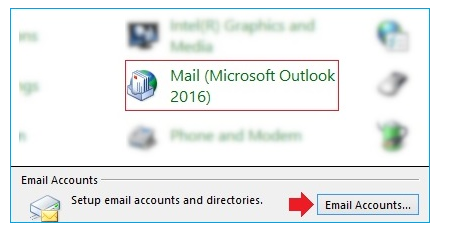
- Now starting removing all Outlook accounts one by one.
Now “restart your PC”, to check whether Outlook still automatically closes after opening.
5. Open Outlook in Safe Mode
If your Outlook Desktop App crashing or Outlook desktop app closing on its own well the first thing you should test is Safe Mode. This is one of the most recommended steps.
Safe Mode starts Outlook without add-ins, custom settings or extensions. This definitely helps you quickly identify if the problem is caused by any faulty add-ins or configuration issues.
Check Below Steps to Start Outlook in Safe Mode
- Press Windows + R
- Type: outlook.exe /safe
- Press Enter
- Choose your Outlook profile and click OK
If Outlook opens normally in Safe Mode hence it confirms that a third party add-in and extension is the reason for the crash. Next you need to check and disable faulty add-ins.
6. Disable all the Add-ins from Microsoft Outlook
Even though “Add-ins” improve Outlook by providing more comprehensive features. But sometimes they can be the reason behind the MS-Outlook crash.
Now to fix the Outlook Automatically Closes After Opening error, try disabling the “Add-ins”. You can do so via the following method:
- Open Outlook >> Go to “Files” >> Options >> “Add-ins”.
- Now from the “Manage” drop-down menu, choose “COM-Add-ins”.
- Then click on “Go”.
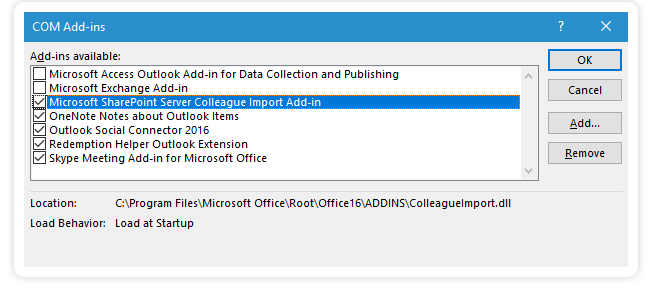
- Now if the “Add-ins” are enabled, you must uncheck them.
- Save the changes.
Now re-start Outlook to see if, Outlook 2019, 2016, 2013, 2010, 2007 opens and closes immediately error still exists.
7. Disable Hardware Graphics Acceleration
Another reason why Outlook opens then closes immediately is graphics acceleration conflict with Windows or with display drivers. This generally causes Outlook to crash on startup. You can check the Steps how to Disable Hardware Graphics Acceleration:-
- Open Outlook (try Safe Mode if needed)
- Go to File → Options → Advanced
- Scroll to Display section
- Enable: Disable hardware graphics acceleration
- Click OK and restart Outlook
This fix is especially useful if the Outlook desktop app closes immediately after opening in Windows 10 or 11 or crashes after system updates.
Closing Thoughts
The Outlook Automatically Closes After Opening error is one of the most commonly occurring errors in Outlook. There is no fixed reason behind it’s origin but several possible causes exist.
You can apply above mentioned method to fix Outlook crashes error in Outlook 2019, 2016, 2013, 2010, 2007, etc., versions.