How to Fix Outlook Not Responding When Sending Email?


User Query: Why Does Outlook Freeze When I Click Send?
“Every time I click Send Outlook freezes and shows me ‘Not Responding.’ It works fine while reading emails but it hangs when I am sending attachments. What should I do to fix this issue?”
If you are also facing Outlook not responding when sending email you are not alone as many users experience this similar issue when they are sending large attachments, syncing with Exchange or after a recent Microsoft 365 update.
Well this problem can occur in:-
- Outlook 2026 (Microsoft 365)
- Outlook 2021
- Outlook 2019
- Outlook 2016
- New Outlook for Windows
- Outlook connected to Exchange or IMAP accounts
In this guide I will explain to you why Microsoft Outlook is not responding when sending email, why this happens and how to fix it safely without risking your mailbox data.
These solutions apply to Outlook 2026 (Microsoft 365), Outlook 2021, 2019, 2016 and even the New Outlook for Windows.
Causes Why Outlook Not Responding When Sending Email?
- MS Outlook is an out-of-date application
- More than one process is using the Outlook application
- Add-in conflicts in Outlook
- A mailbox that is quite large
- Any MS Office program can get corrupted
- Outlook’s data file or files are corrupted or damaged
- Antivirus software conflicts with Microsoft Outlook
- The Outlook profile of a user has been corrupted
- Other apps that conflict with MS Outlook
- Modern Authentication or Microsoft 365 Token Issues: Microsoft has fully transitioned to Modern Authentication (OAuth 2.0). If Outlook fails to refresh the authentication token well it may freeze while sending email.
- Large OST File in Cached Exchange Mode: Outlook not responding when sending email with attachments well if you are using Exchange or Microsoft 365 then your OST file may exceed 20 to 50 GB and large OST files can cause Outlook stops responding when sending email with attachments.
- Hardware Acceleration Conflict: Graphics acceleration conflicts in Windows 11 or 10 and can cause Outlook to freeze during send/receive operations.
- New Outlook and Classic Outlook Conflict: Running both versions simultaneously in new Outlook may cause profile issues and cause Outlook to hang while sending.
What impact does This Issue Have on Microsoft Outlook Users?
The not responding notice shows on the title bar of the application’s window when an application or process becomes stuck in execution or reaches a resource stalemate. On a Windows system, this is true of all applications. The best option most of the time is to wait things out, even if it is frustrating!
When this happens to Outlook, the stakes are significantly higher because you could be in the middle of a chat with a potential client at any time. Worse, you could be waiting for an update to fix a critical security flaw when Outlook stops operating.
When you try to click anywhere in the Outlook window, the entire screen turns transparent, and the title bar displays the message “Microsoft Outlook not responding.”
How to Fix Outlook Not Responding When Sending Email Issue?
You can attempt the following strategies to resolve the Microsoft Outlook stops working when sending email versions:
1. Updates Must be Installed
The version of Office on your computer is out of date. This can happen if your computer’s Windows Update isn’t set up to automatically download and install suggested updates. You can always fix problems by replacing out-of-date files and correcting vulnerabilities if you install crucial, recommended, and optional updates. As a result, make sure you have the most recent Outlook updates installed.
2. Outlook Processes That Aren’t Working
Microsoft Outlook has an annoying habit of hanging around even when the user repeatedly tries to shut it down. In technical terms, this means that one or more outlook.exe processes would remain in memory, preventing the Outlook application from properly terminating and preventing us, the users, from starting a new Outlook instance. This issue existed in previous versions of Outlook, and it may still occur in Outlook 2013 and 2010.
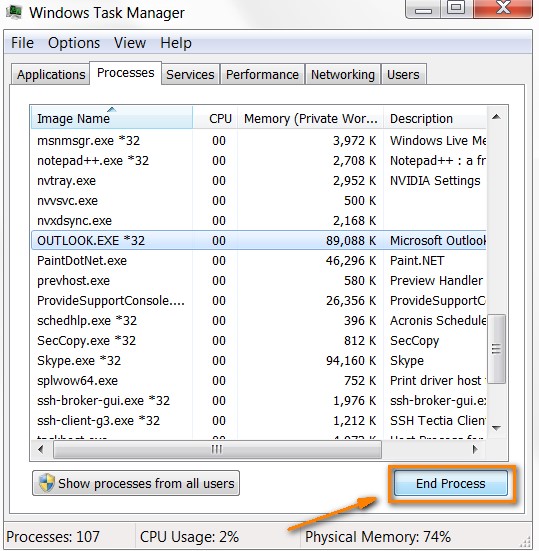
The first step is to terminate any Outlook processes that are still running. To do so, press Ctrl + Alt + Del on your keyboard, or right-click the taskbar and select Start Task Manager from the context menu. Then go to the Processes tab and look for all instances of OUTLOOK.EXE in the list. Select each OUTLOOK.EXE by clicking on it and then clicking the End Process button.
3. Remove Any Add-ons you May Have Installed
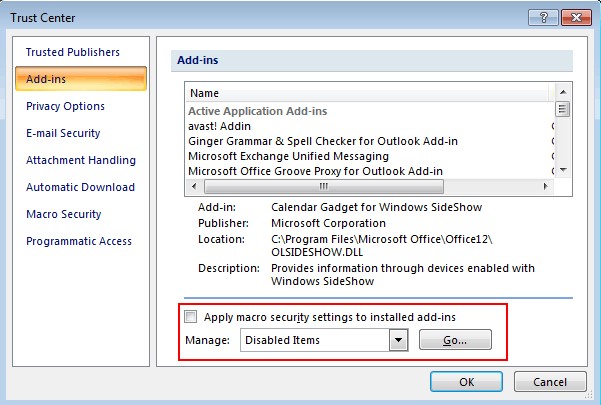
If Outlook is running well in safe mode but freezing or not responding when you exit safe mode and restart Outlook normally, then disable the Outlook add-ins that may be causing Outlook to stop working or not responding. To disable Outlook add-ins, follow these steps.
- To open Run, press the Windows logo key + R shortcut.
- In the Run bar, type Outlook.exe /safe and hit Enter.
- Select selections from the File menu in Outlook. If you’re using Outlook 2007, go to Tools-> Trust Center…->Add-Ins.
- Select COM Add-ins from the Add-Ins menu. Go by pressing the Enter key.
- Click OK after clearing all of the checkboxes in the list.
- Restart Outlook and make sure it’s working properly.
- To find the cause, enable your add-ins one at a time.
4. Launch Outlook in Safe Mode
When something goes wrong with Outlook, Microsoft advises starting it in Safe mode. What exactly does that imply? Simply said, your add-ins and customization files will not be imported into Outlook.
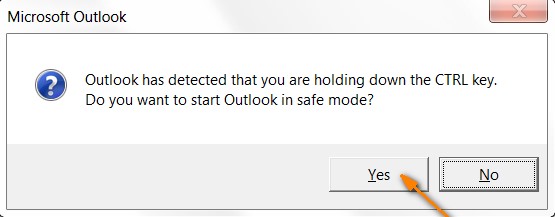
To start Outlook in Safe Mode, hold down the Ctrl key while clicking on the icon, or type outlook.exe /safe into the command prompt. When prompted, confirm that you definitely wish to start Outlook in Safe mode by clicking Yes.
5. Reduce the Size of Your Mailbox (PST/OST Optimization)
Large mailbox files significantly affect your Outlook performance.
Microsoft recommends keeping:-
- PST files under 20 GB (for best performance)
- OST files optimized if exceeding 50 GB
And if your PST/OST file is oversized well in this case Outlook may:-
- Freeze while sending emails
- Hang after clicking Send
- Show “Outlook not responding after sending email”
How to Check PST File Size?
To check your PST file size you need to go to Outlook and there you need to find File → now choose Account Settings → look for Data Files → and check file location and size here and you can:-
- Archive your old emails
- Compact your PST file
- And remove unnecessary attachments
If you are still confused you can read this guide How to Reduce PST File Size safely and reduce your PST file too.
6. Turn Off your Antivirus Software
The most common cause of Outlook goes into not responding when sending email is a conflict between the anti-virus application and add-ins, which causes Outlook to stop or hang. You might want to try updating your anti-virus software. If this does not resolve the problem, disable the anti-virus program and see if Outlook runs without any pauses.
7. Check Internet and Exchange Server Status
Checking the internet and exchange server is a smart decision as sometimes the issue is not local. You can try checking the following:-
- Check internet stability
- Log into Outlook Web (OWA)
- If web version works but desktop freezes – local Outlook issue
- If both freeze – server-side issue
This helps you identify whether Microsoft Outlook not responding when sending email is caused by server sync problems.
Secure and Professional Method to Fix Outlook Freezing
If Outlook keeps not responding when you are sending email due to PST corruption well manual methods may not fully repair your internal mailbox damage so in such cases using a professional PST repair solution like DataHelp Outlook Repair Tool can help you a lot specially:-
- Repair severely corrupted PST files
- Recover inaccessible emails
- Fix mailbox structure errors
- Restore attachments and folders
And unlike Scanpst.exe – advanced repair tools perform deep level scanning to restore your complete mailbox integrity.
Manual Fix vs Professional Tool
| Issue Type | Manual Fix | Repair Tool Needed |
|---|---|---|
| Add-in conflict | Yes | No |
| Antivirus conflict | Yes | No |
| Hardware acceleration | Yes | No |
| Large PST file | Sometimes | Recommended |
| Corrupted PST | No | Yes |
| Severe mailbox damage | No | Yes |
Conclusion
The issue of Outlook not responding when sending email can occur due to add-ins, large mailbox size, antivirus conflicts, corrupted profiles and because of the PST file corruption issue.
And in most of the cases the safe mode, disabling add-ins, reducing your mailbox size or disabling hardware acceleration can safely resolve this problem.
However if you see Outlook continues freezing when you are sending attachments let me tell you mailbox corruption may be the root cause. In such situations using a reliable solution ensures safe data recovery without risking further damage and you need to always back up your PST file before attempting advanced repairs.