How to Repair PST File Without ScanPST?


If your Outlook data file suddenly becomes inaccessible, very slow or shows you errors my first recommendation you will usually see is to run ScanPST. But what if ScanPST fails or it doesn’t repair your file properly? That’s when many users are searching how to repair PST file without ScanPST well because the built-in Inbox Repair Tool has limitations especially if you have large files (30 to 50 GB) or severely corrupted PST files. Let me tell you It only works well with small files.
In this guide I will explain to you all safe working solutions to repair your PST files safely without depending only on ScanPST. All my methods are practical, tested and problem solving.
Which Method to Choose?
| Feature | ScanPST (Built-in) | Manual Import/Archive | Professional Tools |
|---|---|---|---|
| File Size Limit | Fails above 20GB-30GB | Unlimited (if file opens) | Supports 100GB+ |
| Data Safety | Can delete “unreadable” data | Very Safe | Read-only (Safe) |
| Recovery Power | Basic structure only | Only visible items | Deleted emails & deep repair |
| Success Rate | Low for severe damage | Medium (Needs access) | High |
Why PST Files Are Not Showing or Opening in New Outlook?
Before we move to learn how to repair PST file without ScanPST you need to check one important change in 2026. Many users think their PST file is corrupted but the real issue is often the New Outlook for Windows.
Newer Outlook versions currently have limited PST support and due to this PST files may not open properly and folders may not display or archives may not load properly. This doesn’t necessarily mean your PST file is corrupted.
Check if the “New Outlook” toggle is ON:
- PST files may not appear
- Old archive folders may be missing
- Import options are limited
There is a simple fix for youYou just need to Switch back to Classic Outlook and reopen the PST file.
In many recent cases – PST files worked normally after switching back without any repair required.
If the PST still does not open in classic Outlook then you can follow the repair methods below to properly understand how to repair a PST file without ScanPST.
Understanding PST File Corruption
PST (Personal Storage Table) files store the following elements in file:
- Emails
- Contacts
- Calendar
- Attachments
- And Notes
So when the corruption occurs Outlook may:-
- Crash repeatedly
- Show sending/receiving errors
- Fail to open PST file
- And display “Outlook data file cannot be accessed”
Why ScanPST Sometimes Fails
No doubt this ScanPST (Inbox Repair Tool) is very helpful for the user but it is only helpful when you deal with small file size and if your PST file is severely corrupted or it is of large size then it will not be able to help you out. You can check below the common limitations:-
- Cannot repair heavily corrupted PST
- Freezes on large files (20GB+)
- May delete damaged data permanently
- Cannot recover permanently deleted emails
- Fails silently without clear error
I recently tested a 32GB PST file and ScanPST stopped at 19% and left Outlook unusable. Both the manual and professional repair methods worked well.
Signs PST File Needs Repair
It is very important for you to understand these common signs that can easily tell you that your PST file needs repair so that you can identify it timely and take appropriate action. You need to look for these warning signs:-
- Outlook crashes while opening PST
- PST file not responding
- Missing emails or folders
- Slow Outlook performance
- Error: “Cannot open Outlook data file”
- Synchronization issues
If you experience these symptoms you must avoid running ScanPST repeatedly as trying to repair multiple times can worsen the corruption.
Precautions Before Repair
It is very important for you to take these major steps before you starting the repair process to avoid any major risk:-
- Stop Cloud Sync: If your PST file is in a OneDrive or Google Drive folder first you need to copy it to a local folder check example (C:\OutlookData\) first. Cloud locks often display PSTs as “corrupt.”
- Work on a Copy: You should never touch the original file and attempt repair on a copy.
- Do Not Force Close Outlook: Forced shutdown during PST repair can completely damage your file structure so you must avoid it.
Check 50GB Limit: If the file is exactly 50GB then it is an “oversize” problem not a corruption issue.
How to Repair PST File Without ScanPST?
There are multiple practical ways which you can use and repair your ScanPST files easily. We have suggested 4 practical ways which will help you to fix your issues if you follow all the suggested methods carefully with right approach.
Method 1: Create New PST File & Import Data
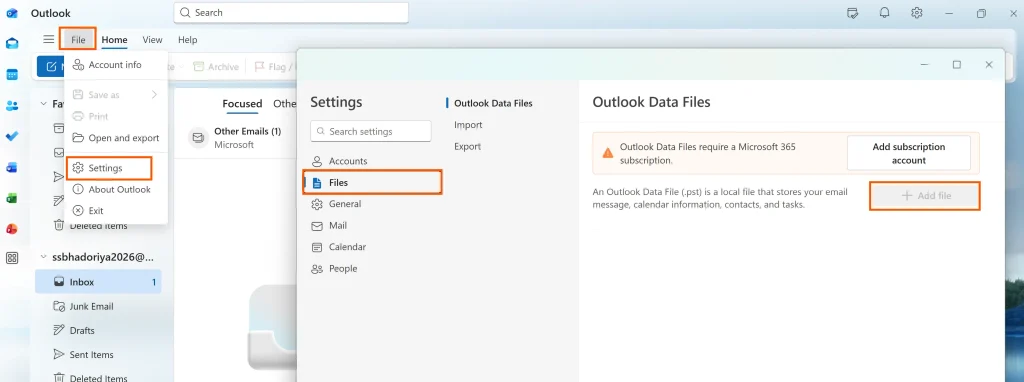
If you observe that PST is partially accessible well this method works well for you. You can follow these steps:-
- Open Outlook
- Go to File → Account Settings → Data Files
- Click Add and create new PST
- Set new PST as default
- Import data from old PST
Why it will works
- It will bypasses damaged structure
- Easily moves accessible data safely
- Reduces corruption impact
This is one of the safest ways to repair your Outlook PST without ScanPST when the file is still opening.
Method 2: Use Outlook Archive Feature
Do you know archiving can separate your healthy data from corrupted PST sections. Now at this stage you can follow these steps to repair your PST files.
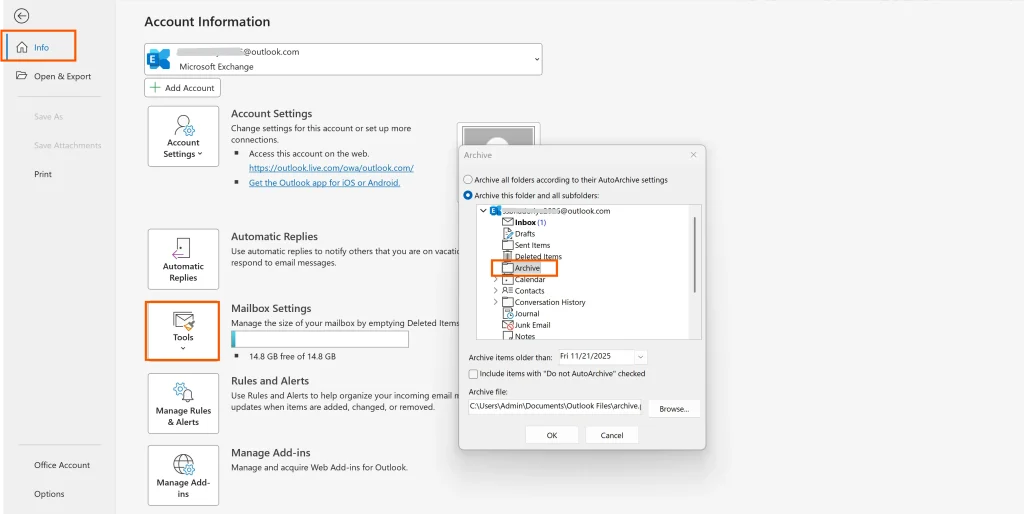
- Open Outlook
- Next Go to File → Info → Tools → Clean Up Old Items
- You Need to archive data into new PST
- Check newly created PST
If the archive completes successfully well your PST corruption is limited and it is recoverable.
Method 3: Start Outlook in Safe Mode
Sometimes corruption is not in PST but it is in faulty add-ins check below the diagnostic steps:-
Press (Windows + R) and type: outlook.exe /safe
Check if Outlook opens without any error the PST file is absolutely fine. Now you just need to go to File > Options > Add-ins and disable outdated plugins.
Method 4: Recover PST from Backup
In this method you will have to find out the backup and you can find it at these possible locations:-
- External drive
- OneDrive backup
- Old system backup
- AutoArchive folder
Once you find backup you can replace corrupted PST with backup copy and reconnect in Outlook. This is the fastest and safest recovery method.
What to Do When Manual Methods Fail?
This question often becomes important when you have tried all the suggested methods and still your problem remains the same but let me tell you that this happens very rarely so let us know first why manual methods fail sometimes:-
- PST severely corrupted
- PST not opening at all
- Large file damage
- Header structure broken
- Emails missing completely
Now in such a case manual repair becomes risky and time consuming so only professional recovery is the safest and fastest approach for you at this stage.
Automated PST Repair Solution
When all manual methods fail it’s time to use a reliable solution and Download and install DataHelp PST Repair Tool is one of the safest and top rated options as the tool is capable to:-
- Repair your heavily corrupted PST
- Recover permanently deleted emails easily
- It restore attachments and folders
- Handle your large PST files easily (50GB+)
- Work even if Outlook won’t open
Best Practices to Prevent PST Corruption
Following these tips will reduce the chances to repair PST file without ScanPST solutions in future.
- Keep PST Size Optimized:- You must avoid storing too many emails in one PST.
- Enable Auto Archive:- After auto enabling it will move old emails automatically to archive.
- Store PST on Local Drive:- You should store on local drive and avoid using PST directly from the network.
- Backup Regularly:- The best solution to keep weekly PST backup.
- Close Outlook Properly:- No force close Outlook you must avoid sudden shutdowns.
FAQs
Q1. Can I repair PST without ScanPST?
Yes – you can create new PST, import data, use archives or simply for the safer side you can use professional repair methods.
Q2. What if ScanPST makes PST worse?
If you are in this situation you immediately need to stop using it and work on backup copy.
Q3. Can corrupted PST cause Outlook crash?
Yes 100% as Damaged PST is one of the core reasons for Outlook crashes.
Q4. Is PST repair possible without data loss?
Yes it is possible but if you handled everything carefully using safe methods or professional tools.
Q5. What is the best method for large PST repair?
Well for large PST files you should only trust professional recovery solutions as it is safest for large files.
Final Verdict
Knowing how to repair PST file without ScanPST is essential for Outlook users in 2026 and the best way to repair a PST is to first extract your file from OneDrive/Cloud folders and use the New PST + Manual Move method.
If the file header is completely broken you should not waste time on ScanPST as it may permanently delete unreadable data. In such cases only a professional recovery tool can safely rebuild your data.