How to Reduce PST File Size Safely?


If your Outlook is running slow, or it is freezing and showing you errors like “Outlook data file has reached the maximum size” well the chances are your PST file has grown too large. In this article I will explain to you how to reduce PST file size safely and most importantly without corrupting your data and what actually works in the practical environments.
Table of Contents:
- Why PST File Size Becomes a Problem?
- Proven Methods to Reduce PST File Size
- Permanently Remove Unnecessary Emails
- Compact PST File
- Reduce Archive PST File Size
- Split Large PST File
- Remove Large Attachments
- Reduce PST File Size Without Outlook
- Limit PST File Size in Outlook
- Why Not Reduce After Archiving?
- Tips to Keep PST Size Under Control
- When to Consider Professional Tools
- Final Thoughts
Why PST File Size Becomes a Problem?
A PST (Personal Storage Table) file stores the following data:
- Emails
- Attachments
- Calendar entries
- Contacts
- Notes
- Tasks
Modern versions of Outlook like (2010 and later) support up to 50 GB PST size by default. However their performance issues usually begin much earlier it starts around 10–20 GB especially on standard office machines.
You can check below some of the common problems caused by large PST files:-
- Outlook becomes slow
- Freezing during send/receive
- PST corruption
- Backup failures
- Sync issues
That’s why it is important for you to know how to reduce PST file size in Outlook.
Proven Methods to Reduce PST File Size Safely
Oversized PST files are often lead to Outlook crashes, slow performance and also corruption risks higher. Below you will find all practical, safe and tested methods to reduce your PST file size without losing your important emails and attachments.
Method 1: Delete and Permanently Remove Unnecessary Emails
Simply deleting emails does NOT automatically shrink your PST file but yes you have to follow these 2 steps to reduce PST file size safely.
Step 1: Delete unwanted emails
- Sort by size
- Remove large attachments
- Empty Deleted Items folder
Step 2: Empty “Recoverable Items”
Press: Ctrl + Shift + Delete
Or: Deleted Items → Empty Folder
Method 2: Compact PST File
If you are wondering how to shrink the PST file after deleting your emails well this is the critical step for you.
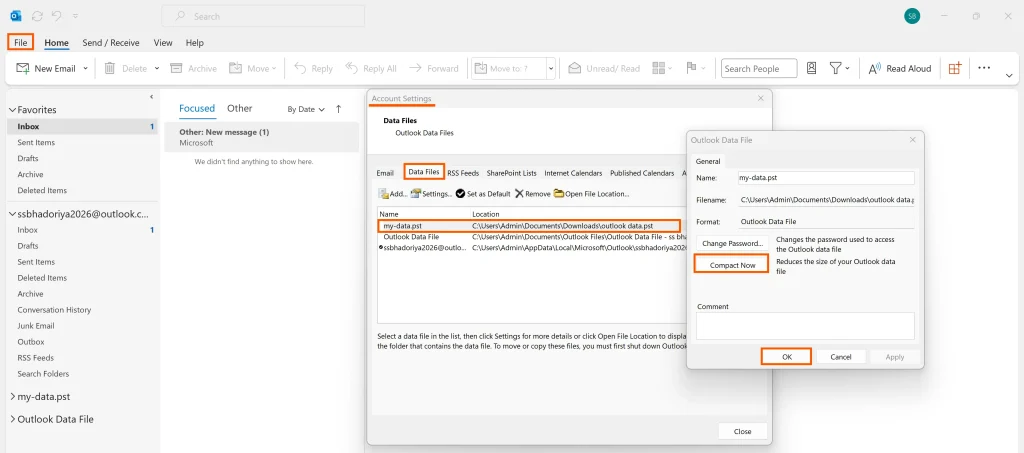
- Open Outlook
- Go to File
- Account Settings → Account Settings
- Click Data Files tab
- Select PST file
- Click Settings
- Click Compact Now
Compacting will remove unused white space from the PST file.
Method 3: Archive Old Emails (Reduce Archive PST File Size)
Archiving moves all your old emails to a separate PST file and to do this you can just follow these simple steps:-
- File → Info
- Tools → Clean Up Old Items
- Choose a date
- Select archive file
This will surely reduce the primary PST size but it creates a new archive PST so if your archive PST becomes large you can compact it using the same method described above.
Method 4: Split Large PST File (Recommended for 20GB+ Files)
When PST crosses 20GB or more you need to split PST file as splitting becomes safer than continuous compaction so you can:-
- Create a new PST file
- Move older folders manually
- Keep primary PST under 10GB
This significantly improves your Outlook performance.
Method 5: Remove Large Attachments
Attachments are the biggest space consumers so removing the large attachments will reduce your file size and to reduce PST size quickly you need to:-
- Sort emails by size
- Save attachment externally
- Remove attachment from email
- Empty Deleted Items
- Compact PST
This is one of the fastest ways for you to decrease your PST file size safely.
How to Reduce PST File Size Without Outlook
If Outlook does not open due to corruption well you have the following options:-
- Use ScanPST (Inbox Repair Tool)
- Located in Office installation folder
- Repairs minor corruption
- Use Professional Software
You can use DataHelp Reliable PST Repair Tools to to easily reduce and repair your corrupted PST files. Also this tool us recommended for:-- Heavily corrupted files
- Can split, compress and recover emails
This method is very useful if you are searching for how to reduce PST file size without Outlook running.
How to Limit PST File Size in Outlook
Administrators can limit PST growth through the Windows Registry and the default limit is:-
- 50 GB (Unicode PST)
You can reduce maximum limit by editing:-
HKEY_CURRENT_USER\Software\Microsoft\Office\
\Outlook\PST
Now you can add or modify:-
- MaxLargeFileSize
- WarnLargeFileSize
Why PST Size Does Not Reduce After Archiving?
Many users ask: “How to shrink the PST file after archiving?”
Important concept: Deleting or archiving frees up space inside but the PST doesn’t release that space back to the disk until you compact it.
So always: Archive → Empty Deleted → Compact
Best Practices to Keep PST Size Under Control
As an email migration professional you can see my recommend:
- Keep PST under 10–15GB
- Archive quarterly
- Remove attachments regularly
- Avoid using PST as permanent storage
- Back up PST before major cleanup
- Use Microsoft 365 when possible instead of local PST
When to Consider Professional Tools
You can leave manual methods and use reliable professional tool If you experience these:-
- Frequent corruption
- PST larger than 30GB
- Outlook not opening
- ScanPST failing
- Migration requirement
Then a professional PST repair or PST split tool is safer for you as manual methods work well for maintenance and Large scale issues require specialized tools.
You may also wondering How to Repair PST File Without ScanPST, this is the perfect guide for you when ScanPST failing.
Final Thoughts
Learning how to reduce PST file size safely is very important for long term Outlook performance as deleting emails alone is not enough. Compacting is mandatory for large files and splitting is better than compressing repeatedly.
So if you manage everything properly well the PST files will remain stable for years without any corruption.