How to Fix Error Code CAA50021: Number of Retry Attempts Exceeds Expectation


Seeing “Error Code CAA50021: Number of Retry Attempts Exceeds Expectation” in Outlook, Teams, OneDrive or Office apps then let me tell you this usually means Microsoft authentication failed due to corrupted cached credentials, Azure AD token issues, outdated Office apps, Windows account conflicts or there is a MFA verification problems.
You can try these fastest fixes to resolve this issue:
- Remove and reconnect your Work/School account
- Clear Microsoft cached credentials
- Disconnect Azure AD account
- Re-register device in Entra ID
- Update Office apps
- Repair Outlook profile
- Use Professional Repair Tool if OST/PST corruption is involved
Note: This issue is commonly reported after by users after:
- Password changes
- MFA updates
- Device enrollment issues
- Office updates
- Windows credential corruption
- Organization policy changes
Just imagine opening Outlook before an important meeting and suddenly you are getting this frustrating message: “Something went wrong Number of retry attempts exceeds expectation Error Code: Caa50021”
You retry login multiple times but it still fails. You restart Outlook and it still fails. You reset your password.Still nothing happens.
This error is becoming increasingly common among Microsoft 365 users, especially for those who are using Outlook, Teams, OneDrive and other Office apps connected with work or school accounts.
There are thousands of users who report authentication related login failures after MFA configuration changes, Windows updates, device registration issues and credential sync problems.
Unlike many generic guides that simply tell users to “restart Outlook” we will explain the actual problem that includes:
- Why Error CAA50021 happens
- What triggers the retry attempt issue
- Step-by-step fixes that actually work
- Advanced admin solutions
- When Outlook data recovery tools are needed
What Does Error Code CAA50021 Mean?
This error usually indicates Microsoft authentication token validation failure. Outlook repeatedly attempts sign-in authentication but fails repeatedly until the retry limits are exceeded.
This often affects:
- Outlook
- Teams
- OneDrive
- Office 365 apps
- Microsoft Authenticator linked accounts
Common Causes of Error Code CAA50021
- Corrupted Windows Credential Manager Tokens: Your old credentials may conflict with new authentication requests and cause this error.
- MFA Authentication Failure: There are multi factor authentication mismatches and this often causes repeated login loops.
- Azure AD Device Registration Problems: Your device may be improperly registered and that’s become the reason for this error.
- Password Recently Changed: Failures persist due to old cached credentials.
- Corrupt Outlook Profile: Sometimes authentication loops occur and this error appears due to a glitch in your Outlook profile.
- Outdated Office Version: This is a common cause as older builds may fail modern authentication checks.
- Work or School Account Sync Issues: Conflicts in Windows account synchronization are very common.
How to Fix Error Code CAA50021 – Step by Step Guide to Fix it Quickly
Before we start using advanced methods to fix this error let us start with some basic and authentication resets and if this does not work then we move towards deeper troubleshooting methods.
Fix 1: Restart Outlook and PC
This sounds very simple but this method works when an error occurs due to a conflict with a temporary authentication token.
When Outlook signs in to Microsoft servers it stores temporary session tokens. If any tokens gets stuck or terminates incorrectly, well Outlook may repeatedly attempt to sign in until it displays you the following error:
“Number of retry attempts exceeds expectation”
Restarting clears temporary app sessions and forces Outlook to request fresh authentication tokens.
You just need to follow these steps:
- Close Outlook completely
- Close Teams, OneDrive, Word, Excel, and other Office apps
- Press:
Ctrl + Shift + Esc
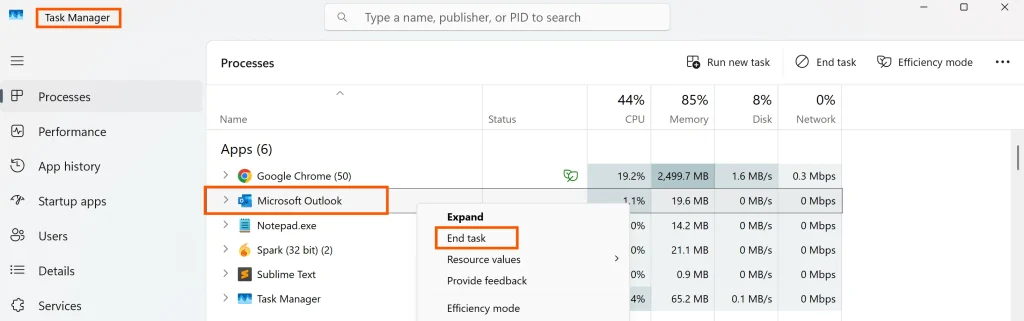
- Open Task Manager
- End these processes if still running:
- Outlook.exe
- Teams.exe
- OneDrive.exe
- OfficeClickToRun.exe
- Restart your computer
- Open Outlook again
- Try signing in
Fix 2: Remove Saved Credentials
To remove you can follow these steps:
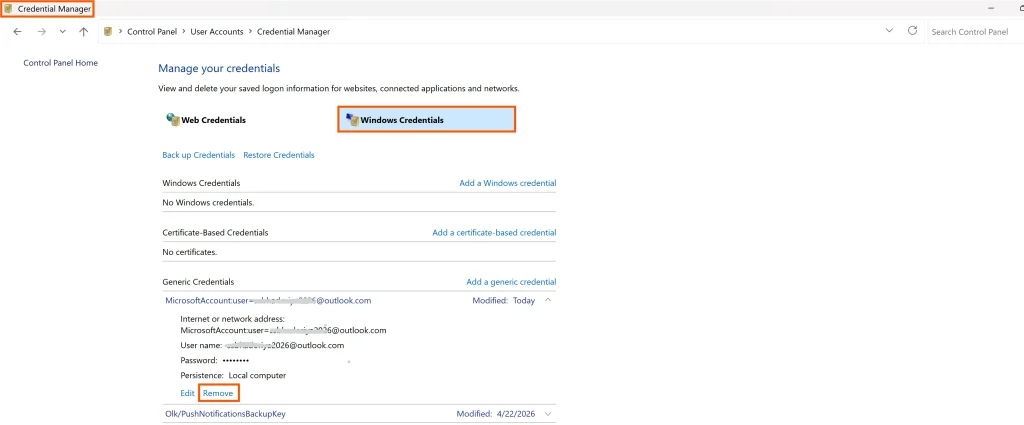
- Open Control Panel
- Go to Credential Manager
- Select Windows Credentials
- Remove Microsoft/Office credentials
- Restart Outlook
Fix 3: Disconnect and Reconnect Your Work or School Account
This solution is strongly recommended in Microsoft forum discussions as many users have encountered this issue following changes to the company’s account policies. If your device registration becomes corrupted, well Outlook may repeatedly fail to authenticate.
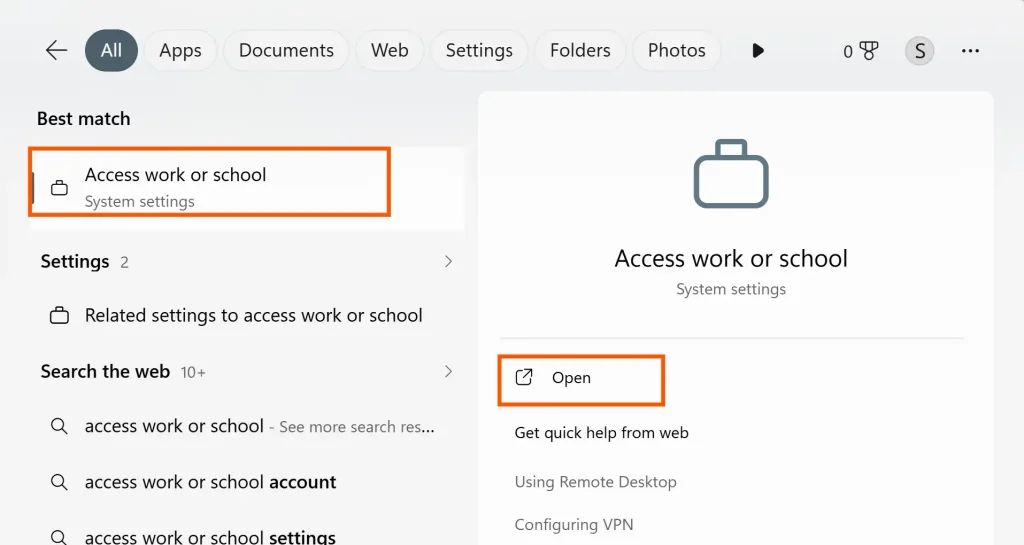
Steps:
- Open: Settings
- Go to: Accounts → Access Work or School
- Select your connected account
- Click: Disconnect
- Restart your system
- Go back and reconnect your account
- Sign into Outlook again
Use this fix if:
- You use Microsoft 365 business account
- You use school email
- Company recently changed MFA settings
Fix 4: Re-register Device in Azure AD
Sometimes your device’s registration becomes completely broken. This leads to the formation of authentication loops.
Run this command carefully:
Open Command Prompt as Administrator:
dsregcmd /leave
Now Restart your PC.
Then reconnect your work account.
To verify registration you can simply run:
dsregcmd /status
Check whether AzureAdJoined shows YES
Fix 5: Update Microsoft Outlook and Office
Older Office versions may fail with newer authentication protocols.
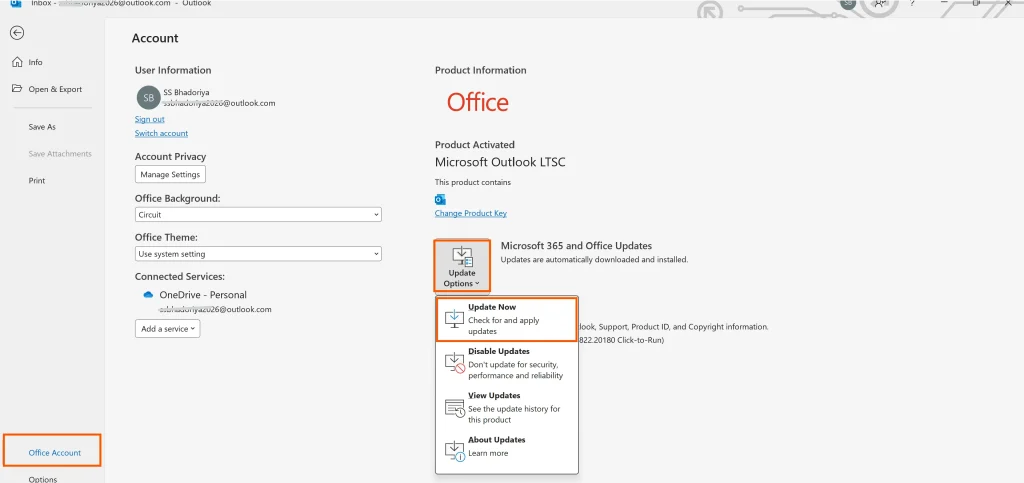
You can check these simple steps:
- Open Outlook
- Go to: File → Office Account
- Click: Update Options
- And Select: Update Now
Simply install updates and restart Outlook.
Fix 6: Repair Your Outlook Profile
Sometimes the login issue is caused by profile corruption so in such a case you can:
- Open Control Panel
- Search for Mail
- Click on Show Profiles
- And Select Add
- Create a Outlook new profile (Steps if Show Outlook Data File Cannot Be Accessed error)
- Add your account again
- Now you can set as default
Launch Outlook again and test login.
If you signs in successfully but your mailbox still won’t load now this is the condition where you are dealing with an OST file issue. Follow this guide on How to Fix Outlook OST File Cannot Be Opened to repair your inaccessible Outlook data files.
Fix 7: Repair Microsoft Office Installation
Corrupt Office files can also trigger authentication failures so repairing is one such relevant option and to repair this you can check the following steps below:
- Open Control Panel
- Go to Programs and Features
- Select Microsoft Office
- Click on Change
- Choose Quick Repair
If the issue continues you can move to the Run Repair solution.
Fix 8: Check Microsoft Server Status
Sometimes the issue is not on your side but the server performance is the reason now you can check Microsoft 365 Service Health dashboard for:
- Outlook outages
- Azure login failures
- MFA disruptions
If Microsoft services are down, the next step for you to wait until they resolve the issue completely.
Use Professional Outlook Repair Tool
If your Outlook mailbox files are corrupted even after repeated login failures, well now I will recommend you the professional solution to repair and fix this issue DataHelp Outlook PST Repair Tool. This will help you repair your:
- Corrupt PST files
- Inaccessible mailboxes
- Missing folders
- Damaged Outlook data files
You just need to Download and Install the software and start repairing your corrupted files.
FAQs
Q1. Is Error CAA50021 a Microsoft server issue?
Well the answer is yes sometimes it’s a server side issue, but often it is device authentication related issue.
Q2. Does reinstalling Outlook fix CAA50021?
No, not always reinstalling Outlook will not always work and fix this issue.
Q3. Can this error affect Teams?
Yes definitely Teams will be affected with this error.
Q4. Will clearing credentials delete emails?
I will say No, clearing credentials will not delete your emails.
Final Verdict
The Error Code CAA50021 in Outlook is absolutely frustrating because it locks users out of Outlook without clearly explaining what’s wrong there.
In most cases clearing your cached credentials, reconnecting work accounts, repairing Office or by fixing Azure registration can surely resolve your issue quickly. If mailbox corruption occurs in this case I will recommend you using a reliable repair tool that can help you restore access safely.