How to Unlock a Microsoft Account After Too Many Login Attempts


Quick Summary: Many of you think how to Unlock a Microsoft Account After Too Many Login Attempts? So if you are looking for the best ideas to unlock your Microsoft account after too many login attempts then you will see some messages as given below:
- “Too many login attempts. Please try again later.”
- “Your account has been temporarily locked.”
- “We have detected unusual activity on your microsoft account”
- “You have requested too many verification codes.”
In many recent cases this happens because Microsoft detects repeated failed sign-in attempts, password guessing bots, MFA exhaustion attacks and also there is suspicious login behavior.
I am telling you that the safest fix is to stop attempting to log in repeatedly and wait for Microsoft’s lockout timer to expire. Now if necessary you can reset your password just once. Your next step is to verify ownership of your account and secure it once you regain full access.
You can see what the correct recovery process actually looks like:
- You must first stop trying to log in multiple times
- Wait at least 24 to 48 hours
- Now you can reset your password only if necessary
- Verify your identity using email or recovery methods
- You need to review account security settings
- And if you have an urgent need for data access then recover important Outlook emails.
Table of Contents:
- Why Microsoft Locks Accounts After Too Many Login Attempts
- Signs Your Microsoft Account Is Temporarily Locked
- Common Reasons This Happens
- How Long Should You Wait After Being Locked Out?
- Stop Repeated Login Attempts Immediately
- Reset Your Password Safely
- Unlock Microsoft Account Without Phone Number
- How to Unlock Microsoft Account With Email
- Check Active Devices for Temporary Access
- Recover Important Outlook Emails During Lockout
- How Admins Can Unlock Microsoft Accounts
- How to Prevent Future Lockouts
- Final Thoughts
Why Microsoft Locks Accounts After Too Many Login Attempts
Microsoft locks your accounts because they use automated security systems to protect your accounts from these issues.
- Credential stuffing attacks
- Password brute force attacks
- MFA fatigue attacks
- Suspicious IP logins
- Unusual device logins
- And bot login attempts
If I talk about Microsoft Digital Defense Report well it becomes evident that the company has blocked 7,000 password attacks per second globally and as I said password based attacks have been continuously increasing over the past several years. This simply means that even if the user is legitimate sometimes they fall victim to aggressive automated security systems.
This is why many users want to know how long an account remains blocked in the event of a Microsoft account blocked too many attempts situation as Microsoft does not clearly explain the duration of this lockout.
Signs Your Microsoft Account Is Temporarily Locked
Whenever such a situation happens then you will notice the following:
- Your correct password still fails
- Verification codes stop working
- Microsoft says password is incorrect after reset
- You will see MFA prompts repeatedly appear
- Your Outlook app suddenly logs you out
- You will stop receiving verification emails
- Microsoft says suspicious activity was detected
Many users get confused at this point and think that their account has been hacked. But often attackers don’t even know your correct password they simply keep triggering authentication attempts.
Common Reasons This Happens
- Repeated Wrong Password Attempts: This is one of the common reasons as someone may be attempting to access your account repeatedly.
- MFA Fatigue Attacks: Hackers spam authentication prompts hoping that you accidentally approve one and I can tell you this has become increasingly common in 2025 – 2026.
- Credential Leaks: Your email address may appear in old databases involved in data breaches therefore, even if you have changed your password, attackers may still attempt to log in using your old credentials.
- Suspicious Login Location: If someone attempts to sign in from an unusual country or device, Microsoft may block the access. This triggers this issue Microsoft Account Locked Suspicious Activity.
How Long Should I Wait After Being Locked Out of Microsoft Account?
This is the majority question that is asked so yes In most of the cases you have to wait:
- 24 hours for minor lockouts
- 48 hours if there is repeated failed attempts
- Up to 7 days in severe verification abuse cases
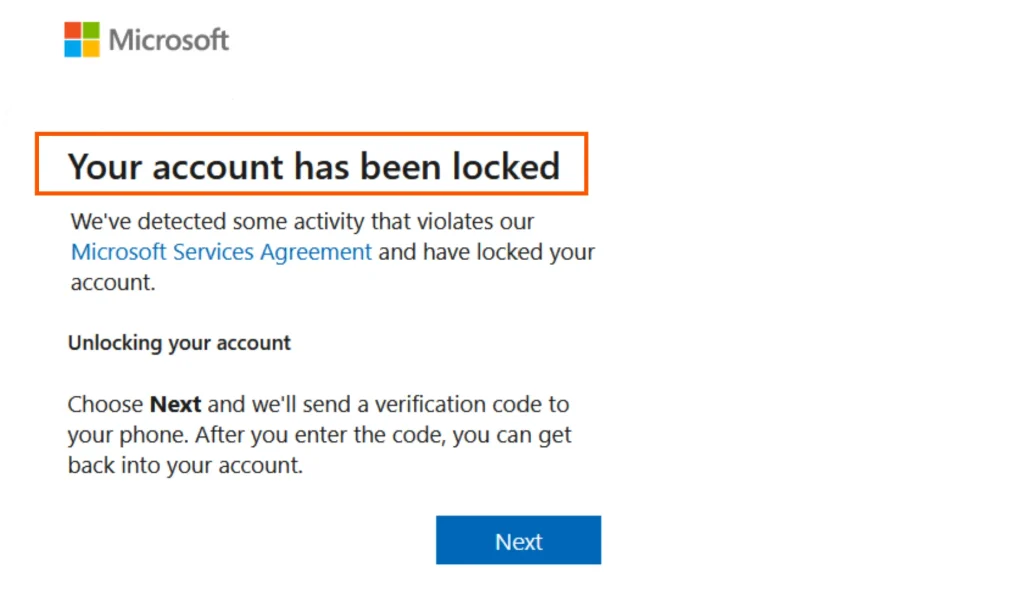
Unlock a Microsoft Account After Too Many Login Attempts in 6 Easy Steps
You can easily unlock your Microsoft account using these six simple steps. All the steps are designed and recommended after testing on the same scenarios and thereafter successfully unlocked account. You need to follow all these steps very carefully so let’s start with step number one.
Step 1: Stop Repeated Login Attempts Immediately
This is what you need to focus more and most of the users make mistakes so you can check what you need to avoid.
Don’t:
- Keep guessing passwords
- Spam verification requests
- Repeatedly click resend code
- Attempt login from multiple devices simultaneously
If you do any of these then this can extend the lock period.
Step 2: Reset Your Password
I would recommend you do this only once. Go to Microsoft’s official recovery page and reset password once.
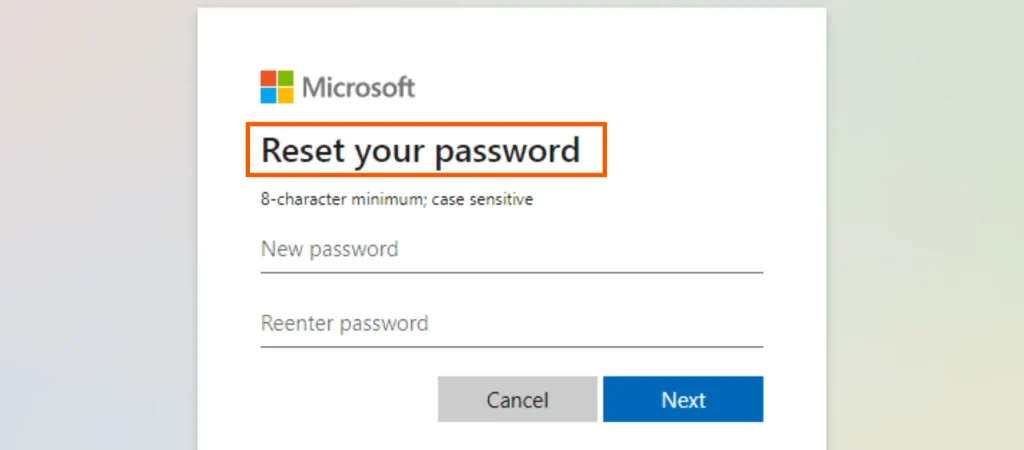
You must avoid resetting it multiple times in panic. Many users searching unlock Microsoft accounts so this will worsen the issue by repeatedly changing your credentials.
Step 3: Use Email Recovery Method
If your phone verification is failing well you can use backup email verification instead that would be the best option.
Step 4: Unlock Microsoft Account Without Phone Number
This step is helpful for those who want to know how to unlock a Microsoft account after too many login attempts without a phone number as many users lose access to old phone numbers so in case you can try:
- Use recovery email
- You can use authenticator backup codes
- Trusted devices
- Previously signed-in browsers
Step 5: Check If You are Still Logged in Somewhere
If you are thinking how to do this well don’t worry just check for:
- Outlook desktop
- Outlook mobile app
- Windows PC mail app
- Browser session
This may help you retain all temporary access.
Step 6: Secure Your Account After Recovery
Once you gain the access you can now change:
- Password
- Recovery email
- MFA settings
You can create email aliases to hide your primary login email as this will helps you stop future attacks.
What If You Need Important Outlook Emails During Lockout?
This is where many users get panic and they may urgently need:
- client emails
- invoices
- attachments
- legal documents
- business communication
If you see the Outlook remains inaccessible and you have local PST or OST files on your local system at this point of time you can use the trusted DataHelp PST Repair Tool to recover all your important mailbox data while Microsoft account recovery is still pending.
These reliable software can help you to:
- recover inaccessible emails
- repair damaged PST files
- extract mailbox content
- access offline Outlook data
This becomes very useful when your account lockouts last multiple days. It is important to recover all your important data without any delay. You can Download and Install this software and use Free Demo version to check your data file preview and upgrade once you need to recover your data safely.
How Admins Can Unlock Microsoft Accounts
For business environments people or admins can simply:
- review Azure sign-in logs
- unblock users
- reset MFA
- revoke risky sessions
- enforce conditional access policies
Final Thoughts
If you are trying to unlock a Microsoft account after too many login attempts well this can be incredibly stressful when you urgently need access to Outlook emails or business accounts.
The biggest mistake users are making is they generally panicking and repeatedly trying to log in their account, which you need to avoid.
Stop all the login attempts, wait for lock timers, secure your account first and you can use backup recovery options when you think it is necessary.
And if you are unable to access your Outlook emails during a lockout well you should use a reliable option such as DataHelp recovery tools. This tool is tried and tested by IT experts and stands best compared to others available. Using this tool you will regain full access to your important mailbox data without having to wait for Microsoft Support.