Convert PST to MBOX Without Outlook: A Simple Guide


Changing your email application from Microsoft Outlook to another one such as Thunderbird or Apple Mail is a common task. The problem here is the file format because Outlook uses PST files and other applications use the MBOX format. It is easy to convert PST to MBOX without Outlook whether you are a business user trying to save old archives or an IT admin migrating an entire team.
Today we will look at the effective ways of converting PST files without Outlook using both manual and professional methods. Most guides tell you to open Outlook to export your data but what if you do not have Outlook installed or if you are moving from a computer to a Mac?
Table of Contents:
Why Convert PST Files to MBOX Without Outlook?
Let’s understand why we need to convert PST without Outlook before we learn how to do it. A Personal Storage Table (PST) file is a Microsoft format where your data is stored while MBOX is an open-source format used by Apple Mail, Thunderbird and Eudora.
You will have to convert PST files without Outlook to access your messages if you have an old backup file but no active Microsoft 365 subscription. This is true if you have switched to a Mac or a Linux computer where Outlook is not the main application.
Note: Facing Similar Such Issue? Let’s Know the solution to convert PST to Thunderbird MBOX file format.
How to Convert PST to MBOX Without Outlook
There is a solution to convert your files whether you are a technical expert or someone who just wants their emails back. We will look at four methods for both Windows and Mac users starting with the free methods and moving into the expert solution for those users who have a lot of data or damaged files.
Method 1: Convert PST to MBOX Manually on Windows
You can use a free email client such as Mozilla Thunderbird as a middleman if you are using a Windows computer but do not have Outlook installed. This is a great way of converting PST files without Outlook if you have a small amount of data and extra time. You can also learn how to reduce PST file size to increase the speed of your migration. Use the following steps to convert your files:
- Install the free Mozilla Thunderbird app on your computer.
- You can use the ImportExportToolsNG addon as Thunderbird does not see the PST files without Outlook.
- Then go to the Add-on settings and select the Import PST option.
- Right-click the folder and select the Export Folder option to save it as an MBOX file.
Method 2: Convert PST to MBOX on Mac
The process is a little different for Mac users as Apple Mail has a built-in import feature that can sometimes read the contents of a PST file directly if the PST file is not too old or corrupted. This is an easy way for Apple users but it can be demanding for large files. Look at the steps mentioned below:
- Open Apple Mail, go to the File menu and click on Import Mailboxes.
- Select Microsoft Outlook or Files in PST format if the option is available.
- Then browse to the file that you want to change.
- Right-click the folder and select Export Mailbox to save it in the MBOX format.
Method 3: Using Google Workspace
If you run a business with a Google Workspace account then you can use Google’s own tool to help. This is an effective way to convert PST to MBOX without Outlook as it moves everything to the cloud and you can create a safe backup instead of changing the file name.
These steps can help you to convert your file:
- First download the official Google Workspace Migration.
- Upload the PST file to a Gmail or Google Workspace account.
- Then use an export tool like Google Takeout when the emails are in Gmail.
- Finally download the MBOX file to view your data.
Pro Tip: You may need a list of your clients rather than the full emails while you are organizing your archives. You can learn how to extract email addresses from PST file without Outlook if you are in this situation.
Method 4: Expert Solution to Convert PST to MBOX Without Outlook
The manual methods work effectively for small and healthy files but they take a lot of time. They also do not work for the larger and corrupted files. Using a professional tool can be useful in such situations as it is designed to read the PST files independently.
It does not need Outlook and it can process large and corrupted files easily. I have tested it myself and I found that it is one of the better tools as it can maintain the metadata of your emails such as the Sent, CC fields and attachments where they belong.
Why Use This Tool?
- Convert PST files to formats such as MBOX, EML, MSG and PST.
- Advance Scan to recover and export corrupted PST files.
- Provides an option to bulk convert the emails.
- There is no file size restriction to migrate our PST files.
- It is a standalone application so you do not need to download Outlook.
How to Use This Tool?
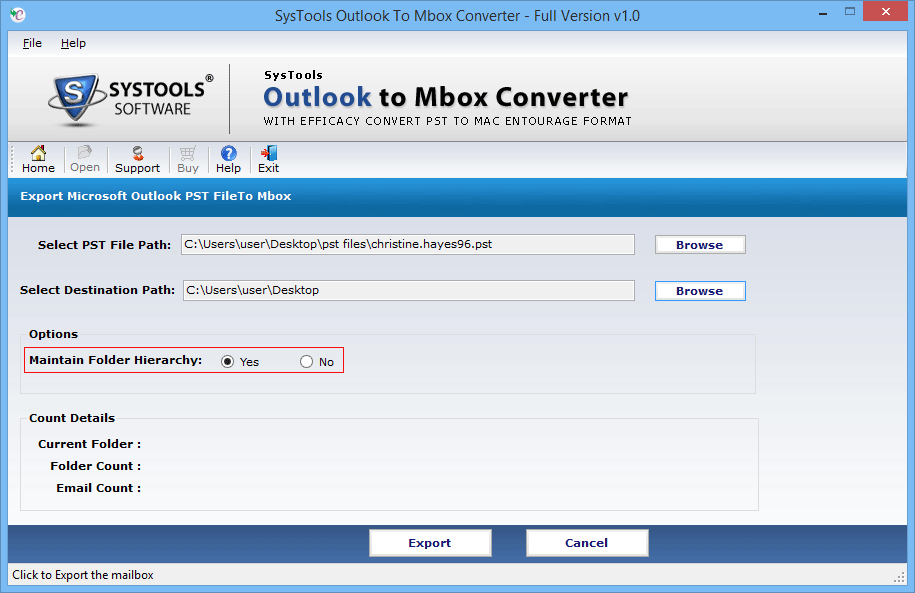
Step 1. Click the Browse button and navigate to open the Outlook PST file on the software panel
Step 2. After adding the required PST file, provide the desired location to save the resultant MBOX file.
Step 3. Select the Yes or No option to Maintain Folder Hierarchy.
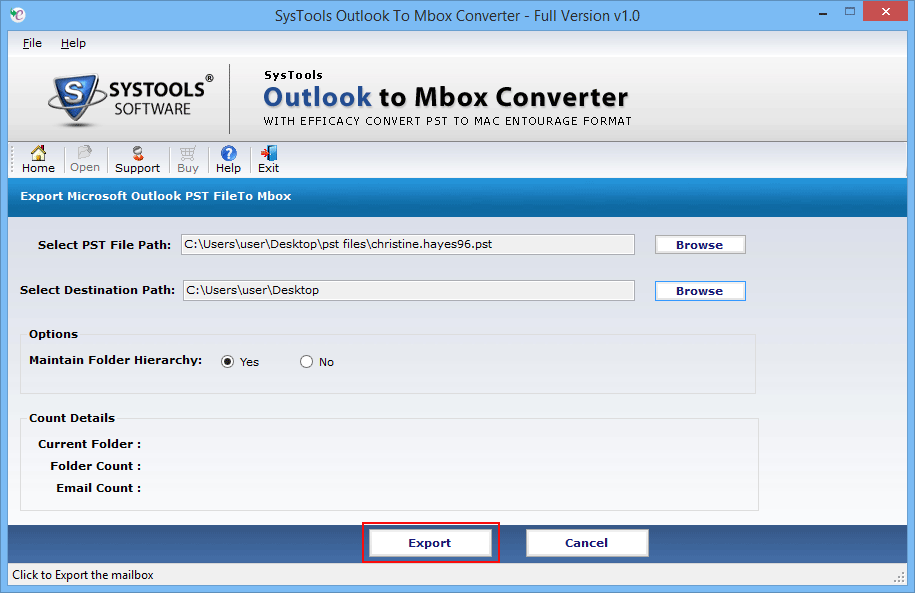
Step 4. Once all the required inputs are given, click the Export option to convert Outlook PST to MBOX.
Use a Professional Tool For Your MBOX Files
You can use the DataHelp MBOX to PST Converter Tool if you need to switch back to Outlook to import MBOX files into PST format while keeping the emails and attachments in place.
Frequently Asked Questions
Q1: Can I convert a password-protected PST file?
Ans. Yes, the professional tool can convert the password-protected files that the manual methods fail to do.
Q2. Will I lose my attachments during the conversion?
Ans. No, you will not lose your attachments if you use the right method. All the attachments are protected in the MBOX structure when you convert PST files to MBOX without Outlook using professional software.
Q3. Is MBOX better than PST?
Ans. Both MBOX and PST are good but MBOX is more flexible. It is compatible with almost every email application except Outlook which makes it the universal standard for email storage.
Q4. How long does it take to convert PST to MBOX without Outlook?
Ans. It takes about 5 to 10 minutes for a 1GB file depending on your computer’s speed and the tool you are using.
Conclusion
Moving your emails should not be a difficult task even if you do not have a copy of Outlook. We have seen that you can convert PST to MBOX on Windows using Method 1 which is a manual fix.. Then we looked at the Google Workspace method for advanced users which is also an effective way to convert the files. You can also convert PST to MBOX on Mac for the Apple users using Method 2 which provides easy steps for the users.
The manual methods are good if you have a few files but they can be slow and do not work if your files are large or damaged. The expert solution is an effective way for users who want a faster method without any error. You can convert your PST files and keep your data safe by following the methods mentioned above.