How to Import MBOX to Outlook?


If you are searching for how to import MBOX to Outlook well you are not alone as this is still something many users are struggling with. Even in 2026, thousands of users daily struggle to move their MBOX emails into Outlook because Outlook does not directly support MBOX files. So I will tell you exactly how you can import your MBOX files to PST Outlook format easily as we are covering practical methods, user actual pain points, some of the risks associated with and some of the safest solutions that actually work.
So now if you are migrating from Thunderbird/Apple Mail/Eudora or you are handling old email backups -You will find in this article what exactly works and what really fails and why so you can import MBOX to Outlook without losing your critical data.
Table of Contents:
- MBOX vs Outlook Compatibility
- Common User Import Problems
- Checks Before Importing MBOX
- Method 1: Import via Thunderbird
- Method 2: Drag & Drop Risks
- Why Manual Methods Fail
- Professional MBOX to PST Solution
- Manual vs Professional Comparison
- Data Safety & Recovery Risks
- Common Mistakes & Warnings
- Proven Migration Tips
- Frequently Asked Questions
- Final Expert Verdict
What Are the MBOX and Outlook Compatibility Issue
MBOX is a mailbox file format used by several email clients like Mozilla Thunderbird, Apple Mail, Eudora, Entourage and Linux based mail applications. Microsoft Outlook however works with PST (Personal Storage Table) files. This fundamental difference is the main reason why users always fail when they are trying to import MBOX to Outlook.
So even if I talk about the latest Outlook versions and Microsoft 365 there is no native option to import MBOX files. From a data recovery standpoint this is not any kind of bug as it is a design limitation. That’s why converting MBOX to PST becomes necessary for successful migration.
User Problems While Importing MBOX to Outlook
In practical cases as users searching for how to import MBOX to Outlook generally face more than just format issues and based on my recent recovery cases I can tell you that the most common problems include missing emails, broken folders and incomplete imports. Now you can find below what exactly the actual pain points of users:
- Outlook does not detect MBOX files
- Your large MBOX files fail during manual import
- Folder hierarchy gets flattened
- Attachments go missing
- Outlook freezes or crashes during the migration process
Important Checks Before Import MBOX to Outlook
Before you start any manual method to import your MBOX files to Outlook it is important for you to prepare properly. Many data loss cases occur due to skipped preparation steps so first make sure the following important checks:
- Create a backup copy of all MBOX files
- Check mailbox size (manual methods usually fail above 2 to 4 GB)
- Verify that Outlook is properly installed and functioning correctly
- Identify the source email client (Thunderbird, Apple Mail etc.)
Manual Methods to Import MBOX File into Outlook
You can try using 2 manual methods to import your MBOX file into Outlook format both methods have different functionality pros and also some limitations so check both steps carefully to finish your task.
Method 1: Import MBOX to Outlook Using Thunderbird
The Thunderbird method is the most widely suggested workaround to import your MBOX file into Outlook as it relies on Thunderbird acting as an intermediate email client.
So Lets Understand How This Method Works?
First you import your MBOX files into Thunderbird and then can easily move your emails to Outlook by using a configured email account.
Check What Basic Steps You Need to Perform
- First Install Mozilla Thunderbird
- Add your MBOX mailbox or profile
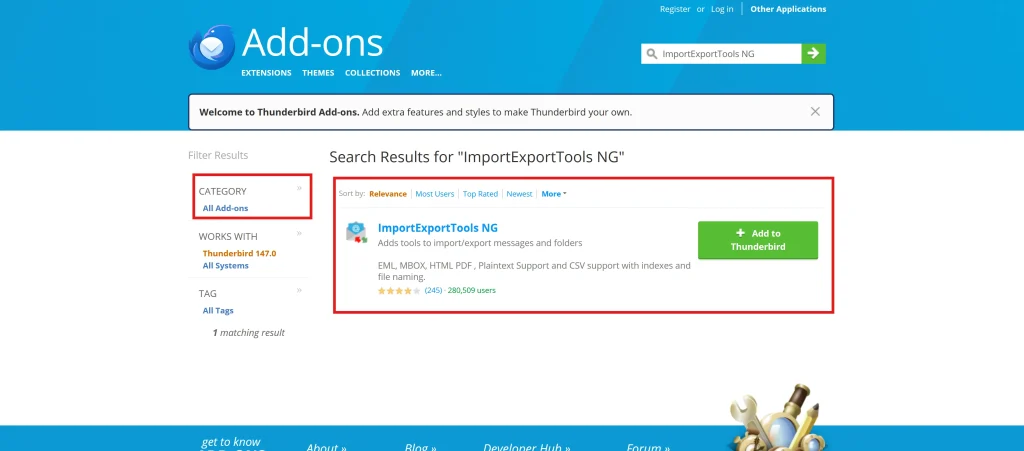
- Install the ImportExportTools NG add-on
- Now Import MBOX files into Thunderbird
- You can configure the same email account in Outlook
- Last just drag and drop emails from the Thunderbird folder to Outlook
Check Some Practical Limitations: If I talk about practical limitations well this method becomes unreliable when dealing with large mailboxes or multiple folders and archived data. From my experience I noticed users lose their folder hierarchy and metadata during drag and drop operations.
Method 2: Drag and Drop – But Not Reliable
Many users try to drag their MBOX files directly into Outlook and think Outlook will recognize them but does this really happen? Well unfortunately not because this method does not work as Outlook cannot read raw MBOX structures.
Therefore using this drag and drop solution is simply a waste of time and increases the risk of accidentally modifying the file. As a data recovery specialist I can tell you clearly that this method is not recommended at all.
Why Manual MBOX to Outlook Methods Fail Actually
Using manual methods to import MBOX files into Outlook might work but only in limited and ideal situations. However in a professional environment these methods often fail due to the large volume and complexity of the data.
You can check below some of the common failure reasons that includes-
- Mailbox size exceeding safe limits
- Character encoding issue
- Interrupted in drag and drop processes
- Outlook performance limitations
Automated Solution to Convert MBOX Files for Outlook
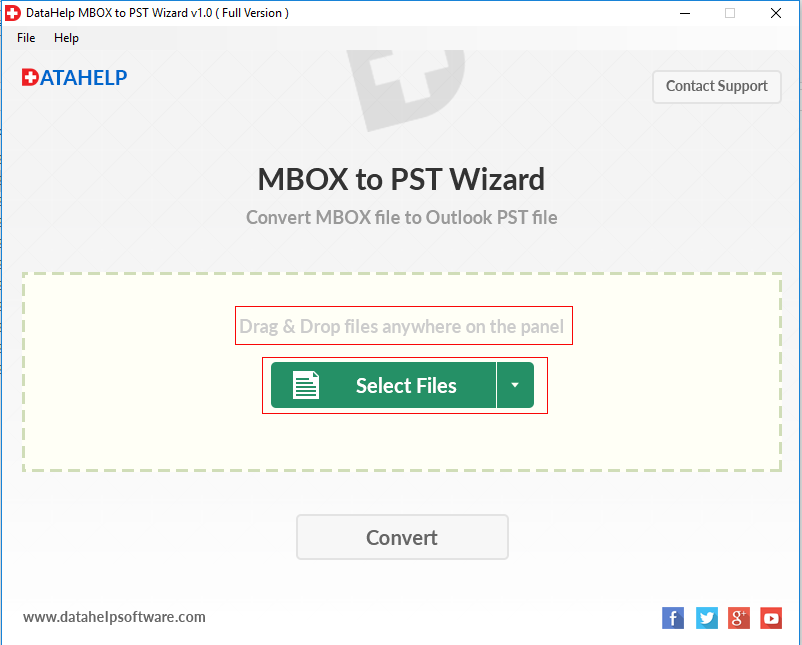
For secure and accurate migration professionals always rely on reliable MBOX to PST Converter Tool as the automated process is reliable yet fast and results in accurate folder file structure so converting the MBOX file to PST format allows Outlook to access your emails without any compatibility issues.
Why does it work?
- PST is natively supported by Outlook
- Folder structure remains intact
- Attachments and metadata are preserved
- Large and multiple MBOX files are handled securely
Manual vs Professional Method – Comparison Table
| Feature | Manual Methods | MBOX to PST Converter |
|---|---|---|
| Bulk MBOX Import | No | Yes |
| Data Integrity | Low | High |
| Folder Structure | Often Lost | Preserved |
| Attachment Safety | Risky | Secure |
| Time Required | Very High | Minimal |
Hidden Data Loss Risks During Email Migration
From a recovery perspective email migration should always be non destructive as converting MBOX to PST does not alter the original data which is important for auditing, compliance and for legal retention.
Avoid Costly Mistakes When Importing MBOX into Outlook
Warning: Do not overwrite any existing PST files during import as this can permanently damage your Outlook data.
Security Alert: You must avoid cracked and using unverified tools as they will expose your sensitive email content so stay safe and keep your data protected.
Process Alert: I would like to give you one pro advice that you should never interrupt migration once it has started with your large mailboxes.
Success Tips for Migration
- You should start with a small test batch
- Use Unicode PST for your large mailboxes
- Always verify email count after import
- And keep your original MBOX files archived
Pro Tip: A reliable and verified software using for MBOX to PST conversion is always consistent and gives you desired results on Windows 11 and future Outlook versions.
Frequently Asked Questions
Q1. Can Outlook import MBOX files directly?
No – Outlook does not support direct MBOX import so you need to convert it to PST file format first.
Q2. Is manual MBOX to Outlook migration safe?
Yes it is safe but only for small mailboxes if you try with large data it will increase the chances of failure risk.
Q3. What is the safest way to import MBOX to Outlook in 2026?
There is one best safe way and that is to convert the MBOX file into PST format using a professional solution.
Final Expert Verdict
Importing MBOX to Outlook remains challenging in 2026 due to format incompatibility as manual methods may work for limited cases only but from my point of view as a data recovery specialist MBOX to PST conversion is the safest, fastest and most reliable approach.
If you think your emails are valuable then you must avoid taking shortcuts and should give priority to protect your data first and migrate second.