How to Open MBOX File in Outlook Windows?


If you try to move your emails from a program like Thunderbird, Apple Mail or Google Takeout backup into Microsoft Outlook then you must have run into a dead end. When you double-click the file that ends with .mbox, nothing happens because there is no direct button to open MBOX file in Outlook.
Most email applications use the MBOX file format but Outlook has its own format which is PST. This difference in the old emails and the new inbox creates a language barrier. Today we will look at how to open the MBOX files using both manual and professional methods and also the best ways to open MBOX files without losing any attachments.
Table of Contents:
What is an MBOX File?
An MBOX file is a large digital storage box that stores your information. It contains every single email from a particular folder like your inbox and they are stored one after another.
Why is MBOX so popular?
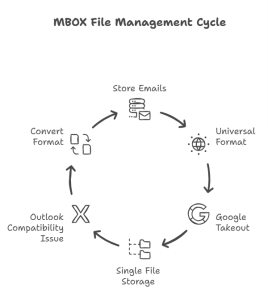
- Universal Format: Used by 20+ email clients including Thunderbird, Entourage, Eudora and Mac Mail.
- Google Takeout: You get the backup of your Gmail account as an MBOX file from Google.
- Single File Storage: It is easier to move one MBOX file than 5,000 individual email files.
Many people find that their MBOX file does not open in Outlook when they try the simple import settings as Microsoft has not built a way to open an MBOX file in Outlook. If you want to fix this issue then you have to change the MBOX files into a format that Outlook supports.
How to Open MBOX File in Outlook?
Now that we have seen what an MBOX file is let’s look at how to open MBOX file in Outlook. The steps mentioned below make it easy for the users to change from a simple mailbox format to the professional ecosystem of Microsoft.
Method 1: The Thunderbird & Gmail IMAP Way
This allows you the option to import MBOX files to Outlook without buying any software as it uses a Gmail account to carry your data from an MBOX application into Outlook. Use the following steps to open MBOX files:
- Enable IMAP: Log in to your Gmail account on a browser. Go to Settings > Forwarding and POP/IMAP and select Enable IMAP.
- Add Gmail to Thunderbird: Open Mozilla Thunderbird and add your Gmail account.
- Import MBOX: Download the ImportExportTools NG add-on in Thunderbird. Right-click on a local folder, select the add-on and click Import MBOX file.
- Connect to Cloud: Drag the imported emails from the Thunderbird local folder to your Gmail folder and wait for them to upload.
- Access in Outlook: Open Outlook on your PC and add the same Gmail account.
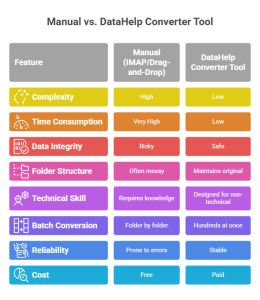
This method is free but it can be very slow for large files. Your internet speed will determine how long it takes for you to import MBOX to Outlook.
Method 2: The Manual Drag-and-Drop
The Drag-and-Drop method is an effective way to open MBOX file in Outlook only if you have a small number of emails.
- Open in Thunderbird: First upload your MBOX file to Thunderbird by using the steps in Method 1.
- Export: Right-click on the email folder → ImportExportTools NG → Export all messages as EML files.
- Open Outlook: Open Microsoft Outlook and create a new folder.
- Transfer: Open the folder on your desktop and drag it directly into the Outlook window.
This is effective only if you have a few messages but in this method the original date received can be lost and this can cause problems.
Method 3: The Expert Solution
The manual methods are effective but do not work for a large number of emails and take a lot of time. This is where the DataHelp MBOX to PST Converter Tool is effective as it is built to solve the problem of MBOX not opening in Outlook by converting the data into a format that Outlook uses.
Features of This Tool:
- Converts the MBOX files to PST, EML, MSG, NSF, PDF, HTML, CSV, and EMLX formats by using the Drag-and-Drop option.
- Preview all the MBOX file properties before exporting to PST.
- Convert bulk single and multiple MBOX files to PST.
- Helps to maintain data integrity, mail formatting and folder hierarchy.
- Converts large-sized MBOX files to PST format.
Steps to Use This Tool:
- First Download and launch the tool.
- Add File: Click the select files button and locate your MBOX file from the archive.
- Preview: This tool allows you to see the emails before you convert them.
- Convert: Select PST as the export option and click on the Convert button.
- Import to Outlook: First open the Microsoft Outlook application and then go to File > Open & Export > Import or Export. Finally select the PST file created by the tool.
This is the fastest way to open MBOX file in Outlook without any technical errors or data loss.
Frequently Asked Questions (FAQs)
- Can Outlook open MBOX files?
Microsoft Outlook does not have a built-in feature to open MBOX files directly. You have to convert the data to a PST file or use an IMAP account as a bridge to import mbox to Outlook.
- How can I open my MBOX file on Windows?
To view the contents on Windows you can use a free MBOX viewer and open it in a text editor like Notepad or use an email client like Thunderbird. If you want to open MBOX files using Outlook then conversion is required.
- How to convert MBOX to Outlook?
The most efficient way is to use an expert solution as it changes the MBOX format into a PST file which can then be imported into Outlook using the Import or Export wizard.
- What program can open MBOX files?
Mozilla Thunderbird, Apple Mail, Eudora and Entourage are the common programs that support the MBOX format. For Windows 11 users Thunderbird is the most common free choice.
Final Thoughts
We have covered that in the Microsoft application there is no open button for MBOX but you can still open MBOX file in Outlook by using the right strategy.
For the small tasks and less files the manual drag-and-drop or the Thunderbird-Gmail sync methods work well. But if you are an IT professional or a business user who cannot afford to lose time and metadata then the professional tool mentioned is an effective way. It ensures that the problem is solved and allows you to import MBOX to Outlook.
You can open MBOX file using Outlook and keep your digital archives secure by following the steps mentioned above.