How to Recover Data from a Damaged USB Drive?


A damaged USB drive can create a very stressful situation particularly when it contains photos, work files, documents or any other important data that you cannot replace easily. If you are trying to Recover Data from a Damaged USB Drive then the first thing you must understand is that “damaged” can mean different things. The USB may be corrupted, showing the wrong file system, disconnecting repeatedly or simply it does not open your files. The right recovery method completely depends on what has actually gone wrong.
But the good news is that a USB drive that appears damaged is not always physically dead. However in many cases this problem is related to the file system or partition and your data may still be recoverable. But before you try any random fixes you need to avoid some of the actions that could make the situation worse.
This guide will explain to you how to recover data from a damaged USB drive safely from starting with simple methods and then moving to a dedicated recovery solution when manual methods are not enough.
- Damaged USB Drive Mean?
- Flash Drive Detected but Won’t Open
- Why USB Drive Become Damaged?
- Computer Does Not Detect the Flash Drive
- Can Recover Data from a Damaged USB Drive?
- Recover a Damaged Flash Drive Without Formatting It?
- First Step: Stop Using Damaged USB Drive
- Can You Recover Deleted Files from a Flash Drive Without Software?
- How to Recover Data Manually?
- Method 1: Check the USB Connection
- Method 2: Check for Hidden Files
- Method 3: Check the Flash Drive in Disk Management
- Method 4: Try CHKDSK Carefully
- Advanced Method – Use DataHelp Solution
- Be Careful With Online Recovery Tools
- Can You Recover Data from a Damaged Thumb Drive?
- What About a Corrupted External Hard Drive?
- Conclusion
What Does a Damaged USB Drive Actually Mean?
Before you start recovery you should ask yourself one simple question – What exactly is happening when you connect the USB drive? A damaged USB drive may show one of several symptoms as mentioned below you can check and confirm:
- Windows detects the USB but you cannot open it.
- The drive asks you to format it before use.
- Files or folders have disappeared.
- The USB drive appears as RAW.
- The drive shows 0 bytes or an incorrect capacity.
- Files open with errors or appear corrupted.
- The USB disconnects while you are trying to access it.
- The drive is not detected at all.
These symptoms do not all have the same cause.
When a Flash Drive Is Detected but Won’t Open
So the biggest question is How to recover data from a flash drive if it won’t open Sometimes it happens that Windows detects a flash drive normally but you cannot simply open it or access your files stored on it. This does not mean that your data is gone. But the problem may be caused by file system corruption, damaged partition information or any other logical errors. So before you trying to repair your drive you should check these few basic things:
- Connect the flash drive to another USB port.
- Try the drive on another computer if available.
- Check whether Windows shows the correct or approximate storage capacity.
- You can open Disk Management and see whether the flash drive appears there or not.
- Do not format the drive if Windows asks you to format it.
If your flash drive is detected with its expected capacity but Windows cannot open it well then there are still high chances that your data may still be recoverable. In this situation it is much safer to attempt recovery before you make any changes to the drive’s file system.
If the flash drive is not detected at all however you should follow a different troubleshooting and recovery approach.
Why Does a USB Drive Become Damaged?
USB flash drives can become damaged due to some specific reasons. Some are caused by normal use where others happen suddenly. Look at these common causes before you go to Recover Data from a Damaged USB Drive:
- Removing the USB drive when files are being written.
- Sudden power interruption during file transfer.
- File system corruption.
- Malware or other software problems.
- Bad or failing flash memory.
- A damaged USB connector.
- Physical impact or water damage.
- And repeatedly using an aging flash drive.
A USB drive can also become corrupted after an interrupted transfer so you may see the drive normally in Windows but some folders or files may no longer be accessible.
When the Computer Does Not Detect the Flash Drive
A more serious situation occurs when the computer does not detect the flash drive at all and now many users think “How to recover data from a flash drive that the computer doesn’t detect”. Well you should first make sure that your drive is genuinely undetected rather than simply missing from File Explorer.
Check the flash drive in Disk Management and Device Manager. If Windows can see the device but it does not appear in File Explorer then the problem is surely related to the drive letter, partition or file system. The situation is more concerning if the flash drive:
- Does not appear in Disk Management.
- It shows you 0 bytes or No Media.
- Is not detected on multiple computers.
- It repeatedly connects and disconnects.
- Has a physically damaged USB connector.
So now do not initialize, format or create any new partition on your flash drive if it contains important files as these actions will modify information that may still be needed for recovery.
If a flash drive is completely undetected on multiple computers the problem may involve the USB connector, controller or flash memory itself. Here software recovery may not be able to access the storage in this situation and professional flash media recovery may be necessary for your valuable data.
Quick Suggestion: You can read this article also USB Files Missing But Space Still Used Why? How Can I Fix This?
Can You Recover Data from a Damaged USB Drive?
Well the answer is YES as in many cases you can Recover Data from a Damaged USB Drive particularly when Windows can still detect your device and the problem is logical rather than physical. Now recovery is generally more promising when:
- Your USB drive is detected by Windows.
- The correct or approximate storage capacity is displayed.
- Files disappeared after accidental deletion or corruption.
- Windows shows a RAW or inaccessible file system.
- And the USB drive was accidentally formatted.
However recovery becomes more difficult when the USB drive has significant physical damage, a controller failure or flash memory that has reached the end of its lifespan.
There is no recovery method that can guarantee you every file will be recovered. The condition of your storage device and whether your original data has been overwritten both matter most.
Can You Recover a Damaged Flash Drive Without Formatting It?
The answer is YES as in many cases you can recover data from a damaged flash drive without formatting it.
If Windows displays a message such as “You need to format the disk before you can use it” then in this case you do not immediately format the drive when your files are important. This message can appear when Windows cannot correctly read the existing file system.
The underlying data may still exist on the flash drive even though Windows cannot access the normal file and folder structure. So you must use the safer approach:
- Stop writing new data to the flash drive.
- Do not format or initialize it.
- Check whether Windows detects the drive and shows its expected capacity.
- Try to recover the important files before making changes to the file system.
- And save recovered files to a different drive.
Formatting may create new file system structures and it can make recovery more difficult for you especially if your original data is later overwritten.
Therefore if your goal is to Recover Data from a Damaged USB Drive without formatting it so recovery of your data should come before formatting or repair attempts.
First Step: Stop Using Damaged USB Drive
This is the most important thing you should do before trying any recovery method. If your USB drive still contains important data then do not copy new files to it, format it or repeatedly test different repair commands.
When you save new data to a damaged or partially recoverable drive then in this case the new information can overwrite your existing data. Once your original data has been overwritten now recovery may become much harder or impossible.
So What You Should Do Now?
You just need to connect the USB drive only when necessary and must avoid unnecessary operations.
If Windows displays: “You need to format the disk before you can use it.”
Then you do not immediately click Format if your files are important as formatting may change the file system structures that recovery software needs to locate your existing data.
Can You Recover Deleted Files from a Flash Drive Without Software?
Sometimes you can recover your deleted files without the need of dedicated recovery software but the options are very limited.
First you need to check whether your files were actually deleted or are simply hidden or inaccessible. You can also check the Recycle Bin if the deletion occurred through Windows and look for an available backup or another copy of the files.
Windows also provides built-in recovery tools such as Windows File Recovery for supported scenarios. However there is no universal Windows command which is capable of recovering any file that is permanently deleted from a flash drive.
So if your files were permanently deleted and no backup is available then you should avoid saving anything new to the flash drive. And you need a dedicated Data Recovery Tool.
How to Recover Data from a Damaged USB Drive Manually?
Method 1: Check the USB Connection
You should try another USB port or you can simply connect your flash drive to a different computer. This helps you determine whether the problem is with the port, computer or flash drive itself.
Method 2: Check for Hidden Files
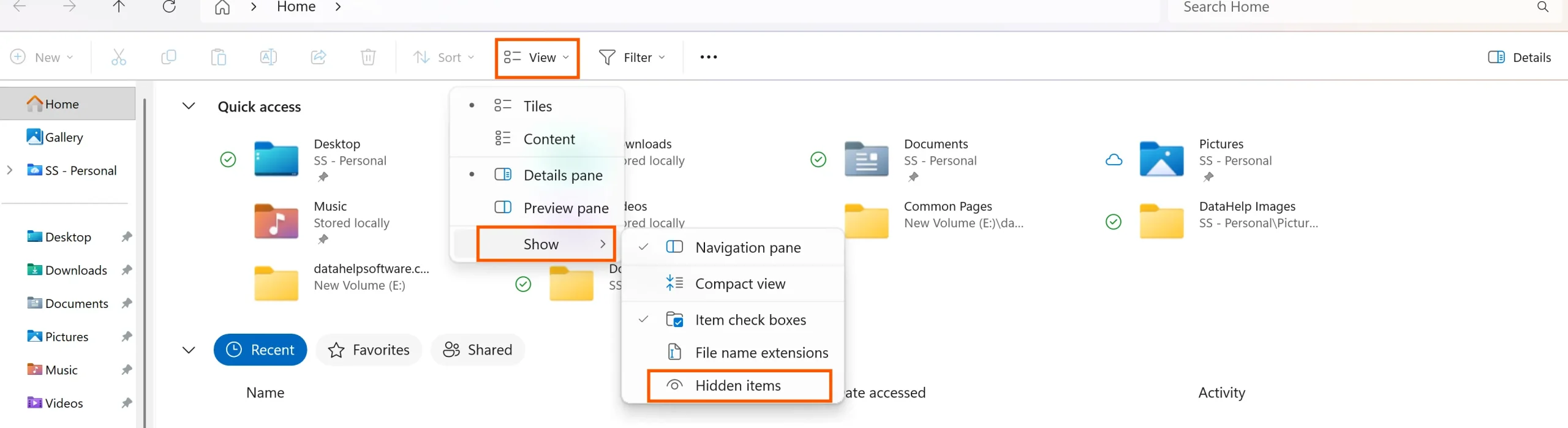
If you notice that the flash drive opens but some files are missing then check whether they are hidden rather than deleted. You need to enable hidden items in Windows File Explorer and look for the missing files.
Method 3: Check the Flash Drive in Disk Management
Windows Disk Management can help you determine whether the computer can still recognize the flash drive even when it does not appear normally in File Explorer.

And for this you just need to press (Windows + X) and select (Disk Management). Now look for the flash drive and check how Windows identifies it. You may see all these different situations:
- The drive is visible with the correct capacity but has no drive letter: Windows may simply be unable to assign or display the drive normally.
- The drive appears as RAW: The file system may be corrupted or unreadable.
- The drive appears as Unallocated: Partition information may be missing or damaged.
- The drive shows 0 bytes or No Media: The problem may be related to the flash drive’s controller or physical hardware.
So do not format, initialize or create a new partition simply because Windows gives you these options. If your flash drive contains important data then your first priority should be recovering the existing files before changing its structure.
Method 4: Try CHKDSK Carefully
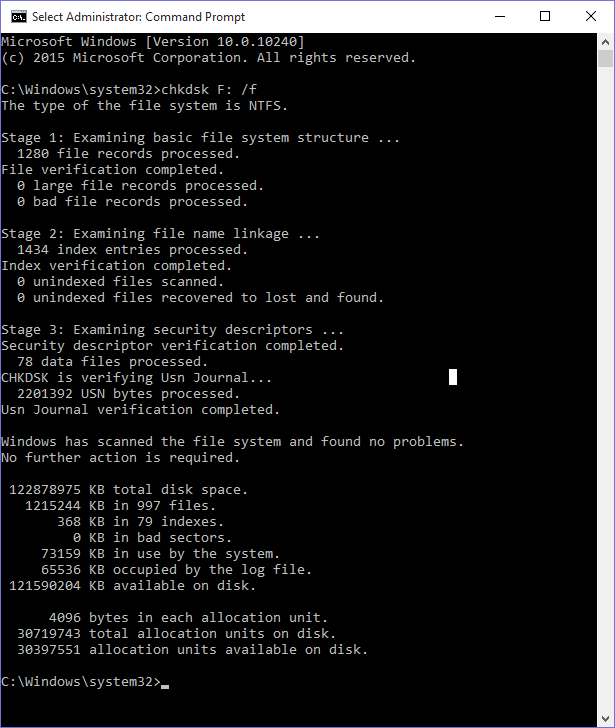
You might find online recommendations that advise you to run CHKDSK whenever a USB drive is corrupted.
Be careful.CHKDSK is a file system repair utility and it is not a dedicated recovery tool. It can repair your certain logical file system problems but if you are running repair commands on a drive that contains important unrecovered data can sometimes change file system structures.
Therefore I would not make CHKDSK your first choice when the data is important and you do not have a backup.
Use DataHelp Software to Recover Data from a Damaged USB Drive
If your flash drive is detected but has a logical error, corrupted file system, RAW status or inaccessible files then DataHelp USB Drive Recovery Software can help you scan your drive deeply and recover all the available data.
It is important for you to remember that recovery software is suitable mainly for logical problems. If your flash drive has a broken connector, controller failure, severe physical damage or is not detected by the computer at all well in such case software may not be able to access the stored data. In such cases professional lab service recovery may be required.
Why You Should Be Careful With Online Flash Drive Recovery Tools
You may find some online tools that claim to recover files from a damaged flash drive directly through a website. These services may look very convenient but they are not always suitable for serious recovery situations. You can check below some of the major reasons why you should avoid this:
- An online service may require you to send your files or disk content to a remote server.
- Privacy can be a concern as your flash drives often contain personal photos, documents, financial records or any other sensitive information.
- They cannot repair physical damage
- Large amounts of data take time to upload and are impractical.
- Unstable drives can repeatedly disconnect.
- And recovery is not guaranteed.
If the drive contains important data then a local recovery method is more practical as this is because the recovery process allows you to read the flash drive directly and save all recovered files to a separate storage device.
Can You Recover Data from a Damaged Thumb Drive Without Formatting?
Yes – potentially. If you are searching for how to retrieve data from a damaged thumb drive then formatting should not be your first step when the files are important.
A USB drive can sometimes become inaccessible due to its file system information being damaged where the underlying file data remains on the storage media.
In that situation recovery software is able to locate the files without requiring you to format the drive first. The key is to recover the data before formatting or writing new files.
What About a Corrupted External Hard Drive?
This is a very similar problem that can happen with external hard drives but a hard drive and USB flash drive are not exactly the same type of storage.
If you are researching to recover data from a corrupted external hard drive then the basic safety rules are similar:
Stop writing → avoid formatting → check whether the drive is detected → recover important data → save recovered files somewhere else.
However clicking sounds, severe mechanical problems or any repeated hardware failures on an external HDD should be treated differently from logical corruption on a USB flash drive.
Conclusion
If you need to Recover Data from a Damaged USB Drive then you must avoid formatting or writing new files before trying recovery. Check how Windows detects the drive, use manual methods carefully and choose a dedicated recovery solution as suggested when your files remain inaccessible. If your flash drive has any serious physical damage or is not detected anywhere then you must go for professional lab recovery.