How to Save PST File in New Outlook?


Email is still a vital tool for corporate and personal users to communicate in today’s digital environment. Many Outlook users ask How to Save PST File in New Outlook?
Especially when you plan to migrate computers, backing up emails or archiving your old messages. With Microsoft’s updated New Outlook interface (for Windows and macOS) the process may look a little different from older versions (Outlook 2016, 2010, or Outlook Web) but the goal is the same to export your mailbox data into a PST file that you can store, transfer or restore later.
You will learn through this guide why saving PST files is useful, when you should do it, and how to do it properly in the New Outlook with clear steps and useful visual tips.
What Is a PST File and Why Save It?
A PST (Personal Storage Table) file is a local data file used by Outlook to store the following data:-
- Emails
- Contacts
- Calendars
- Tasks
- Notes
Think of a PST as your offline email archive which is similar to exporting your notebook into a folder you can easily carry anywhere. Saving or exporting your emails and folders into a PST file is very important when:-
- You are switching your computers
- Upgrading or reinstalling Outlook
- You need to secure backup copies
- If you want email archives for long term storage
- And migrating between accounts
You can also read How to Extract Email Addresses from PST File Without Outlook.
How to Save PST File in New Outlook – Step by Step
Here you can check below how to save your Outlook data as a PST file in the New Outlook app for Windows and Mac both.
Step 1 – Open the New Outlook App
- Just Launch New Outlook on your computer system.
- Go to the Settings (gear icon) or you can use the main menu.
Step 2 – Access the Export Option
In the new Outlook interface Microsoft has updated the way you export. If you see the File menu or Settings → Export Mailbox option:-
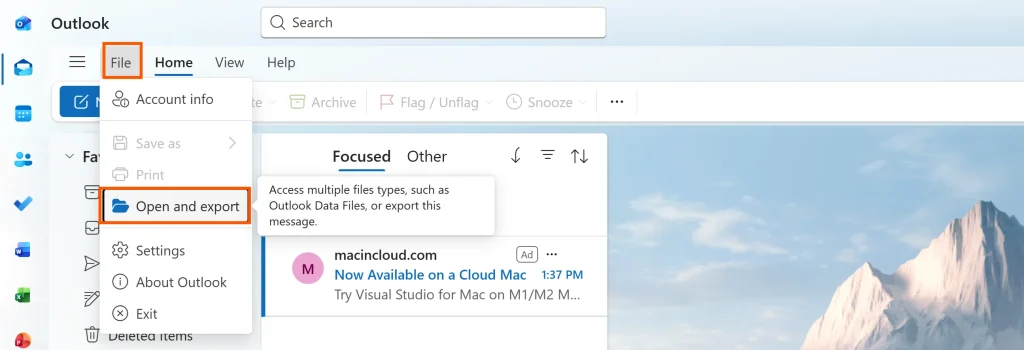
- You need to Click File → Open and Export (or Settings → Export).
- Select Export to a file.
On some Microsoft 365 builds of the New Outlook you may see the “Export mailbox” directly in the Settings menu instead of File. If so you need to simply select that.
Step 3 – Choose PST Format
If you see multiple export formats in such situation you need to choose:-
Outlook Data File (.pst)
This ensures you are saving a complete PST file that includes the following important elements:-
- All mailbox folders
- Contacts
- Calendar entries
- Emails
- Attachments
Step 4 – Choose What You Want to Export
Here you need to choose:-
- The entire mailbox
- Specific folders
- Only Sent Items or Inbox
For example:- if you need only the contacts or a project’s emails well you can only select those folders.
Step 5 – Select the Location and Save It
You can now select a secure area on your external disk or computer:-
- On a Desktop
- External Hard Drive
- And Documents Folder
After that all you have to do is to select the Save or Export option.
Final Step – Confirm Your Export
Now this is the last step and once the process completes you need to:-
- Launch the Windows File Explorer
- Go to the location of the PST file
- Verify that the file size corresponds to the contents of your mailbox
Your PST file has now been successfully stored in the new Outlook!
What Happens If Export Options Are Not Visible?
This makes you the most trouble when you can not see export option well this happens when:-
- You are using Outlook for Microsoft 365 (New Outlook) and where export is managed through the cloud or admin portal.
- If you have a lighter Outlook Web version
- And when you are on a restricted business profile
So What We Can Do In These Cases?
You Can Use the Classic Outlook Export Tool
Even when New Outlook is active you can still install the classic Outlook app (from the Office 365 or 2019/2021) and you can easily follow the export wizard. This classic export wizard gives you more control and answers your questions:
- how to save Outlook email as PST file
- how to save emails to PST file Outlook 2016
- how to save PST file in Outlook 2010
Use Microsoft 365 Admin Center
So if you are using Outlook through a corporate Office 365 subscription well admins can easily export their mailboxes through the Compliance Portal or using the eDiscovery tool.
What If Your PST File Won’t Open After Export?
Sometimes after exporting many users find that the PST file is not able to open properly or displays a corruption error. Well this could be due to interruptions in the export process or a large mailbox size. In such cases using a reliable PST Repair Tool can help you repair your corrupted PST files and restore access without data loss.
Export From Outlook Web
If you are using Outlook Web (OWA) then you will find that there is no direct “Save as PST” option now if you are thinking what to do well let me explain to you in such situation you must download via:-
- Outlook desktop app
- Admin eDiscovery export
- Third party backup tools
So the direct browser version does not let you “Save PST file to Outlook Web” by default.
FAQs
Q1. Why can’t I find the Export option in New Outlook?
By the way some newer Outlook versions have the Export/PST saving feature either:-
- Hidden under Settings
- Only available in Classic Outlook
- Managed by Microsoft 365 admin
And you can use Classic Outlook if you don’t see the option.
Q2. Can I export only specific folders to PST?
Yes you can export but when you are exporting you can choose the following elements:-
- Inbox
- Sent Items
- Custom folders
Q3. Will exporting to PST delete my original emails?
Not at all as exporting to PST creates a copy of your data and your original mailbox will remain unchanged.
Q4. How to save emails to a PST file in older versions like Outlook 2010/2016?
In older Outlook versions you need to follow these steps:-
- Go to File → Open & Export
- Choose Import/Export
- Select Export to a file
- Choose Outlook Data File (.pst)
And let me tell you clearly this method is very similar to the New Outlook export and just under a different menu label.
Export in Different Outlook Versions
| Outlook Version | Export to PST | Notes |
|---|---|---|
| New Outlook (2026) | Yes | Via File/Settings or Admin |
| Outlook 2016 | Yes | Classic wizard |
| Outlook 2010 | Yes | Classic wizard |
| Outlook Web | No | Use Desktop or Admin tools |
| Microsoft 365 Admin | Yes | eDiscovery export |
Best Practices for Saving PST Files
By following the proper backup habits will ensure that your PST file will remain safe and accessible to use in the future and a small mistake during the export or storage can lead to corruption and a data loss. To ensure your PST export is safe and effective you just need to follow these advice:-
- Always name the PST file with the date and description.
- The backup can be stored on an external drive.
- should prevent any disruptions while exporting.
- If your mailbox is huge, you will need to maintain numerous PST backups.
- And periodically archive your old PST files.
Final Thoughts
No matter what device or Outlook version you are using knowing how to save a PST file in the new Outlook provides you total control over your email data and understanding the proper export procedure can prevent needless worry and data loss whether you are moving to a new computer, backing up all of your essential emails or just creating a long term archive.
Therefore you may easily switch to classic Outlook or ask your Microsoft 365 administrator for assistance if you are unable to find the export option in the new Outlook interface.