Where is the Outlook OST File Located?


If you are trying to find your Outlook OST file location but you are not able to figure out where it is stored well you are not alone as many Outlook users are struggling with the same and search for where is the Outlook OST file located when they want to back up data, fix errors, or want to migrate emails to another system.
Don’t worry, finding the OST file is very simple once you know the correct path. So in this guide you will learn the exact location of OST files in Windows 11, Windows 10, and Outlook 365 along with practical ways to access them safely.
Table of Contents:
- Quick Answer: Default Outlook OST File Location
- Where Is OST File Located in Outlook
- OST File Location in Windows 11
- OST File Location in Windows 10
- Outlook 365 OST File Location
- OST File Location by Outlook Version
- Find OST File Location from Outlook
- Why Users Need OST File Location
- Can You Change OST File Location
- Change OST File Location Using Outlook
- Important Things to Know About OST Files
- When You Need OST File Location
- OST vs PST File Location
- Pro Tips for Managing OST Files
- FAQs
- Conclusion
Quick Answer: Where is the Outlook OST File Located?
The default location of your Outlook OST files in most systems is:-
Let me tell you that this is the standard folder where Microsoft Outlook stores offline data files and if you were wondering where is OST file located this is the very first place you should check.
However since the AppData folder is hidden by default now many users here can not find it easily so below you can find step by step proven methods to locate it quickly.
Where is the OST File Located in Outlook?
Many users ask where the OST file is stored or where the Outlook keeps my offline mailbox data. Now let me explain that Outlook creates an OST known as (Offline Storage Table) file so when you configure the following settings:-
- Microsoft 365 account
- Exchange account
- Or IMAP account
Now this file stores a synchronized copy of your mailbox so you can access your emails even if there is no internet connection. The default storage location remains the same in most Outlook versions but the steps to access it vary depending on your Windows version.
Also Read:- Outlook Data File Cannot Be Accessed Error (0x8004010F)
Where is the Outlook OST File Located in Windows 11?
If you are a Windows 11 user and trying to find where the ost file is located on Windows 11 so you just need to follow these simple steps.
Method 1:- Use Quick Run Command
- Just Press Windows + R
- And Type the Following:- %localappdata%\Microsoft\Outlook
- And Press Enter
This will directly open the folder where your OST files are stored. This method works best if you are looking for the fastest .OST file location as this method works quickly without browsing through hidden folders.
Method 2:- Using File Explorer
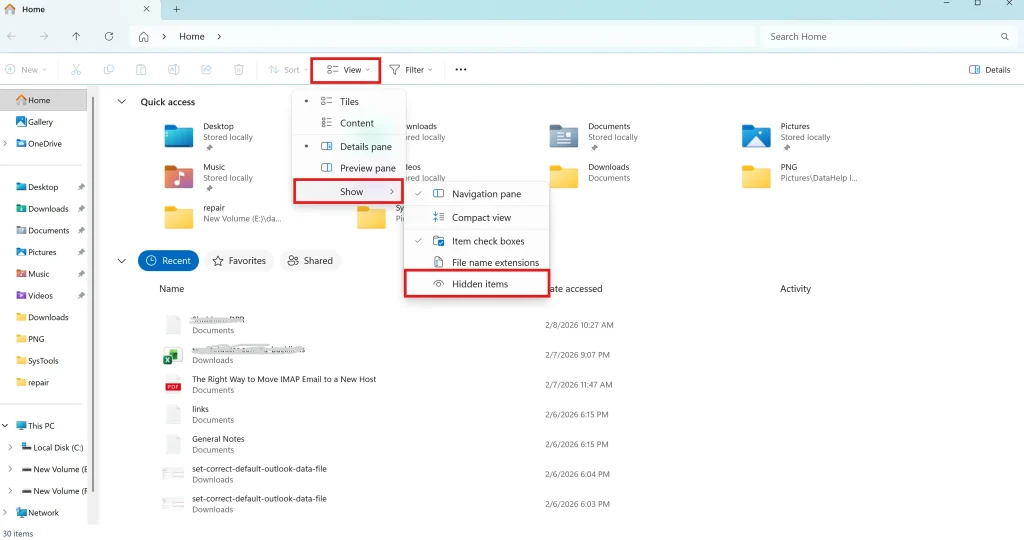
- Open File Explorer
- Click on View > Show > Hidden items
- Navigate to: (C:\Users\YourName\AppData\Local\Microsoft\Outlook)
Here you will see your OST file.
Where is the Outlook OST File Located in Windows 10?
The OST file path in Windows 10 is almost identical if you are wondering where is my ost file located you need to follow these steps:-
- Open Control Panel
- Click Mail > Data Files
- Select your account
- Click Open File Location
Well this will take you directly to the OST file folder as this method is easiest because Outlook itself opens the exact folder.
Where is Outlook 365 OST File Location?
If you are using Microsoft 365 so the storage location will remain the same. Many of you wanted to know outlook 365 ost file location when backing up or migrating their systems. So you can check below the default path.
So even in Outlook 365 (2026 update) – Microsoft is still stores OST files locally in this folder unless a custom configuration is applied by the IT administrator.
Also read:- How to Create Shared Mailbox in Office 365?
Outlook OST File Location by Version
| Outlook Version | OST File Location |
|---|---|
| Outlook 365 | AppData\Local\Microsoft\Outlook |
| Outlook 2021 | Same default path |
| Outlook 2019 | Same |
| Outlook 2016 | Same |
| Outlook 2013 | Same |
| Outlook 2010 | Documents\Outlook Files |
How to Find OST File Location from Outlook?
Well this is the best practical method If you cannot manually find the file you can use Outlook to open its exact location, find the useful steps below:-
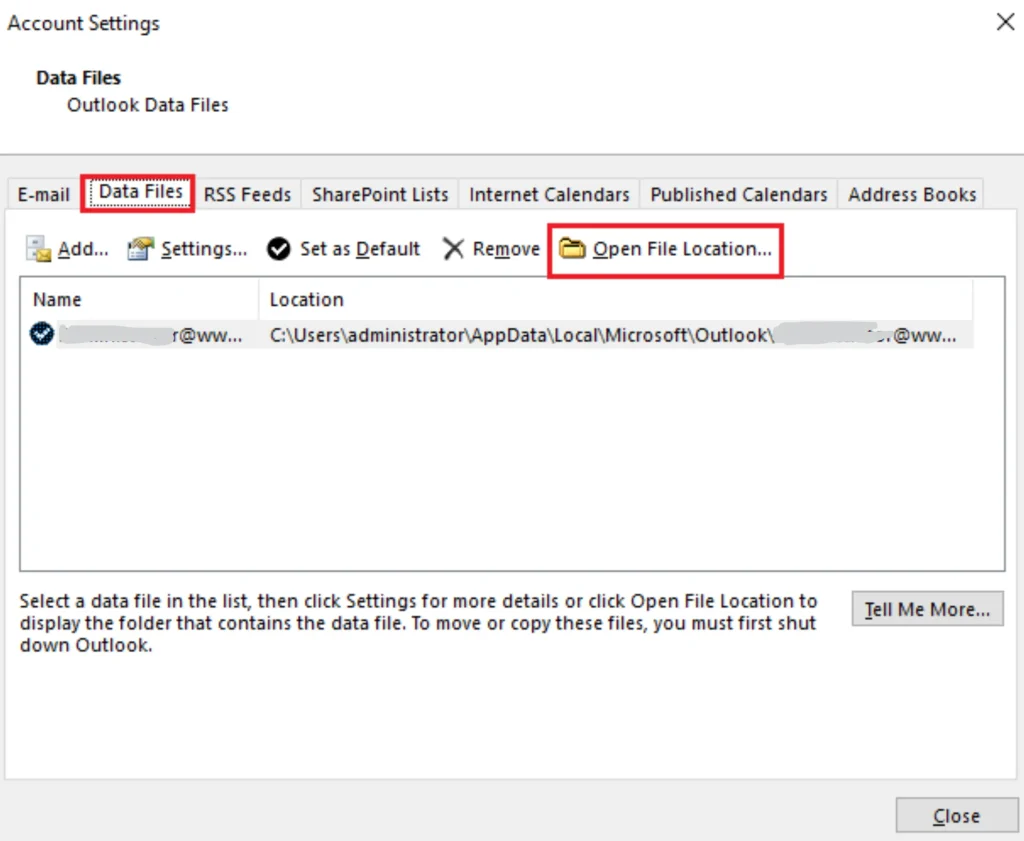
- You Need to Open Outlook
- Just Click File
- Go to Account Settings > Account Settings
- Open Data Files tab
- Select account → Now Click Open File Location
This method is useful if:-
- There is Multiple Outlook profiles exist
- You don’t know file name
- You need exact active OST file
This is the most easiest way to find where is outlook ost file stored without guessing.
Why Do Users Need to Find OST File Location?
Understanding where is the Outlook OST file is located helps you in many real situations. Based on recent queries and support cases the people usually need the OST file for the following reasons:-
- To Backup Outlook emails
- Want to Move data to new computer
- Fix Outlook errors
- Convert OST to PST
- Recover mailbox data
- Free up disk space
In many troubleshooting cases locating the OST file is the first step before you are applying any fix.
Can You Change OST File Location?
This is one of the most asked questions and let me tell you technically Outlook does not allow direct manual relocation of OST files because of these reasons:-
- OST is linked to Outlook profile
- Connected with Exchange or IMAP server
- Automatically recreated if deleted
However if you are an advanced user you can change the location using registry edits or simply by creating a new profile. This should only be done carefully because incorrect changes may cause sync errors.
Change OST File Location Using Outlook – Old Versions Only
You need to pay attention as this method works only in older Outlook versions like 2010, 2013 and earlier so if this is your case you can follow the steps:-
Step 1: Open your Outlook and go to File > Account Settings > Account Settings
Step 2: Click the Data Files tab
Step 3: You can select your Exchange account and click Settings
Step 4: Go to Advanced tab
Step 5: Uncheck Use Cached Exchange Mode
Step 6: Click OK and restart Outlook
Important Things to Know About OST Files
My practical advice to you is to keep these points in mind before moving your .ost file
OST files are profile linked
It cannot be opened directly like PST
Deleting OST will resync mailbox
Manual editing may corrupt your file
So if your goal is to migrate or backup it is always better to copy your file safely rather than modify it directly.
When You Need OST File Location?
In recent Outlook troubleshooting scenarios users searched for where is the Outlook OST file located when their:-
- Outlook stopped syncing
- System crashed
- Switching to new laptop
- Backup before reinstall
- Converting mailbox to PST
So this is important as knowing the correct location helps you avoid panic and speeds up recovery. If your OST file becomes inaccessible or Outlook stops working suddenly you can use a reliable OST to PST Converter that can help you safely access and restore your mailbox data.
OST vs PST File Location – Quick Comparison
Many users confuse OST and PST file locations as they are searching for Outlook data files. Now understanding the difference between both can help you in backup, migration and recovery situations.
| Feature | OST File | PST File |
|---|---|---|
| Storage location | AppData Local folder (default) | User-selected location |
| Linked to Outlook profile | Yes | No |
| Direct open access | Not directly accessible | Easily accessible |
| Backup flexibility | Limited | Easy backup |
| Mainly used for | Exchange/IMAP sync | Personal storage/export |
Pro Tips for Managing OST Files Safely
- You should always enable hidden files to view AppData
- You can avoid editing OST manually
- Just keep Outlook closed before copying
- Maintain system backup
- And ensure enough disk space
Where is OST File Located – Related FAQs
Q1. Where is the Outlook OST file located by default?
It is stored in the location you can check the path how you can locate:- C:\Users\username\AppData\Local\Microsoft\Outlook
Q2. Why I cannot find my OST file location?
Well the simple reason is your AppData folder is hidden you just need to enable hidden items in File Explorer.
Q3. Can I move the OST file to another drive?
No it is directly not possible so first you must need to create a new Outlook profile or use advanced configuration.
Q4. Is the OST file important?
Yes as it stores offline mailbox data and simply syncs with the mail server. So yes it is very important.
Conclusion
Now you know exactly where is the Outlook OST file located and how you can find it easily. One important thing is that in most of the systems OST file is stored inside the AppData folder and it can be accessed using Outlook account settings or you need to Run command.
Whether you need it for backup, migration or troubleshooting – locating the OST file is simple once you follow the correct steps. Always handle the file carefully and avoid manual changes unless necessary.
Whether you want for backup or migration and troubleshooting, finding the OST file is easy if you follow the correct steps as suggested in this article. You can always handle your file with caution and avoid making any manual changes unless it is absolutely necessary for you to do.