Outlook Data File Cannot Be Accessed Error (0x8004010F)


Seeing the Outlook Data File Cannot Be Accessed Error (0x8004010F) well this can instantly create a panic situation as emails stop sending and Outlook shows errors in such a situation you might worry that your mailbox is gone.
Take a breath — as in most of the cases your emails are completely safe and this error is very fixable within minutes if you follow the right steps.
Now I will explain to you how to fix Outlook data file cannot be accessed error using practical solutions tested on Outlook 365, 2021 and 2019. So no matter if the problem is profile related, PST corruption or configuration issues you will find the exact fix here.
Table of Contents:
What is Outlook Data File Cannot Be Accessed Error (0x8004010F)
What does it mean when outlook data file cannot be accessed well the Outlook Error (0x8004010F) generally appears when the Outlook cannot connect to its default data file (PST or OST). And because of this sending and receiving emails is completely fail.
Find below some common error messages that most of the users see
- Outlook data file cannot be accessed
- Outlook data files cannot be accessed
- Task reported error 0x8004010F
- Outlook PST file cannot be accessed
- Outlook data file couldn’t be opened
This error can appear in Outlook 365, Outlook 2021, 2019 and even Windows 10 systems when Outlook is not able to locate or access its configured data file. Check what I found in recent troubleshooting cases this error often appears after
- Outlook updates
- When you change Password
- If you move PST file to another location
- New Outlook profile creation
Quick Suggestions:- You can also learn about Outlook Error Code 0x800c8101 and How to fix using best manual methods.
Why Outlook Data File Cannot Be Accessed?
Well understanding the actual cause will help you apply the correct methods to quickly fix this issue. You can find below common reasons behind this error:-
- Incorrect default Outlook data file
- Corrupt PST file
- Damaged Outlook profile
- OST sync issues
- Data file location changed or renamed
- Permission problems in Windows
- Large PST file causing access delay
If you find that Outlook cannot communicate with its configured mailbox file you will see the outlook data file cannot be accessed send receive error during send/receive operations.
Quick Checks Before Applying Advanced Fixes
Before you think of jumping to technical solutions you should definitely try these quick checks:-
- Restart Outlook and your system too
- Check your internet connection
- Re-enter account password
- Ensure Outlook is updated
As sometimes temporary sync or even login issues can trigger the error.
How to Fix Outlook Data File Cannot Be Accessed Error Message
To fix this error you just need to follow these step by step methods until this issue outlook data file cannot be accessed when sending email is completely resolved.
Method 1: Set Correct Default Outlook Data File
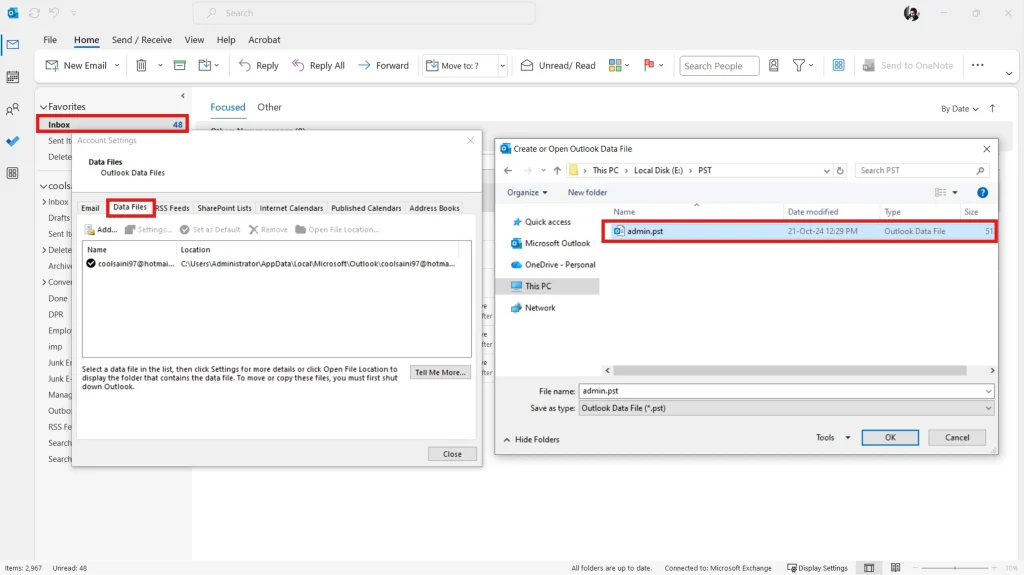
This is the most effective fix as in many cases Outlook fails because the wrong data file is set as default. So now check below what steps you need to perform:-
- Open Outlook
- Go to File > Account Settings > Account Settings
- Click on Data Files tab
- Select correct PST file
- And click Set as Default
- Now just restart Outlook
This method works best when:
- New profile created
- PST file moved
- Office 365 account reconfigured
If your outlook pst file cannot be accessed well incorrect default mapping is the reason here.
Method 2: Repair Outlook Profile
Do you know a damaged Outlook profile can cause the outlook data files can not be accessed issue. Check below the steps carefully:
- Open Control Panel
- Click Mail > Show Profiles
- Select profile → Click Properties
- Choose Email Accounts
- Repair account
You just need to restart Outlook after you finish this repair task.
Method 3: Create New Outlook Profile
This is the highly recommended method if the profile repair fails in such a situation creating a new profile is the most reliable solution.
Check below how you can add new profile:-
- Open Control Panel go to Mail
- Click on Show Profiles
- Select Add new profile
- Configure email account
- Set new profile as default
This method fixes most cases of
- outlook data file cannot be accessed windows 10
- outlook data file cannot be opened office 365
- send/receive error 0x8004010F
Method 4: Check Outlook Data File Location
Once the PST file location changes well Outlook cannot access it. Check what steps are best in this case:-
- Go to Account Settings → Data Files
- Click Open File Location
- Ensure PST file exists
- If it is missing you can browse and re-add
If Outlook shows
- outlook data file cannot be opened error
- outlook data file couldn’t be opened
then the file path may be incorrect.
Method 5: Repair PST File Using ScanPST
Did you know Microsoft provides an Inbox Repair Tool named (ScanPST.exe) to fix any minor corruption but it comes with limitations also we will see later.
Helpful Steps
- Close Outlook
- Find ScanPST.exe (Program Files > Microsoft Office)
- Select PST file
- Click Repair
Limitations
- It works only for minor corruption errors
- Will completely fails on large PST files
- Cannot repair severe structure damage
And If you still see these:-
- outlook error pst file cannot be opened
- outlook pst file cannot be accessed
then the PST file may be heavily damaged.
What to do When Manual Methods Fail?
In recent testing and user support cases my observation says
When ScanPST fails and profile recreation does not work well the main reason is mainly that the PST file is severely corrupted.
What are the noticeable symptoms? Check these all below:-
- Error returns again and again
- Outlook crashes after fixing
- PST larger than 10–20GB
- Inbox not loading properly
At this stage the manual fixes stop working because Outlook cannot read the internal PST structure correctly.
Quick Suggestions:- You can also find this article helpful – How to Fix Outlook Error Code (0x800ccc78) Using safe methods.
Case When Outlook Cannot Access Data File
Because your data is more important than anything else so when built in methods fail it becomes necessary for you to repair the PST file directly.
DataHelp offers a Reliable PST Repair Software that can help you to restore your mailbox structure and resolve this Outlook Data File Cannot Be Accessed Error (0x8004010F) permanently. It is more useful when your:-
-
- Outlook PST file no opened
- Outlook data file cannot accessed repeatedly
- And ScanPST fails or freezes
- Your large PST files cause access issues
Using dangerous manual methods can corrupt your data so safely repairing your PST file structure ensures that Outlook can reconnect to the data file without any errors.
Quick Comparison – Manual vs Advanced Repair
| Method | Difficulty | Risk Level | Success Rate |
|---|---|---|---|
| Restart Outlook | Easy | None | Low |
| Set default data file | Easy | Low | High |
| Creation of new profile | Medium | Low | Very High |
| ScanPST repair | Medium | Medium | Limited |
| Advanced PST repair | Easy | Low | Very High |
How to Prevent this Error in the Future
You can prevent this error in the future by following these tips:
- Keep the PST size below 15–20GB
- Avoid manually moving the PST file
- Regularly back up your Outlook data
- Use a stable Outlook profile
- Close Outlook properly
These small habits will prevent most Outlook data file errors.
Frequently Asked Questions
Q1. Why does Outlook say data files cannot be accessed?
It all happens when Outlook cannot connect to its default PST or OST file due to profile issues or corruption and because of the incorrect settings.
Q2. Will I lose emails because of this error?
No – Your emails will remain safe unless your PST file is severely corrupted.
Q3. How to fix Outlook data files that cannot be accessed quickly?
You can set the correct default data file or you can create a new Outlook profile as these two methods solve most of the cases.
Q4. Can PST corruption cause this error?
Yes – Severe PST corruption is one of the main reasons behind this error.
Conclusion
The Outlook Data File Cannot Be Accessed Error (0x8004010F) may look serious but I can tell you in most of the cases it is quite fixable when you take the right steps. You can start with basic fixes like setting the correct data file or creating a new profile. If the problem still continues then you need to check for PST corruption and repair the file properly.
So yes – with the correct approach you can restore Outlook access and can resume sending and receiving emails without losing any data.