Remove Outlook Data File from OneDrive: A Step-by-Step Guide


Using Outlook and OneDrive together is like a dream but it can cause damage to your email database. Many users see that their Outlook freezes and shows File in use errors or regular connection difficulties. This happens because OneDrive tries to upload your active email file every time a new message arrives leading to data corruption.
The Outlook data files are not designed to be connected in real-time to cloud services like OneDrive. So you need to remove Outlook data file from OneDrive and store it on your local hard drive. You can restore the speed of Outlook and ensure your emails remain safe and accessible by moving the file to a non-connected folder.
Table of Contents:
Why You Should Remove Outlook Data File from OneDrive?
Before getting to know how to remove the file we should know why to remove it. Keeping your active mail database in a folder connected to the cloud can be risky for several reasons:
- Continuous Connection: An entire PST file changes every time you receive a single email. OneDrive tries to upload the whole drive again which consumes all your internet.
- File Locking: Microsoft Outlook needs constant read/write access to the file. Outlook cannot open the file if OneDrive is connected to it which leads to the PST file is in use error.
- Corruption Risk: The file can become corrupted which makes the emails unreadable if your internet connection is not good enough while OneDrive is connecting an open PST file.
- Storage Limits: Outlook files are generally big and they can quickly eat up free OneDrive space which causes other important documents to stop syncing.
Methods to Remove Outlook Data File from OneDrive
Moving your email storage can sound a technical process but it is not that difficult. You need to tell Outlook to stop using the cloud and start using a folder on your computer t fix the connection errors. Here are the most effective ways to remove the data file and get your mail back:
Method 1: Change the Default Save Location
One of the most effective ways to handle this situation is to tell Outlook to step looking for the OneDrive folder. Use the steps mentioned below to change the location:
- Ensure that the application is closed before moving the data.
- Locate the OneDrive folder which is generally named as C:\Users\Username\OneDrive\Documents\Outlook Files.
- Then right-click your PST file and click on the Cut button.
- Go to a local folder that does not connect to the cloud and Paste the file there.
- When you open Outlook it will show an error saying that it cannot find the file.
- Click Ok and then browse the new local folder where you just pasted the file. Then select the file and click on Open.
Note: If you also want to create a new Outlook PST file then you can read the proper steps required for the same here.
Method 2: Stop OneDrive from Syncing the Outlook Folder
You can tell OneDrive to ignore the folder where your mail is kept if you do not want to move the file. The following steps can be used to stop OneDrive from syncing the folder:
- First click the OneDrive icon on your computer.
- Select the Settings gear icon, go to the Account tab and then click on Choose Folders.
- Uncheck the box next to the Outlook files folder if it is checked.
- OneDrive will remove Outook data file fromOneDrive storage but keep it on your computer when you click Ok.
Method 3: Delete Outlook Data File Links in Account Settings
Sometimes Outlook keeps a ghost link to an old file in the cloud. You should clean this up to avoid errors and here are the steps required to do the same:
- Open Microsoft Outlook and go to File.
- Click the Account Settings button and then Account Settings again.
- Then click the Data Files tab.
- You need to transfer Outlook data file to a local spot first if you see a file path that includes OneDrive.
- Select the old OneDrive-linked file and click the remove button when the new local file is added.
Note: This does not delete Outlook data file from your computer, it just disconnects it from Outlook.
Handling Large Transfers with Professional Tool
Moving the files by hand can be slow and if your internet disconnects or a file is too large then you may face data loss or file corruption errors. Manual methods require you to have Outlook working perfectly just to start the move.
Using the DataHelp OST to PST Converter Tool is an effective way to remove Outlook Data file from OneDrive as it ensures that no emails are left behind and the internal structure of your folders stays the same. It is a faster way to move your data without the technical difficulties of the manual methods.
Why Choose This Tool?
- Converts orphaned and inaccessible OST to PST files with zero data loss.
- Exports emails, contacts, calendars and attachments.
- Repair damaged OST and save into PST.
- Convert large size OST to PST without any limitations.
- Batch convert multiple OST files.
- Download OST to PST converter for Windows 11 and below versions.
You need to know where the Outlook OST file is located before you can repair your data. Follow these steps to use the tool once you have located the file:
- Download the software on your computer.
- Choose the Select Folder option and then click on Ok. This option allows you to add the complete folder of OST files.
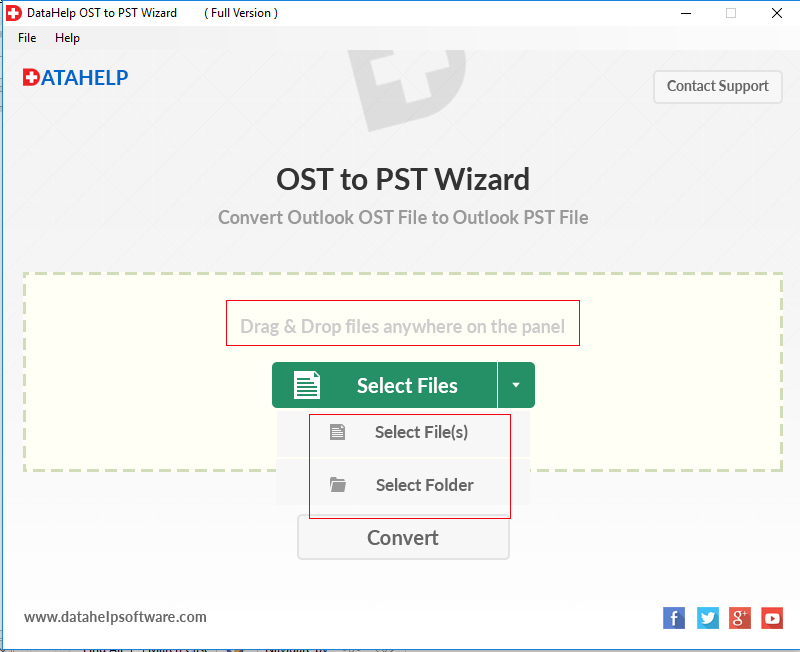
- Press the Select Files option to select the OST file from the system and then click on Open to add the files.
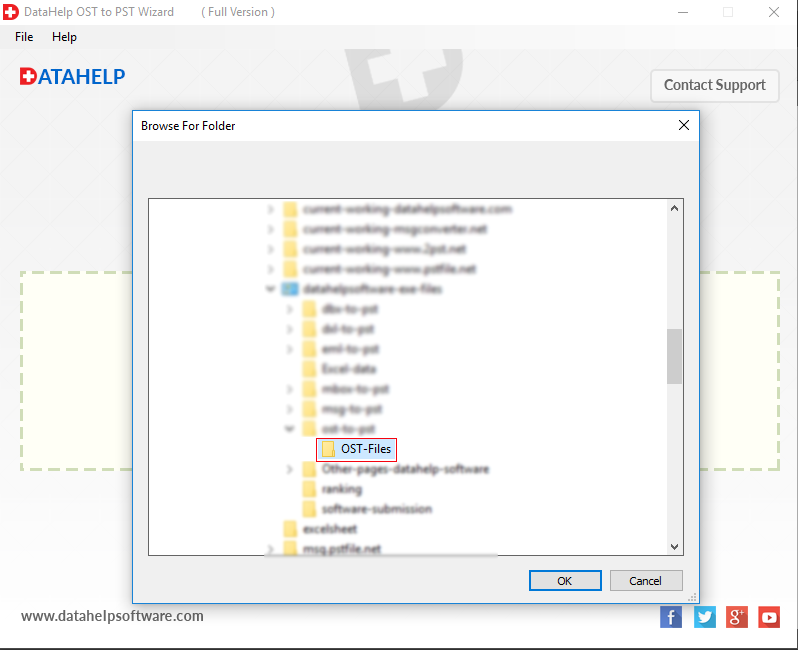
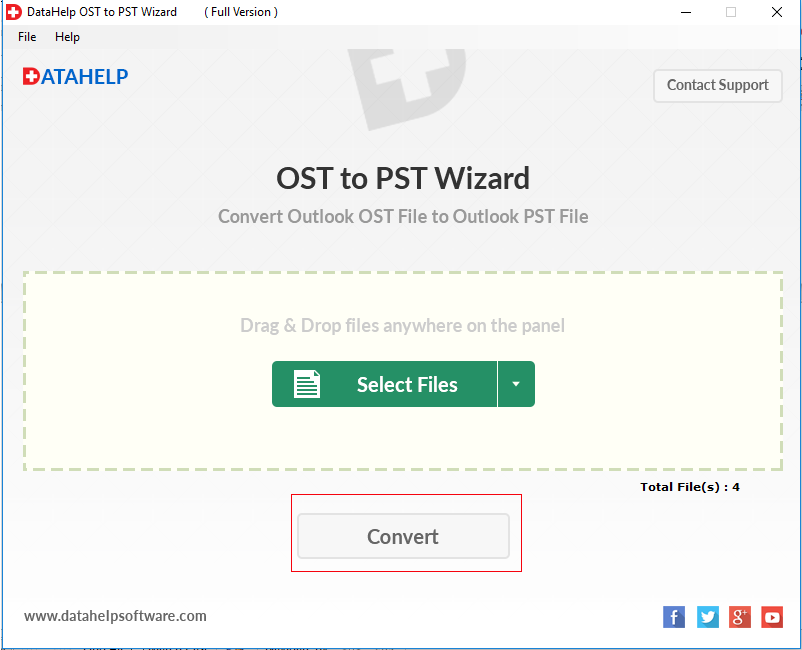
- Click on OK and then on the Convert button to start the conversion process.
- This tool provides many options, you can see if you want any of them and then click on the Ok button.
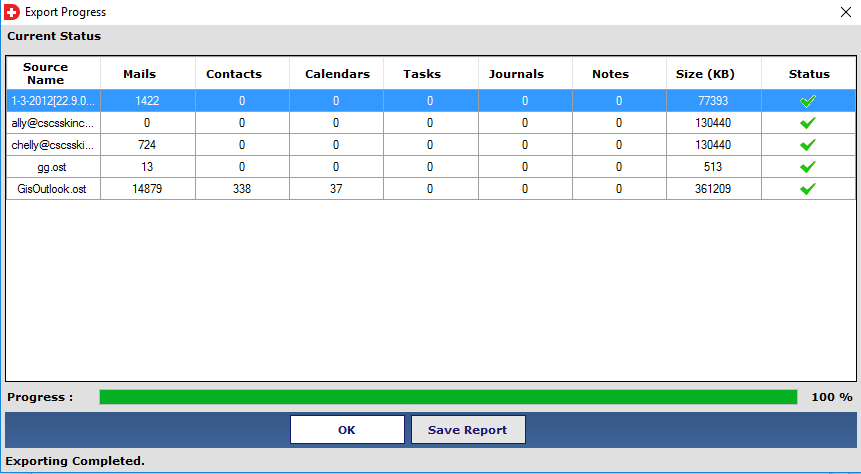
- Finally convert your OST content to the PST format and click OK.
- Click on the Save Report button if you want to save an export report.
Precautions Before You Delete Outlook Data File
Before permanently deleting Outlook data file from OneDrive Recycle Bin you should keep the following things in mind:
- Ensure that the local file size matches the cloud file size.
- Open Outlook and click through a few folders to make sure that the images and attachments load.
- Always keep a secondary backup on an external USB drive before you remove the data file permanently.
Summary
Most of the Outlook performance issues are dues to someone keeping the active mail database in a cloud folder. We have looke at how to remove Outlook data file from OneDrive by moving the physical file and updating the settings of Outlook. We also discussed the importance of using a local directory to avoid connection locks and how to transfer Outlook data file information safely using both manual as well as the expert solution.
You can ensure your email environment remains fast, stable and free from corruption by taking the time to delete Outlook data file links from the cloud and moving to a local setup.