How to Fix DISM Error 87 in Windows 11, 10 and 7


If you are seeing DISM Error 87 while you are trying to repair Windows, you are not alone as this is one of the most common errors users are facing when they running the command:
DISM /Online /Cleanup-Image /RestoreHealth
Instead of fixing your system Windows throws:
Error: 87 – The parameter is incorrect
This can be really frustrating especially when you are trying to repair your system corruption or fix Windows update issues.
But the good news is DISM Error 87 is usually not a serious issue and it can be fixed easily if you understand the root cause.
User Query
“I ran DISM /Online /Cleanup-Image /RestoreHealth but got Error 87. I copied the command from a website but there I am still getting this error. What does this mean and how can I fix this error?”
This is exactly where most of the users struggle – not because of system damage, but because of the command mistakes or environment issues.
What Is DISM and Why It Is Used
DISM is simply known as (Deployment Image Servicing and Management) and it is a built in Windows tool used to:
- Repair your corrupted system files
- Fix Windows image issues
- Resolve Windows Update errors
- And restore system stability
It works alongside SFC (System File Checker) to fix your deeper issues that SFC alone can not handle.
What Does DISM Error 87 Mean
DISM Error 87 simply means – The command you entered is incorrect or it is not recognized by Windows. This does NOT mean:
- Your system is broken
- Your data is lost
- Or Windows is corrupted beyond repair
In most cases it is only a syntax or command formatting issue.
Main Causes of DISM Error 87
Understanding the actual reasons behind this can help you fix DISM Error 87 faster and correctly.
1. Incorrect Command Syntax
This is the most common cause and even a small mistake can trigger the error.
Wrong Commands:
- DISM/Online/Cleanup-Image/RestoreHealth
- DISM -Online -Cleanup-Image -RestoreHealth
- DISM /Online /Cleanup-image/RestoreHealth
Correct Command:
- DISM /Online /Cleanup-Image /RestoreHealth
Windows command line is very strict so even a missing space causes:
- Error 87 when running DISM
- DISM Error 87 cleanup-image option is unknown
2. Not Running Command Prompt as Administrator
If you don’t run CMD with admin rights then Windows blocks advanced operations and this commonly leads to:
- DISM Error 87 Windows 11
- DISM Error 87 Windows 10
How to fix this?
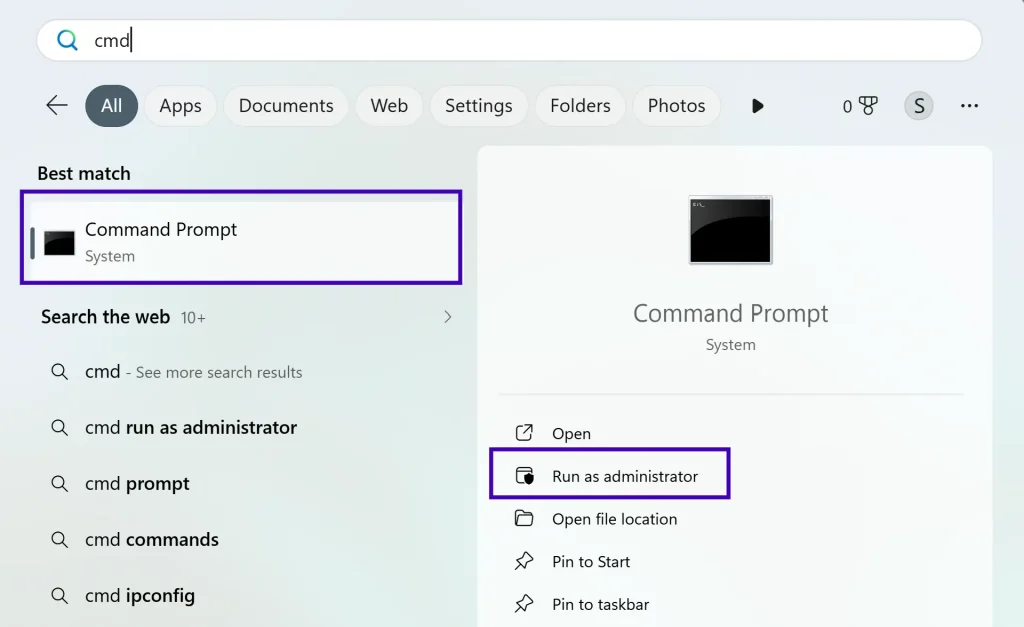
- You can search CMD
- Right click and Run as Administrator
3. Windows Version Compatibility
This is what very important for Windows 7 users as many of them search:
- DISM Error 87 windows 7
- DISM Error 87 restorehealth
Important update: Windows 7 does NOT fully support “DISM /Online /Cleanup-Image /RestoreHealth” however use:
sfc /scannow
4. Cleanup-Image Parameter Error
There are some of the typing mistake like:
/cleanupimage
instead of:
/cleanup-image
Because of this it causes:
- DISM Error 87 cleanup image is unknown
5. Using Outdated Commands
Still in 2026 there are many old and outdated tutorials that:
- Use outdated DISM syntax
- Mix PowerShell and CMD incorrectly
- Don’t match Windows 11 builds
Modern Windows requires correct and all updated commands.
Quick Fix for DISM Error 87 – Try This First
If you want a fast solution you must try these five simple steps:
- Open CMD as Administrator
- Type EXACT command:
DISM /Online /Cleanup-Image /RestoreHealth
- If still error:
sfc /scannow
- Restart PC
- Run DISM again
It resolves most cases right at the initial stage.
Complete Solutions to Fix DISM Error 87
If the issue persists you need to follow these advanced methods to fix this issue.
Fix 1: Verify DISM Command Support
Run:
DISM.exe /?
Check if /Cleanup-Image exists.
If not, your Windows version is outdated.
Fix 2: Check Windows Version
Run:
winver
If it is outdated, you need to install the latest updates.
Fix 3: Run SFC Before DISM
Sometimes DISM fails because your system files are already damaged.
Run:
sfc /scannow
Then you can retry DISM.
Fix 4: Check Disk Health
Check Disk Health and if DISM Error 87 keeps appearing then this simply indicates deeper issues.
Run:
chkdsk C: /f
If errors appear, your system may have the following issues:
- File system corruption
- Bad sectors
- Disk issues
Fix 5: Use DISM in Recovery Mode
If Windows is unstable you can:
- Boot into Advanced Startup
- Open Command Prompt
- Run DISM command
This helps in recovery mode cases.
When DISM Error 87 Indicates Bigger Problem
Although it is very rare, DISM Error 87 may indicate:
- Corrupted Windows image
- Damaged WinSxS folder
- Malware interference
- Environment variable issues
If both SFC and DISM fail repeatedly at this stage you may need:
- In place upgrade
- Windows reset
Important Data Safety Advice: If you suspect disk corruption I will suggest you not to repeatedly run repair commands as this may worsen data condition.
Instead you can secure your files using a reliable Hard Drive Data Recovery Software before attempting any deep fixes.
Windows Version Behavior Comparison
| Windows Version | Common Cause | Best Fix |
|---|---|---|
| Windows 11 | Syntax / permissions | Correct command |
| Windows 10 | Formatting mistake | Fix spacing |
| Windows 7 | Unsupported command | Use SFC |
| All Versions | Copy errors | Type manually |
What Happens If You Ignore DISM Error 87
The foremost think you should not ignore this error as Ignoring this error can lead to the following problems:
- Windows update failures
- System instability
- Performance issues
- Future crashes
Even though the error is small, the underlying issue should be fixed.
Frequently Asked Questions
Q1. What does DISM Error 87 mean?
It simply means the command parameter is incorrect or not recognized.
Q2. Why do I get error 87 when running DISM?
You are encountering this error due to incorrect command syntax or a lack of admin rights; as soon as you fix this, the error will disappear.
Q3. What DISM error 87 cleanup-image option is unknown?
This happens when /Cleanup-Image is typed incorrectly.
Q4. Can DISM Error 87 damage my system?
Not really but ignoring it may leave you with system issues unresolved.
Final Verdict
DISM Error 87 is one of the easiest Windows errors to fix. If you follow the right approach as suggested you can quickly resolve this error. Most of the time the solution is simply:
- Correct command formatting
- Run as Administrator
- Use supported Windows version
- Run SFC before DISM
And only in rare cases check disk health or system corruption.