How to Remove ChatGPT Connector from Outlook?


Many users today search for Remove ChatGPT Connector from Outlook after noticing unknown add-ins, slow performance or if there are any privacy concerns. Queries like How do I disconnect ChatGPT from Outlook, and How do I remove the ChatGPT plugin from Microsoft Outlook are becoming common today as AI tools and third-party integrations are rapidly growing.
Here’s the exact truth: there is no official ChatGPT connector inside Microsoft Outlook. What users usually see is a third party add-in, browser extension or custom integration and they are sometimes confused with Microsoft Copilot.
In this guide – you will learn exactly how to remove the ChatGPT Connector from Outlook safely and with step by step guide without affecting your emails or data.
Points to Remember:
In many cases, such issues are also linked with Outlook data file errors. So you can explore solutions for Outlook not responding or loading issues.
Table of Contents:
- What is ChatGPT Connector in Outlook
- Why Remove ChatGPT Connector from Outlook
- Important Check Before Removing
- How to Remove ChatGPT Connector from Outlook
- How to Remove ChatGPT Plugin from Outlook Add-ins
- How to Disconnect ChatGPT from Outlook (Advanced Methods)
- Remove ChatGPT from Browser (If Linked)
- What If the Connector Still Appears
- Expert Tips to Avoid Similar Issues
- FAQs
- Conclusion
What is ChatGPT Connector in Outlook?
Before removing anything it is very important to understand that there is no native ChatGPT integration in Outlook.
So what are you seeing?
- Third-party Outlook add-ins
- Browser extensions connected to email
- API-based integrations
- AI tools mislabeled as ChatGPT
This confusion leads users to search Remove ChatGPT Connector from Outlook when actually they are dealing with an external plugin.
Why You Should Remove ChatGPT Connector from Outlook
Not only one but there are multiple reasons why users want to remove the ChatGPT connector. You can check these all below as we have categorized these reasons:
Performance Issues
- Outlook becomes slow due to this
- Loading profile delays
Security Concerns
- Unknown add-ins accessing your email
- There is a risk of data exposure
Compatibility Problems
- Too much conflicts with Outlook updates
- Add-ins not working properly
Points to Remember Before Removing
Before you proceed you must check these all points:
- Make sure your Outlook is closed
- Identify the exact add-in name
- And backup all your important emails (recommended)
This completely ensures safe removal of connector without affecting your mailbox.
How to Remove ChatGPT Connector from Outlook
Lets start with basic method and follow these steps:
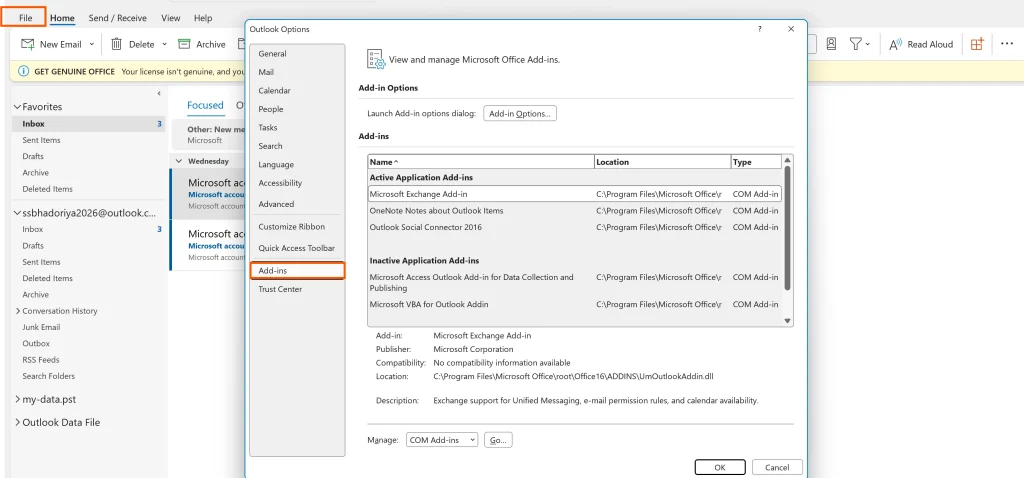
- Open Outlook
- Go to File → Options
- Click on Add-ins
- At bottom, select COM Add-ins → Go
- Find any ChatGPT-related or unknown add-in
- You need to uncheck or remove it
- And restart Outlook
This is basic but the most effective method to Remove ChatGPT Connector from Outlook.
How to Remove ChatGPT Plugin from Outlook Add-ins
If you are specifically wondering How do I remove the ChatGPT plugin, then this method is for you. Check these steps and simply follow:
- Open Outlook
- Navigate to Get Add-ins / My Add-ins
- Locate suspicious or ChatGPT-related plugin
- Now click on Remove
Doing this will removes your cloud based add-ins that is linked to your account.
How to Disconnect ChatGPT from Outlook?
If basic steps don’t work it’s a time to move forward and use advanced methods so lets start with:
Use Safe Mode
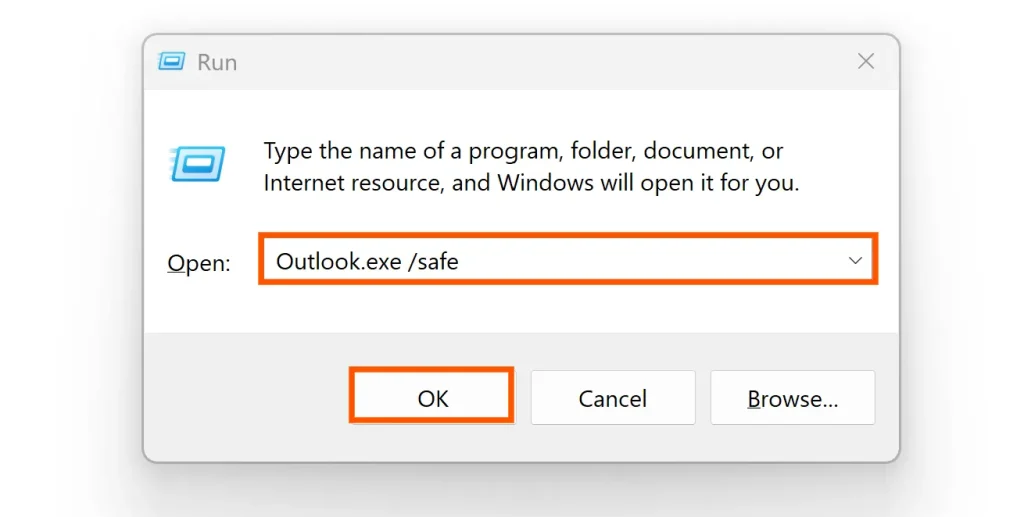
- Press Windows + R
- And type:
- Now you can disable add-ins one by one
Check Installed Programs
- Go to Control Panel find Programs
- Look for unknown AI tools or connectors
- And uninstall them
How to Remove Connector from ChatGPT (Browser Level)
Sometimes integration is from the browser, not Outlook so make sure you follow steps properly.
Steps:
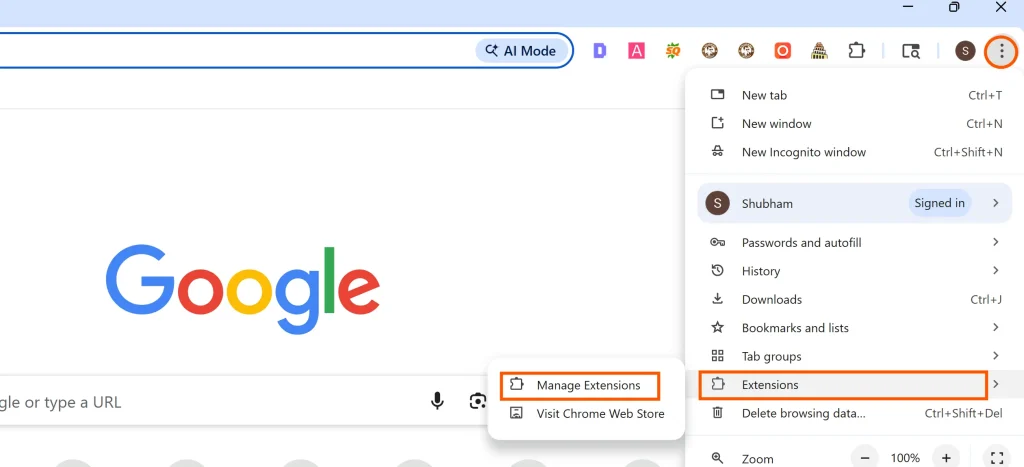
- Open browser (Chrome/Edge)
- Go to Extensions
- Find ChatGPT related extension
- Click to Remove it
This will help you remove connectors from ChatGPT quickly.
What If the Connector Still Appears?
If the issue still remains unresolved, in such a case, all you need to do is this:
- Restart your system
- Update Outlook
- You can create new Outlook profile
- Run antivirus scan
Note: If Outlook continues to behave abnormally, well it may indicate a serious corruption in the data file. In such cases you must use a reliable solution to repair the Outlook data files becomes imperative.
Expert Insights on This Problem
For safety and security of your email data you must be aware of these plugins as I’ve seen users confuse AI writing tools or email assistants with official Outlook features.
One case involved a user who had installed a browser extension. This added certain features to Outlook Web and making it appear like a built-in connector.
And after removal:
- Outlook performance is completely improved
- No more security concerns for the user
This highlights why understanding Remove ChatGPT Connector from Outlook properly is important.
Tips to Avoid Similar Issues
- You must Install add-ins only from the trusted sources
- Avoid unnecessary and unknown AI plugins
- Regularly check Outlook add-ins
- Keep your Outlook updated
- You can use security tools
Frequently Asked Questions
Q1. Is ChatGPT officially integrated with Outlook?
No this is not official from Microsoft as Outlook does not have a native ChatGPT connector. So the most integrations are third-party.
Q2. How do I remove the ChatGPT plugin from Outlook?
Simply you need to go to Outlook Add-ins and locate the plugin once you locate just click to remove or disable it.
Q4. How do I disconnect ChatGPT from Outlook completely?
This is very easy: you can remove add-ins, uninstall related apps and check browser extensions. This is enough to disconnect ChatGPT from Outlook.
Q5. Can ChatGPT access my Outlook emails?
Yes only if you give third-party integration permissions therefore, you should always verify it before use.
Conclusion
Removing unwanted integrations is not only just about performance, it is about security and control over your email data and by following the steps above you can safely:
- Remove unwanted connectors
- Improve Outlook performance
- Protect your email data