How to Fix Body of Email Not Showing in Outlook?


Have you opened an email in Outlook and found it completely blank? The subject is there and the sender is visible but the message area is completely empty. Well if you are dealing with the same issue Body of Email Not Showing in Outlook then this guide will walk you through every possible reason and all the practical solutions in a clear and professional way that will completely fix your problem.
This issue can appear in:-
- Outlook 2026 (Microsoft 365)
- Outlook 2021
- Outlook 2019
- Outlook 2016
- Exchange, IMAP and POP accounts
So now without any delay let us fix the body of email not showing in Outlook properly.
Common User Query
“Why is my email content not showing in Outlook even though I can see the subject and sender? The email opens but what I see that the message area is blank.”
Well if this sounds familiar then let me tell you that you are not alone as many users report that the Body of Email Not Showing in Outlook and it happens suddenly and sometimes happens after an update, sometimes while syncing and sometimes due to PST file corruption.
Quick Troubleshooting Summary
| Cause | Solution |
|---|---|
| Add-in conflict | Disable add-ins |
| View misconfiguration | Reset view |
| Graphics rendering issue | Disable hardware acceleration |
| HTML rendering problem | Switch to plain text |
| PST corruption | Use PST repair/viewer tool |
| Profile corruption | Create new profile |
| Outdated Outlook | Update application |
Why Is the Body of My Email Not Showing in Outlook?
Before we jump to fix this it is equally important for us to understand the root causes which give rise to this problem and you can easily understand it from the points below.
- Corrupted PST or OST file
- Add-in conflicts
- Faulty Outlook update
- Hardware graphics acceleration issue
- View settings misconfiguration
- Antivirus interference
- Email format rendering issue (HTML/Plain Text)
- Large mailbox performance lag
Sometimes users think “why can’t I see the body of my email in Outlook?” and the answer turns out to be much simpler than expected.
So now after knowing the root cause behind this problem let us understand its solution step by step how we can fix this easily.
How to Fix When Outlook Message Body Disappears?
Now you have to follow all the steps carefully as instructed to get rid of this problem. All these steps are tried and tested and are very effective in solving your problem which our Outlook experts recommend.
Step 1: Restart Outlook and Check Another Email
So before advanced troubleshooting you can:-
- Close Outlook completely
- Reopen it
- And try opening a different email
If the issue affects only one message well the message itself may be corrupted and If the message body not showing in Outlook happens with multiple emails you can continue with the fixes below.
Step 2: Disable Add-ins That May Be Blocking Email Content
Add-ins are one of the most common reasons when the email body text not showing in Outlook issues occurs. So disabling this can help you fix these issues.
How to Disable Add-ins:
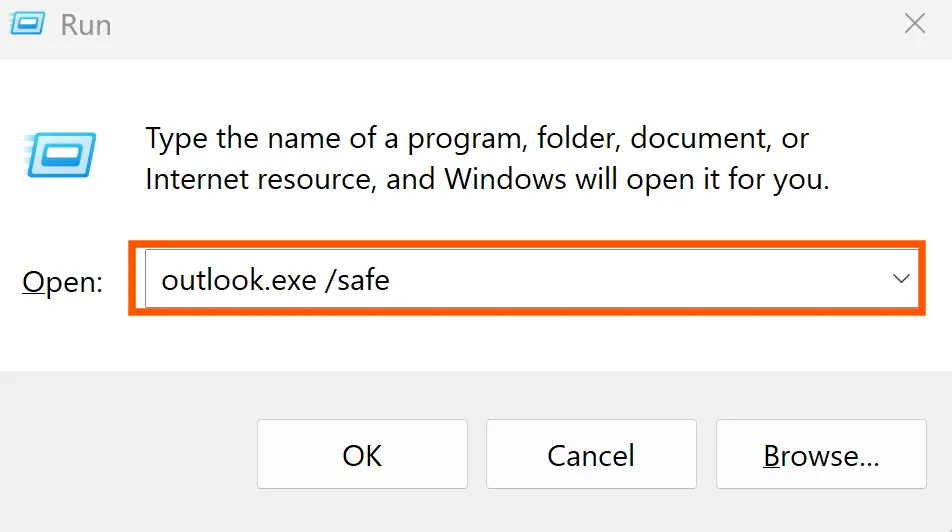
- Press Windows + R
- Type: Outlook.exe /safe
- Press Enter
If emails show properly in Safe Mode well the add-in is your culprit here you need to simply disable this permanently and for this you can:-
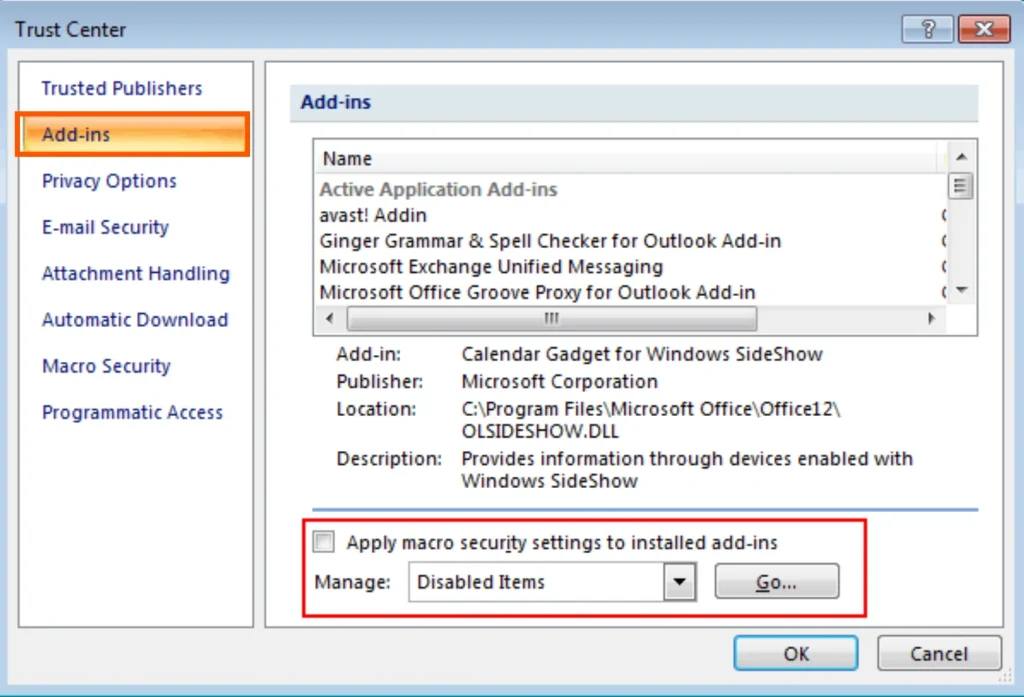
- Go to File → Options → Add-ins
- Select COM Add-ins → Click Go
- Uncheck all add-ins
- Restart Outlook
You can now enable them one by one to find the actual culprit.
Step 3: Check View Settings and Reading Pane Configuration
Do you know sometimes Incorrect view settings can also make the email body not visible in Outlook. So to check you can try this:-
- Go to View tab
- Click Reset View
- Ensure Reading Pane is turned ON
You can also check:-
View → Change View → Select “Compact”
Sometimes formatting errors can make it seem like the email body isn’t showing in Outlook but this is just a layout issue.
Step 4: Disable Hardware Graphics Acceleration
In newer versions like Outlook 365 and 2026 there the rendering issues can cause the Body of Email Not Showing in Outlook especially for HTML emails. And to fix this you can simply follow these steps:-
- Go to File → Options
- Click Advanced
- Scroll to Display
- Check “Disable hardware graphics acceleration”
- Restart Outlook
And this fix will resolve many display related cases where you wonder “why is my email content not showing in Outlook?”
Step 5: Change Email Format to Plain Text
If Outlook can not render HTML properly in this case the message body may appear empty and to check you can:-
- Open email
- Go to Message tab
- Click Actions – View in Plain Text
If you find that the content appears well it is a rendering issue. And you can also change the default format by following this step.
File → Options → Mail → Compose messages in Plain Text
Step 6: Repair Outlook Data File (PST/OST)
If none of the above works then the problem may be the mailbox corruption when your PST or OST file gets damaged and you need to Repair PST Corruption to fix this issue.
- Email body text not showing in Outlook
- Attachments fail to open
- Outlook freezes
- Some emails appear blank
You can use Scanpst.exe (Inbox Repair Tool)
Microsoft provides a basic repair tool for its users that is known as Scanpst.exe.
However you must know these all before you use this tool:-
- It may fail with severe corruption
- It does not always recover lost email body content
- It has size limitations
If Scanpst does not fix this problem then a deeper solution is required. You can also check How to Repair PST File Without ScanPST.
Professional Solution: Use DataHelp PST Viewer Tool
When PST corruption is the root cause you can use a professional utility that is reliable and safer and such solution is DataHelp PST Viewer Tool that allows you to:-
- You can Download and Install the Tool
- Open corrupted PST files without Outlook
- View complete email body content
- Access attachments
- Preview folders even if Outlook fails
- Safely inspect mailbox without modifying original file
This tool is particularly useful when:-
- Outlook crashes while opening emails
- Message body not showing in Outlook repeatedly
- PST file is too large (Check How to Reduce PST File Size Safely)
- Scanpst fails
The best part is unlike the manual repair methods it does not risk further file damage.
Step 7: Create a New Outlook Profile
There is one good solution is to create a new Outlook profile as Profile corruption can also cause the Body of Email Not Showing in Outlook. And to create a new profile:-
- Go to Control Panel
- Click Mail
- Select Show Profiles
- Click Add
- Configure your account again
You need to set the new profile as default and test email viewing.
Step 8: Update Outlook to Latest Version
Outdated versions sometimes contain rendering bugs so you need to update to a latest version and to update you can simply go to:-
File → Office Account → Update Options → Update Now
Microsoft often fixes display issues in Microsoft 365 builds.
Special Cases: Outlook Image in Body of Email Not Showing
Sometimes the email loads but images are missing. Well let me explain – This usually happens when Outlook blocks external images for security reasons and to fix this you need to follow these simple steps:-
- Go to File → Options → Trust Center → Trust Center Settings
- Click Automatic Download
- Enable Download pictures automatically in HTML emails
Also you can check firewall, proxy or security software that may block your external content.
Body of Email Not Showing in Outlook for Mac
Many Mac users may face this issue due to cache or sync problems. So if you want to fix this you can do these simple changes:-
- Update macOS and Outlook for Mac
- Clear Outlook cache from Outlook → Preferences → Accounts → Advanced → Empty Cache
- If the email body appears in Outlook Web (OWA) but not in your desktop app well re-adding the Outlook account may fix this issue.
When Is This a Serious Problem?
So it is also important to know when it should be considered a serious problem well there are some multiple parameters to know this if:-
- Multiple emails show blank body
- Attachments fail to open
- Outlook crashes frequently
- PST file size is very large
Then the problem is probably file corruption rather than display settings and in such cases professional mailbox inspection tools are recommended before you attempt any aggressive repairs option.
Frequently Asked Questions
Q1. Why is the body of my email not showing in Outlook but visible on the web?
Well this usually indicates local PST/OST corruption and also an add-in conflict issue.
Q2. Why can’t I see the body of my email in Outlook but others can?
So this simply indicates that your local Outlook profile or data file may be damaged.
Q3. Does reinstalling Outlook fix this issue?
It works sometimes but not always. If the problem is PST corruption then reinstalling Outlook won’t help you at this stage.
Final Words
The Body of Email Not Showing in Outlook well this can be caused by simple view settings or serious PST corruption issues. You can start with basic fixes that includes:-
- Disable add-ins
- Reset view (check How to Reset Outlook View to Default Settings to fix broken inbox layout).
- You can disable hardware acceleration
And if the problem is still continues and important emails appear blank at this stage you need to inspect your PST file with the help of a reliable viewer or you can use a repair solution before any data loss occurs. So fixing the issue early will definitely prevent the bigger mailbox damage issue later.