How to Reset Outlook View to Default Settings – Fix Broken Inbox Layout


Have you ever noticed your “Outlook inbox suddenly looks different” like missing columns, strange sorting or unreadable fonts with a vanished reading pane and you are looking for the solution how to reset Outlook view to default settings. Well you are not alone many users are experiencing the same problem after updates, addins or accidental clicks but the good news is your emails are safe and in most cases the problem is purely related to how Outlook displays your data.
This guide is a real practical solution as you will learn how to reset outlook to default settings by using the easiest and most effective methods based on real scenarios and recent Outlook behavior I have observed for Outlook 365, 2021 and 2019. This article helps you choose the right solution for your exact problem to reset the new outlook view to default, not just try random steps.
Table of Contents:
Why Does Outlook View Suddenly Change?
Well the Microsoft Outlook comes with extensive customization options that includes columns, grouping, fonts, ribbon tools, and panes. While useful these settings can change unexpectedly due to the following:
- Outlook or Windows updates
- Installing or updating add-ins
- Accidental changes in the View tab
- Sync issues with Exchange or IMAP accounts
- Large or aging PST files affecting performance
In my recent testing I have noticed that many users did not manually change anything but still the layout changed automatically after an update or restart. Now understanding this will help you reduce your panic and focus on the right solution.
You may also find this helpful:- How to Forward all Emails from Outlook to Gmail Simple and Easy Tips.
Which Reset Method Should You Use?
Before I directly go to solutions or fixes to reset the outlook view to default steps let me identify your situation first as this simple mapping will save time and avoid any unnecessary resets.
| Problem You’re Seeing | Best Solution |
|---|---|
| Only Inbox looks messy | Reset Inbox View |
| All folders look broken | Reset All Outlook Views |
| Outlook feels slow or unstable | Start Outlook in Safe Mode |
| Buttons or tabs missing | Reset Ribbon |
| Issue started after installing add-ins | Disable Add-ins |
Method 1: Reset Inbox View to Default
This is the fastest and safest way If your Inbox is the only folder affected and emails not grouped by date, missing columns, or preview pane issues you can follow the practical steps below for quickest fix and reset outlook to default settings windows 11.
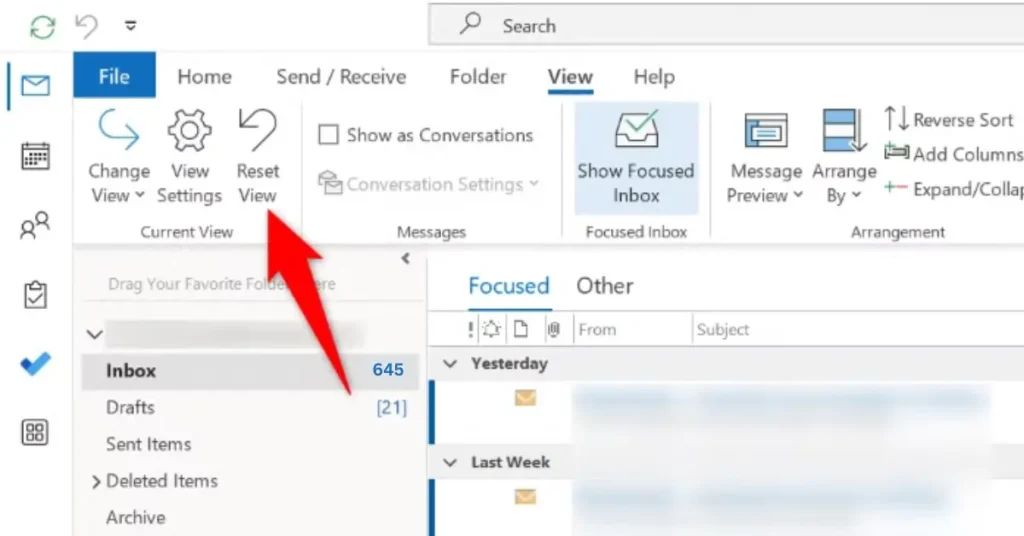
- Just Open Your Outlook
- Go to the Inbox folder
- Click the View tab
- And select Reset View
- Nest click Yes to confirm
What happens after following these fixes?
- Missing From / Subject / Date columns
- Broken grouping or sorting
- Reading pane position issues
What it does not affect?
- Other folders like – Sent, Archive or Calendar
- Emails or attachments
Method 2: Reset All Outlook Views to Default
If multiple folders in your Inbox, Sent Items or your Calendar look incorrect so now resetting all views at once is a more effective option here.
Just follow the given steps below:
- Close Outlook completely
- Press Windows + R
- Type: outlook.exe /cleanviews
- Press Enter
Now after following these steps you will see Outlook will reopen with all custom views removed.
Method 3: Start Outlook in Safe Mode
This is one such diagnostic step as Safe Mode launches Outlook with default settings and no add-ins. This helps identify whether third party tools are causing the issue.
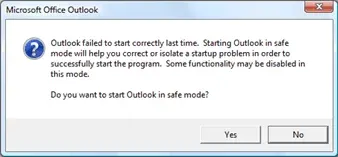
Check the following steps
- Close Outlook
- Press Windows + R
- Type: outlook.exe /safe
- Press Enter
What Safe Mode tells you
- If the view looks normal – an add-in is likely responsible
- If the issue is persists – the cause may be deeper profile or data file
Safe Mode is not permanent. This is the most powerful troubleshooting step to Reset Outlook View to Default Settings.
Method 4: Disable Add-ins Which Affect Outlook Layout
You can simply disable add-ins which are affecting your layout as add-ins can modify Outlook behavior including views and performance. Now you just need to perform the given steps carefully.
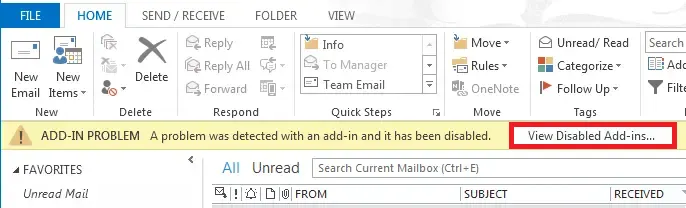
- Open Outlook
- Go to File > Options > Add-ins
- At the bottom select COM Add-ins and click Go
- Now Uncheck all add-ins
- And restart Outlook
To identify the problematic add-in just re-enable the add-ins one by one.
Method 5: Reset the Outlook Ribbon to Default
Reset outlook view to default not working so sometimes the problem is not the inbox itself but rather that buttons are missing or misplaced in the ribbon. See the helpful steps below to restore the default tabs and buttons.
- Go to File and Options
- Select Customize Ribbon
- Click on Reset
- And choose Reset all customizations
What If Resetting Outlook View Doesn’t Work?
If your problem is not resolved using any of the methods mentioned above on How to Reset Outlook View to Default Settings well the issue might not be with the view itself. You will need to understand the underlying causes. You can see the signs below and try to identify the problem.
Some of the important signs of deeper issues
- Outlook loads but layout stays distorted
- Views reset temporarily and then break again
- Outlook becomes very slow and unresponsive
- ScanPST.exe fails or shows limited repair
In my experience these symptoms often point you to PST file corruption especially in large or old mailboxes.
Also read this:- How to Fix Outlook Error Code 0x800c8101
When Outlook Data File Issues Affect the View
Well view resets do not repair data files so if the PST structure is damaged now Outlook may struggle to render views correctly.
In such cases if you want to stabilize Outlook before resetting the view you should rely on a trustworthy and reliable solution like the DataHelp PST Repair Tool. This method is useful when the built-in tools fail and it will help you restore normal functionality without any data loss.
Things to Remember – Before Resetting Your Outlook View
- Just resetting views does not delete your emails or folders
- But custom layouts will be removed
- You need to restart Outlook after making changes
- You should back up your data if Outlook is already unstable
FAQs Related to Reset Outlook View to Default Settings
Q1. Will resetting Outlook view delete my emails?
No but it only changes how your emails are displayed not the data itself.
Q2. Can I reset the view for just one folder?
Yes you can use View choose to Reset View while that folder is selected.
Q3. Why does my Outlook view keep changing back?
This usually happens due to add-ins synchronization problems or a corrupted PST file.
Q4. Do the solutions you mentioned work on Outlook for Mac?
Well mostly methods are applied to Windows but here Mac Outlook has a limited view reset option.
The Bottom Line
The bottom line for your real problem on “How to Reset Outlook View to Default Settings is that Outlook view issues are very common and rarely serious now in most of the cases a simple Inbox reset or Safe Mode check solves your problem within a minute but the only key is to choose the right method based on what you are seeing instead of just trying everything at once.
Now if your layout problems persist even after resetting, it becomes necessary for you to check the add-ins or the health of the underlying data file. As I mentioned by following the correct steps you can restore Outlook to a clean, readable, and productive layout without risking your emails.