How to Deactivate Gemini in Gmail (Guide for Full Control)


In Gmail have you ever paused reading your email and thought, “Why Gmail is trying to think for me?”. You are observing Gemini suggesting auto-replies to summaries, this feels like something quietly working in background of our inbox that has access to all the information. When we try to turn it off, the option is not visible. In this blog, you will learn how to deactivate Gemini in Gmail step by step. We will also go through how we can regain full control of our email experience.
Table of Contents:
- How Do I Turn Off Gemini in Gmail
- Why You are Seeing AI Features
- How to Disable (Desktop Steps and Mobile App Steps)
- What Changes After You Turn Off
- Still Seeing AI Suggestions?
- The Real Concern
- Method for Full Email Ownership
- Before You Move Ahead (Ask Yourself)
- Closing Thoughts
- Frequently Asked Questions
How Do I Turn Off Gemini in Gmail
Why You are Seeing AI Features in Your Inbox
These AI features are not a separate add-on or a tool that we can unplug. This is the reason there is no single “off” button. They usually work as Smart Features and Google Workspace settings, which are aligned and connected among services like Gmail, Chat and Meet.
These settings are enabled by default due to this Gmail users observe suggestions, summaries, and auto-replies without turning on anything.
Another reason is that control exist in more than one place. If we turn off one setting, some features may still appear. The change we are seeing is not a bug. It is how the system is designed to work unless we disable from both levels and learn how to opt out of Gemini in Gmail.
How to Disable Gemini in Gmail (Desktop Steps and Mobile App Steps)
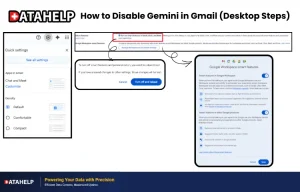
Desktop Steps
- Step 1: Sign in to your Gmail account and click all settings under the Settings icon.
- Step 2: Under the General tab, look for Smart features and Google Workspace smart features.
- Step 3: Open each option and turn it off.
- Step 4: Save changes and reload.
Gmail Mobile App Steps
- Step 1: Open Gmail app
- Step 2: Click three lines icon on and move to settings.
- Step 3: Select your preferred account.
- Step 4: Locate Smart Features option and turn it off.
- Step 5: Locate Google Workspace smart features, turn off both check boxes.
These are the steps on how to deactivate Gemini in Gmail.
What Changes After You Turn Off
Disabling Smart Features in Gmail do not have an effect on anything. It just disables the smart automation. Let’s check what happens after this.
| Feature | After Disabling |
|---|---|
| Smart Compose | Disabled |
| AI Suggestions | Disabled |
| Email access | Unchanged. |
| Manual typing | Fully active |
This disablement can be seen as switching from autopilot to manual driving. We are still moving now with 100 % control in our hands. We hope from the information above you have clear idea on how to deactivate Gemini in Gmail.
Still Seeing AI Suggestions? Try These Fixes
If the Gemini-oriented smart features still appear, don’t panic. It must be due to these issues:
- Multiple Google accounts are logged in.
- Only one setting among the two was disabled.
- Changed may not have synced yet.
The Real Concern Users Have
Many professionals, senior citizens and professors depend on Gmail for highly valuable and critical information. They usually keep.
- Financial records.
- Bank papers.
- Legal documents.
- Business negotiations.
The thought of AI interacting with their sensitive data and content makes them feel uncomfortable. This is the reason they search for a solution on how do I turn off Gemini in Gmail.
Method for Full Email Ownership in AI Hooked World
Think of keeping all your important and sensitive documents in a home safe instead of leaving everything in a shared cabinet. This is the major difference between cloud -only access and having your own secured copy. Creation of a local backup solves this. Once done, your data remains yours and protected, which can be accessed anytime.
This is where Gmail Account Backup Software becomes useful for the ones who keep valuable data in their Gmail. It gives extra safety layer to your important data and allows you to:
- Save Gmail emails, Contacts, Calendar, and GDrive Documents on your computer or external drive.
- Access your valuable data anytime in your desired format (MBOX, PST, PDF, MSG, etc)
- Keep a secure copy away from the cloud and AI.
Related read – How to save EML from Gmail account to Microsoft Outlook
Before You Move Ahead (Ask Yourself)
- Am I the person who want zero AI interaction in my inbox?
- Do I store sensitive or long term data that needs a more secured space?
- Will I feel safer with an offline copy?
If the answer is yes, then settings alone are not enough. We hope from this information you have complete clarity on how to deactivate Gemini in Gmail.
Closing Thoughts
Opting out of Gemini in Gmail is not as simple as one switch. There is a step-by-step approach to be followed to disable Smart Features. Now from the information above you understand the difference between reduction of AI interaction and gaining real control.
Frequently Asked Questions
Q – How can I completely remove Gemini from Gmail?
A – No, user cannot remove it completely, One can disable it via smart features in settings.
Q – Does turning off Gemini affect normal email usage ?
A – No, it will not affect as Gmail will work normally. AI-based suggestions and automation features will stop.
Q – Will turning off smart features improve my privacy?
A – Turning off smart features will only reduce AI interaction with emails, your data will still remain in Google’s cloud.