How To Delete A Pdf File Stuck On My PC? Learn Quick Steps


If you are one of those who often deal with PDF files or documents then at some point you too must have faced this problem not able to Delete A Pdf File Stuck On My PC. Sometimes a PDF file simply refuses to be deleted. You right click your PDF file, press Delete and after nothing happens. In many cases Windows shows errors like “File is open in another program,” “Access Denied,” or “Item not found.” type of errors. Many users also face situations where they can’t remove a PDF from the desktop, Downloads folder or from the external drive even after they have restarted the PC.
Many ask how to delete a pdf file that cannot be deleted or simply they can’t delete pdf from desktop windows 11 and that’s where it becomes one of the challenging and frustrating situations for the users and they start searching How to Delete a PDF File Stuck on PC?
Whether the PDF has a long file name, or it is corrupted, locked by a process or simply frozen on the desktop well the solutions below will help you fix these issues step by step.
Why Is a PDF File Stuck on My PC?
A PDF file may become undeletable due to several reasons and understanding these all reasons will make it easier for you to apply the right solution.
- The PDF Is Open in Another Program: Sometimes Adobe Acrobat, browser preview tabs or PDF readers continue running in the background even after you have closed it.
- Windows Explorer Is Glitching: File Explorer occasionally freezes and temporarily locks the files.
- The File Name Is Too Long: Windows is subject to path length restrictions and if there are extremely long PDF filenames can prevent deletion.
- Permission Problems: Your user account may not have permission to delete the file.
- The PDF File Is Corrupted: Damaged PDF files can become inaccessible or it simply gets stuck inside folders.
- Sync or Cloud Conflicts: Files are stored in OneDrive, Google Drive or in Dropbox that may be temporarily locked during synchronization.
Quick Read: If you have a damaged PDF file lets quickly learn Methods to know How to Open A Damaged PDF File easily.
How to Delete a PDF File on My Computer?
Deleting a PDF file is generally very simple however sometimes your file cannot be removed due to system errors, background processes, permission issues or major reasons due to corrupted data. So before trying any advanced solutions it is better to start with simple troubleshooting methods that safely remove the file without affecting other data files check all methods below.
Method 1: Close All Programs Using the PDF
You may think this sounds very simple but often it fixes your problem surprisingly. Just follow these steps:
- Close Adobe Acrobat Reader or any PDF viewer.
- Close browser tabs showing the PDF.
- Press (Ctrl + Shift + Esc) to open the Task Manager.
- And look for:
- Adobe Acrobat
- Acrobat Reader
- Edge PDF Viewer
- Chrome
- Foxit Reader
- Now end those tasks.
- And try deleting the PDF again.
This will help those users who can’t delete PDF files because the file is still in use.
Method 2: Restart Windows Explorer
If File Explorer itself is causing the blockage then a restart may help you better.
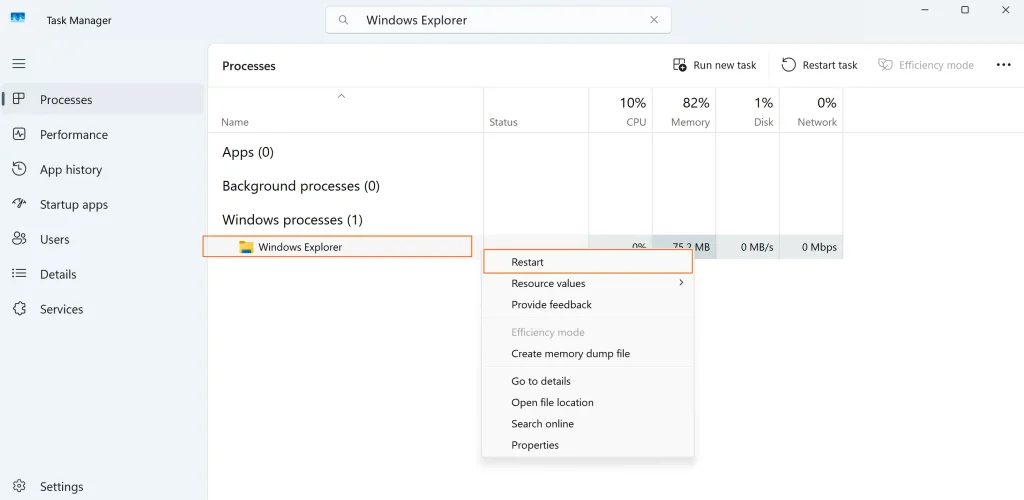
Steps
- Open Task Manager.
- Find Windows Explorer.
- Right click it.
- Choose Restart.
Now you can try deleting the stuck PDF file again.
Method 3: Delete PDF File Using (Shift + Delete)
Sometimes the Recycle Bin process causes issues so at this stage you can.
- Select the PDF file.
- And Press: (Shift + Delete)
- Now just confirm permanent deletion.
This will bypass the Recycle Bin completely.
Method 4: Restart Your Computer
Your computer system restart clears all temporary locks and background services so after restarting:
- Do not open the PDF again
- Immediately try deleting it
This is particularly helpful if your:
- the PDF is frozen on desktop
- Windows says file is in use
- you can’t remove PDF from desktop
Method 5: Delete PDF File in Safe Mode
Safe Mode loads Windows with minimal services thereby reducing file locks.
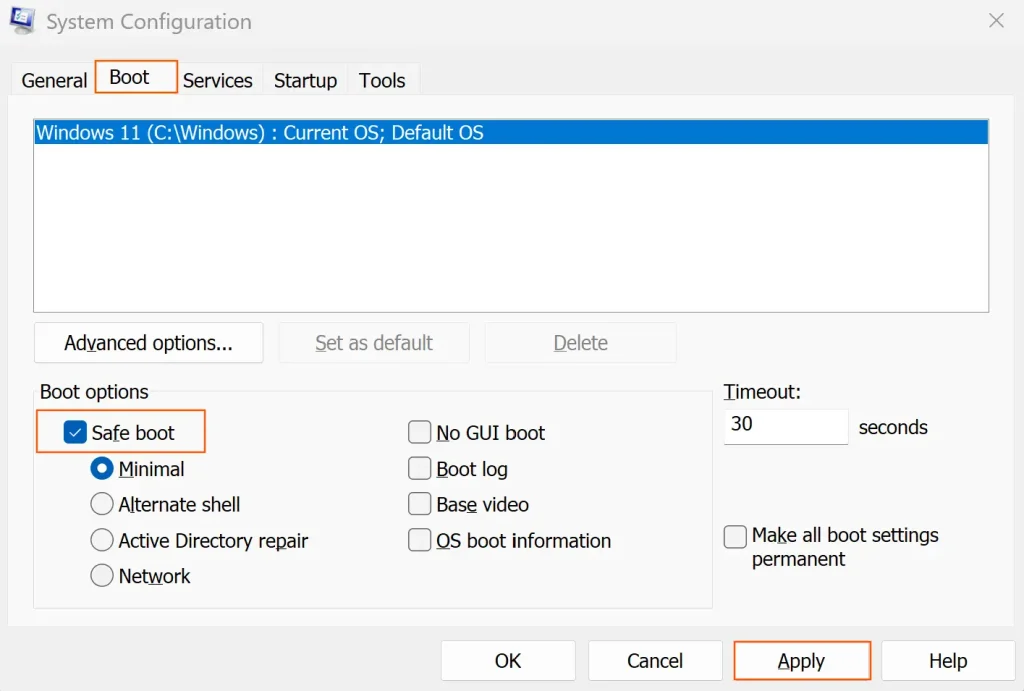
Steps
- Press: Windows + R
- Type: msconfig
- Open the Boot tab.
- Enable: Safe boot
- Restart your PC.
- Delete the PDF file.
- Disable Safe Boot afterward.
This method often fixes the major issues that is:
- can’t delete PDF from desktop Windows 11
- locked PDF files
- stubborn system file conflicts
Method 6: Rename the PDF File First
If the file name is too long or it contains unsupported characters the renaming your file may help.
Steps
- Right click the PDF.
- Choose Rename.
- Give it a short name like: test.pdf
- Now Press Enter.
- And delete the file again.
This is very useful when users face:
- cannot delete PDF file with long name
- invalid file name errors
Method 7: Use Command Prompt to Delete Pdf File Stuck On My PC
If Windows File Explorer fails then the Command Prompt can play the role and force delete the file.
Steps
- You need to open Command Prompt as Administrator.
- And navigate to the file location.
- Run: del filename.pdf
For Example:
- del sample.pdf
Check Below For desktop files:
- cd Desktop
- del sample.pdf
This method is well suited for stubborn files that cannot be deleted using conventional methods.
Method 8: Check File Permissions
Sometimes Windows blocks deletion due to permission restrictions issues in this case this step is most useful.
- Right click the PDF.
- Open Properties.
- Go to Security tab.
- Click Advanced.
- Take ownership if required.
- Give Full Control permission.
- Apply changes and delete the file.
Method 9: Delete the File Using PowerShell
PowerShell can remove deeply embedded files.
Run PowerShell as an administrator before executing the command.
Quick Read: If you have too large size PDF file then check Methods to Compress Size of PDF Files.
Why Can’t I Delete My PDF Files?
If you are still unable to delete your file after trying all the methods then the chances are your PDF may be corrupted, only partially downloaded, blocked by cloud synchronization services, infected with malware or It is damaged due to storage errors.
In these situations Windows may be unable to process the file properly preventing a normal deletion. Running a disk check can help you resolve file system related issues and you can safely remove a stuck PDF file.
Run Disk Check for File System Errors
Steps
- Open Command Prompt as Administrator.
- Run: chkdsk /f
- Restart the PC if prompted.
This resolves the file system issues that can prevent deletion.
How Do I Remove a PDF Stuck to My Desktop?
Sometimes a PDF file gets stuck on the desktop because Windows Explorer freezes, cloud synchronization services like OneDrive block the file or the system continuously generates previews and thumbnails in the background.
In such situations your file may prove impossible to delete if you are using conventional methods and even after your multiple attempts. Now the solution is restarting Windows Explorer, temporarily disabling synchronization services, deleting the file in Safe Mode or using the Command Prompt will surely help you to safely remove the locked PDF.
Can a PDF File Be Deleted Permanently?
Yes you can delete your PDF file permanently. Once deleted using (Shift + Delete) or Command Prompt then your file is permanently removed unless recoverable through PDF Recovery Software. However if your PDF file contains sensitive data then tools for secure deletion are recommended as manual deletion methods may potentially leave recoverable traces on the storage medium.
How Do I Delete Unwanted PDF Files Safely?
Before permanently deleting your PDF files you must ensure that they are not important and close all applications accessing them. If necessary you can create a backup copy to avoid accidental data loss. For large ad bulk cleanup operations it may be very helpful to organizing PDF files first and can help prevent mistakes.
Conclusion
If you are getting stuck with an undeletable PDF file particularly when Windows refuses to remove it even after repeated attempts. And if you were searching for how to Delete Pdf File Stuck On My PC well the methods explained above can help you safely delete locked, corrupted, long name or frozen PDF files from your computer.
You just need to start with simple fixes like closing applications and restarting Explorer. If the problem continues you can choose advanced methods like Safe Mode, Command Prompt or PowerShell usually resolve the issue successfully. And for those who handle large numbers of PDFs regularly then professional tools are the best option to choose.