How to Delete Multiple Emails From Outlook at the Same Time?


For many people, having a clean mailbox is an everyday task. But it doesn’t have to be that way. If you’re wondering How to Delete Multiple Emails From Outlook Inbox we’ve got the practical answer for you.
Microsoft Office can help you get rid of the electronic messages you don’t need, whether you desire a more streamlined and organized inbox or your company’s IT department is telling you to cherry pick your emails.
Choosing to delete one by one can be a time consuming procedure, so if you want to delete multiple emails from Outlook at once, use the multi-click option to make it easier.
Table of Contents:
Why You May Need to Delete Multiple Emails from Outlook
Reasons can be multiple but over the time Outlook inboxes collect Promotional emails, Automated notifications, Old project communications, and a large attachments that consume storage
But do you know a bloated mailbox can:
- Slow down Outlook performance
- Cause sync or send/receive issues
- Push mailbox size limits (Exchange/IMAP accounts)
That is why learning how to delete multiple emails in outlook from the same sender efficiently is essential for inbox management and long term stability.
Points to Remember Before You Delete Bulk Emails
Before you start removing your emails in bulk just keep these important points in your mind:
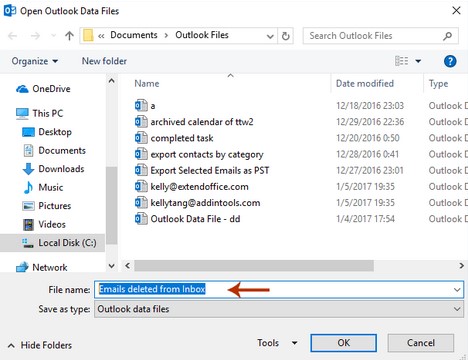
- Back up your important emails if needed (export PST for desktop Outlook)
- Understand the difference between Delete, Archive, and Permanent Delete
- After deleting your emails It will moves to the Deleted Items folder – space is freed only after emptying it
Different Methods to Delete All Emails in Microsoft Outlook At Once
Method 1- Delete Multiple Outlook Emails at Once (Desktop)
This method is one of the fastest and most commonly used. By following all these steps mentioned below you can easily delete emails at once.
Follow The Given Steps:
- Open Outlook Desktop (Outlook 365, 2021, 2019, or 2016)
- Now open the Inbox or any mail folder
- You need to press Ctrl + A and select all your emails
- Nest you need to press Delete just right click and choose Delete
- Last empty the Deleted Items folder to free space
Method 2: Delete Bulk Emails from Outlook Using Keyboard Selection
Here the selective deletion work better as If you don’t want to delete everything so check you can delete a range of emails
- Click the first email
- Just Hold Shift
- Click the last email in the range
- And Press Delete option
Now check below steps to delete non consecutive emails
- Hold Ctrl
- Click individual emails you want to remove
- Press Delete
Method 3: Delete Multiple Emails from Outlook Using Search Filters
One of the amazing features I love is the search filter option that will allow you to remove emails more precisely.
Some of the Example Scenarios
- Delete emails from a specific sender
- Delete emails with large attachments
- Delete emails older than a certain date
Find the useful steps below:
- Click the search bar in Outlook
- Use filters like
- from:example@domain.com
- hasattachments:yes
- After you need to press (Ctrl + A) to select all search results
- Press Delete
Method 4: How to Delete Multiple Emails from Outlook Web App
If you are using Outlook in a web browser so here you have to follow slightly different steps:
- Log in to your Outlook Web
- Now open your Inbox
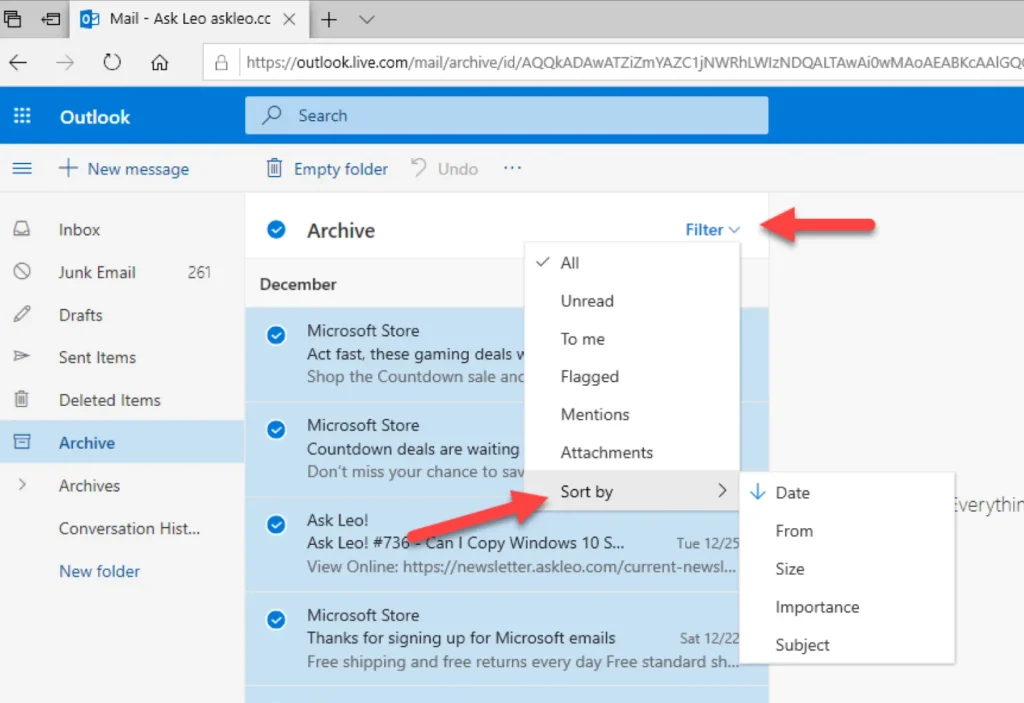
- Click the checkbox above the email list to select all visible emails
- Click Delete option
- And now empty the Deleted Items folder
Do Not Forget to Check These Very Important Notes
- Web Outlook may limit selection to visible emails only
- Repeat deletion if inbox is very large
So this method is extremely helpful for those users who are asking how to delete all emails from Outlook online.
Method 5: Mass Delete Emails in Outlook Mail Using Rules
Outlook Rules is the best method that allow you to automate deletion check some of the examples below:
- Delete emails from a specific sender
- Delete emails older than X days
- Automatically remove newsletters
I have mentioned easy steps how you can delete mails using Outlook rules
- Just go to Rules and choose Manage Rules & Alerts option
- Here you can create a new rule
- Choose conditions (sender, subject or date)
- Now you just need to set action to Delete
- And apply the rule
Best Use Case
- Ongoing inbox cleanup
- Automatically managing bulk emails
This is one of the most efficient ways to delete bulk emails from Outlook without manual effort.
Note: In cases you have deleted your Outlook emails accidentally and cannot be found in Deleted Items, an Outlook Email Recovery Software will help recover your deleted emails without affecting your existing folder structure.
Common Troubleshooting – If Outlook Not Deleting Emails in Bulk
Well If Outlook freezes or fails when you try to delete bulk emails you need to change your strategies a bit here what you can do:
- Delete emails in smaller batches
- Disable add-ins temporarily
- Compact large PST files
- Check your mailbox sync status
- Now restart Outlook after deleting large volumes
Large inboxes including more than 50,000 emails may slow Outlook during the bulk deletion.
Archive vs Delete vs Permanent Delete
- Delete: Simply you are moving your emails to Deleted Items
- Archive: Simply stores your emails safely without deleting
- Permanent Delete: This means removes emails permanently using (Shift + Delete) action.
Always confirm before permanently deleting emails.
You May Also Love to Read: How To Change Email Retention Policy In Outlook
Frequently Asked Questions
Q1. How to delete multiple emails from Outlook inbox quickly?
You can use the Ctrl + A option to select all your emails list and press Delete then empty Deleted Items.
Q2. How to delete bulk emails from Outlook by sender?
To delete bulk emails from outlook just use the search bar to filter emails by sender and select all results and next choose delete option.
Q3. Can I delete all emails from Outlook at one time?
Yes you can delete all lists at once for this you just need to open the Inbox after press Ctrl + A and then Delete.
Q4. Why does Outlook become slow when deleting many emails?
Well you need to understand here that the large mailboxes and attachments are the big reasons for slow performance. So you can Delete emails in batches or you can use rules.
Q5. How to delete multiple emails in outlook by date?
So if you want to delete multiple emails by date just use the Search filter and choose the date range and select all matching emails to delete them at once to quickly clean your inbox.
How to Mass Delete Emails From Outlook Mail
Conclusion
In this article we learn how to delete multiple emails from Outlook at one time and benefits how this can save hours of our manual effort no matter if you want to remove everything or clean up by sender or automate deletion using rules here Outlook offers you multiple built in ways to handle bulk email cleanup efficiently.
Just using the right method based on your situation can maintain a clean inbox and improve your Outlook performance without risking your important data.