How to Repair PST Files on Copilot+ PCs (Snapdragon Windows Devices)


Quick Answer: Yes, you can repair PST files on Copilot+ PCs powered by Qualcomm Snapdragon processors as long as your laptop runs a supported version of Microsoft Windows. It is interesting to know that most PST corruption issues on new Copilot+ PC devices happen after Outlook migration, interrupted file transfers, failed imports, oversized PST files and other reasons include Outlook crashes. You can start by verifying the PST file location, try Inbox Repair Tool (ScanPST.exe) . Let me tell you this only works well for minor corruption and use a professional PST repair tool if Outlook still won’t open the file, shows you missing emails or it crashes repeatedly.
In recent years many users upgrading to new Copilot+ PC laptopslike the Microsoft Surface Laptop 7, HP OmniBook X or Dell XPS 13 Snapdragon Edition are running into an unexpected Outlook issue like their old PST file suddenly stops working after migration.
You transfer years of emails to your new laptop and open Microsoft Outlook then one of these happens:
- Outlook says PST file cannot be opened
- Your data file was not closed properly and error appears
- Emails/folders are missing
- Outlook crashes during import
- PST file becomes inaccessible
- Inbox Repair Tool (ScanPST.exe) fails to fix it
This creates confusion because many users think the problem is related to Snapdragon processors. But this is not true as in reality the processor usually isn’t the issue here. The real problem is typically file corruption during migration, improper PST transfer, Outlook compatibility issues or cause of damaged mailbox files.
In this guide you will learn how to repair PST files on Copilot+ PCs safely and also how you can recover your Outlook data without risking further corruption.
Table of Contents:
- Why PST Files Get Corrupted on Copilot+ PCs
- Signs Your PST File Needs Repair
- Is Snapdragon Causing the Problem?
- Use ScanPST for Minor PST Corruption
- Create a New Outlook Profile
- Re-import the PST File Properly
- Use a Professional Tool
- How to Transfer PST Files Safely
- What If Outlook Still Won’t Open the PST File?
- Can You Repair PST Files on ARM-Based Windows Laptops?
- Tips to Prevent PST Corruption
- Final Thoughts
Why PST Files Get Corrupted on Copilot+ PCs
Before you start trying to repair your PST files on Copilot+ PCs, well it is important to understand what usually causes the issue.
1. Improper File Transfer
Many users try manually copy their PST files from old laptops using:
- External drives
- USB devices
- Cloud storage
- Network transfers
So the interrupted transfers can surely damage your large PST files. If you have a very large PST file size you can get an idea How to Reduce PST File Size Safely and use it as per your need.
2. Outlook Version Differences
Moving from older versions like:
- Microsoft Outlook 2016
- Microsoft Outlook 2019
to newer Microsoft Outlook for Microsoft 365 installations can sometimes create compatibility issues.
3. Large PST Files
Let me explain to you if the size of your PST files is between 20GB and 50GB, the risk of them becoming corrupted is higher.
Common symptoms you can notice:
- Slow loading
- Freezing
- Missing folders
- Import failures
4. Interrupted Outlook Import Process
If you close Microsoft Outlook or you shut down your PC you can encounter a system crash during a PST import and the import may stop midway and the mailbox data could become corrupted also this can cause the following:
- Missing emails
- Incomplete folders
- Duplicate items
- PST opening errors
5. Existing PST Corruption
Did you know that sometimes your file is already corrupted on an old computer, and the new system simply brings that problem to light?
Signs Your PST File Needs Repair
If you encounter any of these issues then you may need to repair your Outlook PST files:
- Outlook cannot open data file
- Invalid PST file format
- Missing emails
- Missing attachments
- Outlook freezes
- Outlook crashes during startup
- Folders disappear
First Check: Is Snapdragon Actually Causing the Issue?
Well I will say no this usually does not cause issues as Microsoft Windows 11 on Copilot+ PC devices supports many traditional desktop apps through compatibility layers. If your software installs and runs normally well the processor likely is not causing PST corruption but the issue is usually file related.
Method 1: Use ScanPST for Minor Corruption
Inbox Repair Tool (ScanPST.exe) is Microsoft’s built-in repair utility but this will help you repair only minor issues. You can find below how you can use this tool.
- Close Outlook
- Search for ScanPST.exe
- Browse your PST file
- Start scan
- Repair detected issues
Check typical PST location and know Find Where Your Outlook Data Is Stored:
Limitations
ScanPST may fail if:
- PST file is severely damaged
- File is too large
- Headers are corrupted
- Emails disappear after repair
Note: If ScanPST fails to repair your issue then you can check How to Repair PST File Without ScanPST safely and solve your issue quickly.
Method 2: Create a New Outlook Profile
Sometimes your Outlook profile corruption causes false PST issues and in this situation you can create a new Outlook profile by following simple steps.
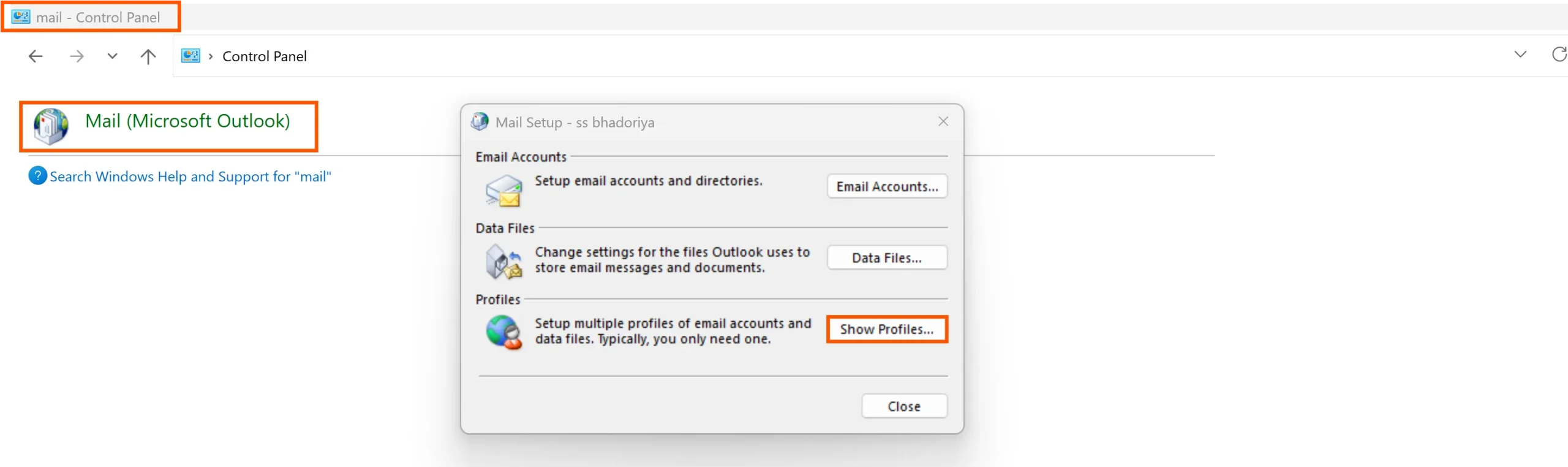
- Open Control Panel
- Select Mail
- Click Show Profiles
- Create new profile
- Reconnect Outlook account
This often resolves the startup conflicts.
Method 3: Re-import the PST File Properly
This is one such issue as improper imports often cause errors so you can Use:
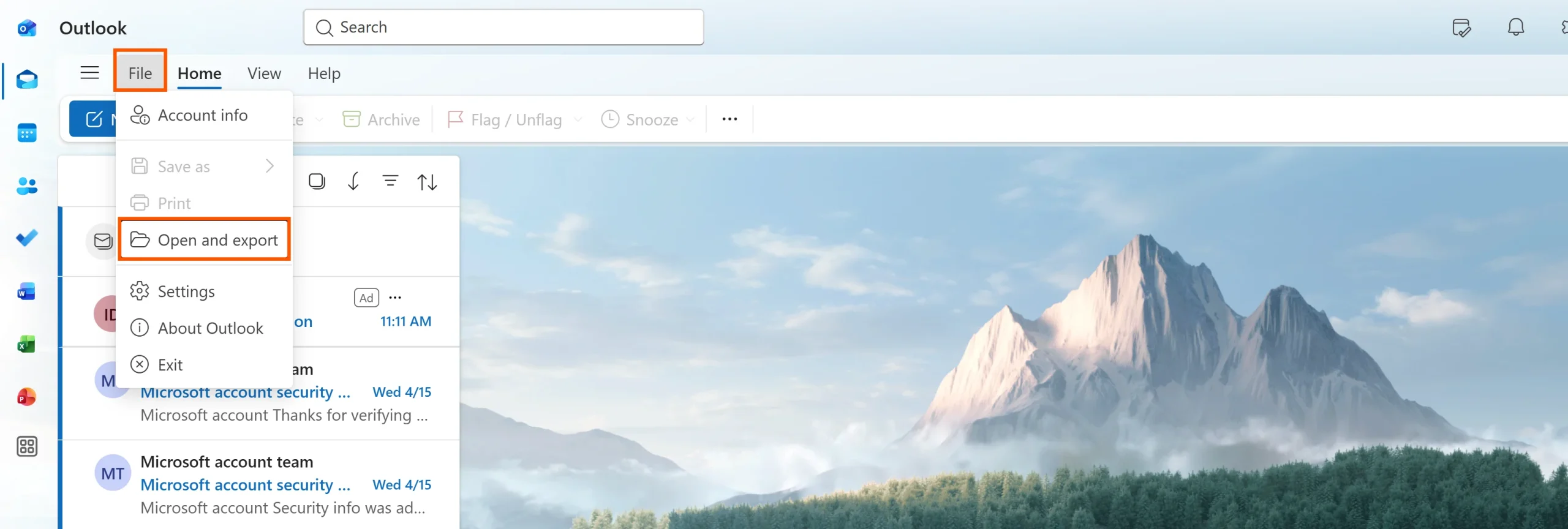
File → Open & Export → Import/Export
I will suggest you to avoid dragging PST files manually into Outlook folders.
Method 4: Use a Professional Tool
This is the best and safest method If ScanPST fails, this is often the most reliable method for you to repair PST files on Copilot+ PCs. A professional tool like DataHelp PST Repair Tool can help recover everything from your corrupted files:
- Emails
- Attachments
- Contacts
- Calendars
- Deleted folders
- Large corrupted PST files
Why does this work better?
Unlike ScanPST there are other major benefits using advanced tools as software can handle:
- Severely damaged files
- Large mailbox files
- Broken headers
- Missing folder structures
This is more useful for users migrating large mailboxes to new Snapdragon laptops.
How to Transfer PST Files Safely to a New Copilot+ PC
If you want transfer safely and avoid corruption you can these tips:
- Must use reliable external drives
- Verify file transfer completion
- You should avoid sudden shutdowns
- Keep backup copies of your files
- Use stable internet for cloud transfers
What If Outlook Still Won’t Open the PST File?
If Outlook still not opening well at this stage you can try these fixes:
- It’s time to update Outlook
- Repair Office installation
- You can check file permissions
- And disable antivirus temporarily
- Now move PST to local drive
Can You Repair PST Files on ARM Based Windows Laptops?
Yes you can if your laptop runs supported Microsoft Windows 11 then you can repair PST files on Snapdragon systems just like Intel devices. You can check examples:
- Microsoft Surface Laptop 7
- HP OmniBook X
- Lenovo Yoga Slim 7x
Best Practices to Prevent PST Corruption
- Keep your Outlook updated
- Must Avoid oversized PST files
- You can archive old emails
- Back up mailbox data regularly
- And close Outlook in a proper manner
Final Thoughts
As more users now move to new Copilot+ PC devicesthat’s why Outlook migration issues are becoming more common these days. Fortunately, most problems are not caused by Snapdragon processors as many of you think this is because of Snapdragon processors.
If you need to repair PST files on Copilot+ PCsyou can start with basic troubleshooting as suggested above and try Inbox Repair Tool (ScanPST.exe) for minor issues but if the problem is at a higher level you can use advanced repair software when standard fixes fail.
The most important thing is to take quick action before your PST file suffers further damage and additionally, you should always create a backup of your file before attempting any repairs.