How to Find Where Your Outlook Data Is Stored?


If you are using Microsoft Outlook and wondering How to Find Where Your Outlook Data Is Stored well you are not alone as many users struggle to locate their Outlook data files especially when they are facing issues like missing emails, backup confusion or migration problems.
Outlook stores your emails, attachments, contacts and calendar data in PST (Personal Storage Table) or OST (Offline Storage Table) files. Knowing Where are Outlook Data Files Stored Windows 11 helps you manage backups, fix errors and you can securely transfer your data when needed.
In this complete guide you will learn How to Find Where Your Outlook Data Is Stored step by step including all Windows paths, real scenarios and practical solutions. Whether you are using Windows 10 or 11 this guide will make everything easy to understand and take full control of your Outlook files.
Quick Fixes to Locate Outlook Data Files Faster
| Action | What to Do |
|---|---|
| Search Your Files | Use Windows search and type *.pst or *.ost |
| Check Default Location | Look in Outlook default folders first |
| You Need to Verify Your Profile | Always confirm active Outlook profile |
| Update Your Outlook | Keep Outlook updated for proper file access |
| You Can Avoid Duplicates | Remove multiple duplicate PST files |
Table of Contents:
- What Does Outlook Data Mean?
- PST vs OST Difference?
- Versions & Data Storage Behavior
- Find Where Outlook Data Is Stored
- Default Outlook Data File Locations
- Advanced Method to Locate Outlook Data Files
- Identify Which File Outlook Is Using
- Common Issues Locating Outlook Data Files
- DataHelp Expert Solution
- FAQs
- Final Thoughts
What Does Outlook Data Mean?
Outlook data files that are (.pst or .ost) local storage files located on your computer that contain copies of your data that includes:-
- Emails and attachments
- Contacts and address book
- Calendar events
- Notes and tasks
All this information is simply stored in Outlook data files mainly
- PST file (used for POP accounts and backups)
- OST file (used for Exchange, IMAP and Office 365)
Now understanding where the Outlook data file is located is very important when you want to recover, transfer or secure your email data.
PST vs OST – What’s the Difference?
| Feature | PST File | OST File |
|---|---|---|
| Usage | POP accounts / backup | Exchange / IMAP |
| Storage | Local system | Synced with server |
| Portability | Easy to move | Not directly portable |
| Recovery | Easier | Complex |
Outlook Versions and Data Storage Behavior
You can check below to see how different Outlook versions save the data files and it all depends on the type of account and configuration you have.
- Outlook 365 / Exchange / IMAP accounts typically create OST files for offline access.
- POP accounts store emails locally in PST files
- Cached Exchange Mode also uses OST files
- Older versions of Outlook follow similar storage methods but their structure may differ.
Many users who are searching for where the Outlook data files are located in Windows 11 they should understand that the file type depends completely on the account setup rather than on the version of Windows.
How to Find Where Your Outlook Data Is Stored (Step by Step)
Where are outlook data files stored in windows 11 or outlook data file location windows? Just check all the steps below and follow to quickly locate your Outlook PST or OST files and access your stored email data easily.
Method 1: Using Outlook Settings
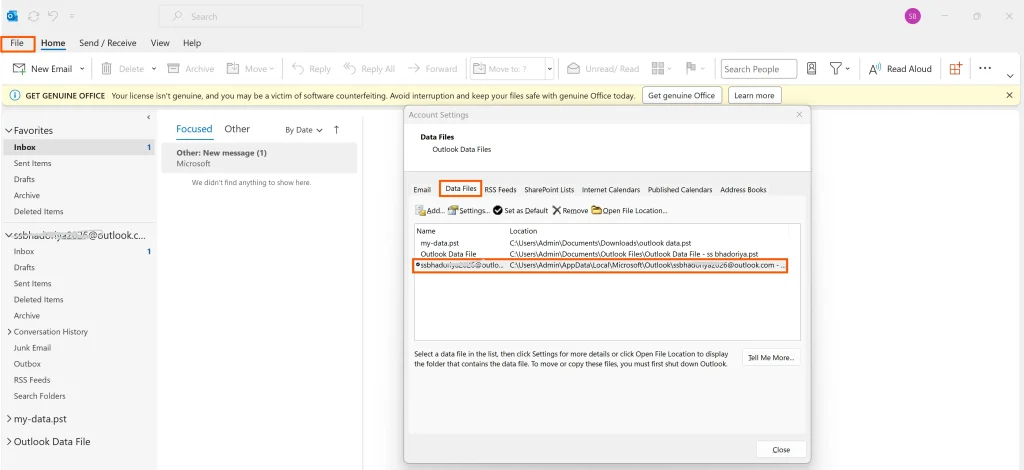
- Open Outlook
- Click File → Account Settings → Account Settings
- Go to Data Files tab
- Select your email account
- Click Open File Location
Method 2: Check Using Outlook Profile
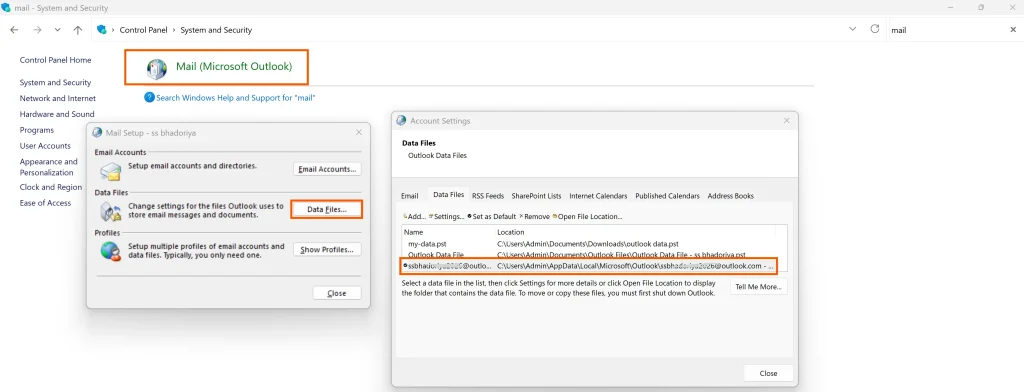
- You Need to Open Control Panel
- Next Click Mail (Microsoft Outlook)
- Now Click Data Files
- And View the File Path Location
This is one of the easiest ways to understand where your Outlook data is stored without any technical problem.
Default Outlook Data File Locations For (All Windows Versions)
Here you can check below all the common storage paths that are used by Outlook to save your PST and OST data files across Windows 11, Windows 10 and the older versions for easy access and proper management.
Windows 11 / Windows 10
OST File Location: C:\Users\YourUsername\AppData\Local\Microsoft\Outlook
PST File Location: C:\Users\YourUsername\Documents\Outlook Files
Older Outlook Versions
C:\Users\YourUsername\AppData\Local\Microsoft\Outlook
Hidden Folder Note
Do you know the AppData folder is hidden by default but you can easily enable it using these two simple settings:
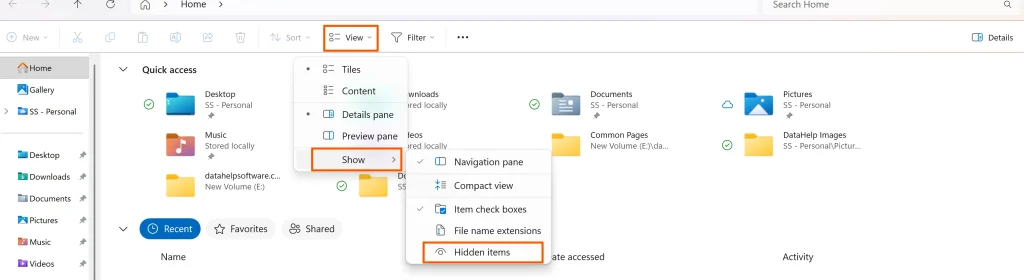
- You Need to Go to File Explorer
- Click View → Show → Hidden Items
Advanced Method to Locate Outlook Data Files
If you are unable to find your file using the default paths well you can use this advanced method you just simply need to follow all these steps:-
- You Need to Open File Explorer
- Just Go to This PC
- And In the Search Bar You Need to Type:-
- .pst
- .ost
- Now you need to press enter and wait for results
- You can sort files by Date Modified to find the latest file
How to Identify Which File Outlook Is Using
This is simple and very easy to identify If you are confused you need to follow this:-
- If using Gmail / Office 365 / Exchange → OST file
- If using POP account → PST file
OR SIMPLY
Go to: File → Account Settings → Data Files
This will help you confirm How to Find Where Your Outlook Data Is Stored accurately.
Common Issues Locating Outlook Data Files
Well I have seen many users often face these common issues
- File not found error
- Hidden folders not visible
- Multiple PST files confusion
- Outlook data file cannot be accessed
- Corrupted PST or OST file
DataHelp Expert Solution for Data Access Issues
Sometimes even after locating the file users face the following issues:
- Outlook data file cannot be opened
- File corruption
- Missing emails
- Access denied errors
Well the bitter truth is in such cases the manual methods completely fail and as per expert recommendation you must use a professional tool like DataHelp PST Repair Tool that can help you:-
- Repair your corrupted PST files easily
- Recover emails, contacts, attachments and all data securely
- Completely maintain original folder structure
- The Tool is capable to work on large sized files
This completely ensures your important Outlook data remains safe and completely accessible.
FAQs
Q1. How do I find my Outlook data file location quickly?
You can easily find your Outlook data file by going to settings and find File → Account Settings → Data Files → Open File Location. This will open the exact folder where your PST or OST file is stored.
Q2. Where are Outlook data files stored in Windows 11 and Windows 10?
Outlook data files are usually stored in the following format and location
- OST: AppData\Local\Microsoft\Outlook
- PST: Documents\Outlook Files
These are default locations unless you manually change them.
Q3. Why can’t I find my Outlook PST or OST file?
This usually happens due to the AppData folder being hidden or you are checking the wrong profile so you need to enable your hidden files or verify your active Outlook profile.
Q4. Can I move my Outlook data file to another location?
Yes you can but it should be done carefully as moving PST/OST files without a proper configuration can completely break Outlook. So you should always create a backup before changing file location.
Q5. What should I do after finding my Outlook data file?
Well once you find the file location you can just do the following things:
- Take a backup
- Transfer it to another system
- Repair it if corrupted
- Open it in Outlook
Final Thoughts
Understanding How to Find and where your Outlook data is stored is crucial for organizing your emails, preventing data loss and effectively resolving the issues related to Outlook.
Whether you are backing up your emails, fixing errors or you want to migrate your data for all this it is important knowing the exact file location that gives you full control over your Outlook environment.
By following the step by step methods, checking correct file paths and applying our expert suggestions will help you easily locate and manage your Outlook data files without any confusion.