How to Copy OST File While in Use?


Have you ever been in a situation where you were trying to back up your Outlook data but cannot do it? This is an error that happens because the OST file is being used by Outlook at that moment. Microsoft Outlook takes care of its data and if the application is open then the file is locked. This makes the process of copying the OST file to a new computer or keeping a backup a little hard. Today we will look at how to copy an OST file while in use and also look at the steps that you can follow to solve this problem.
Table of Contents:
What is an OST File and Why Does it Get Locked?
The OST file in Outlook is a local copy of your online mailbox and it stores a copy of your emails, calendar and contacts on the hard drive. It is of great help as it helps you read your mail even when you do not have an internet connection.
Outlook puts a lock on the data as it is continuously writing new data which does not let other programs from moving or changing it. This is the reason you get a warning that your Outlook file is locked and the system does this so that the file is not corrupted.
Common Issues When Trying to Copy File While in Use
- OST file in use error: If the file is open in another program then you will see a pop-up showing that the action cannot be completed.
- Slow System: Trying to force a copy of a large file when it is connecting can make the computer lag.
- Incomplete Data: The last few hours of emailing can be missed if you manage to force a file.
- Access Denied: Windows can give you a file access denied Outlook OST even as an administrator.
Things to Know Before Copying an OST File
There are a few things you should keep in mind before you learn how to copy Outlook OST file. You cannot open an OST file on a different computer as it is tied to a specific Outlook profile and computer. You can copy OST file while in use to a new computer but you will need to convert it later to read the emails and make sure that you have disk space as these files can be large.
Pro Tip: You can check our guide on where is the ost file located to find the path for your version of Windows.
Method 1 – Copy OST File After Closing Outlook
The safest way to copy OST file is to close the program as this releases the lock and allows Windows to move the file freely. Use the steps mentioned below to solve this problem:
- First close the Microsoft Outlook application.
- Then press Ctrl + Shift + Esc to open the Task Manager and make sure that no other process is running on Outlook.
- At last press Windows + R to find your file and right-click to copy it.
Method 2 – Copy OST File While Outlook Is Running
Use the Volume Shadow Copy method if you cannot close Outlook since it is actively running a sync. It is a clever way to copy OST file while in use but it is a more advanced method. Follow these steps to use this method:
- Search for Command Prompt in your Windows search bar, right-click it and select the Run as Administrator.
- You can also use a tool known as Hobocopy or another tool.
- These tools take a snapshot of the file at any moment even if it is locked.
- This allows you to bypass the Outlook data file locked error.
Note: If you want to learn how to open OST file without Outlook then you can read this.
Method 3 – Use Export to Copy The OST File
Use the built-in Export feature if you are worried about the Outlook OST file in use error as it can create a PST file that is easy to manage. Use these steps to export the file:
- Go to the File > Open & Export > Import or Export in Outlook.
- Choose Export to a file and then click Next.
- Select Outlook Data File.
- Choose the folders you want to save.
Why the Traditional Methods Fail?
Many users cannot open the copy of the OST file on a new computer even after they copy it and this is because the OST files are linked to the original MAPI profile. If you move the file to a different computer then Outlook will say that it is not an Outlook data file and this is the main reason why the manual method is not enough for most of the people.
Quick Solution: Copy OST File While in Use
There are times when users want to copy their OST files without closing the Outlook application. So, using an automated solution is an ideal choice. The DataHelp OST to PST Converter Tool is designed to handle files even when they are busy or locked and it can read the details from the file without closing the Microsoft Outlook application. The interface of this tool is simple and user-friendly to ease your workflow.
Features of This Tool:
- Extracts data even if you have an Outlook OST file in use error.
- Changes the file into PST format so that it can be opened when you copy OST file to a new computer.
- Your folders and attachments stay where they belong.
- Convert orphaned OST files without any email application.
- Recover data from corrupted OST files.
Steps to Use This Tool:
- First download and open this tool on your computer.
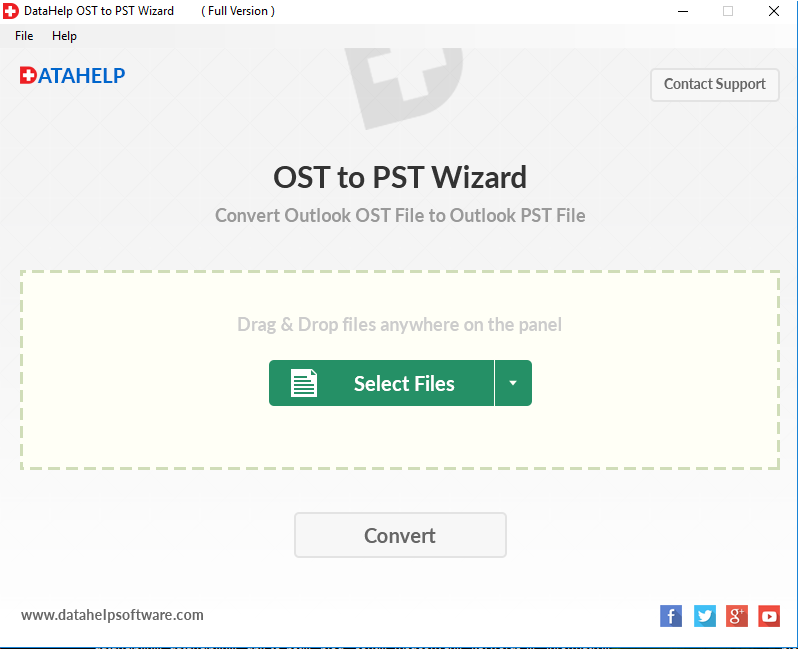
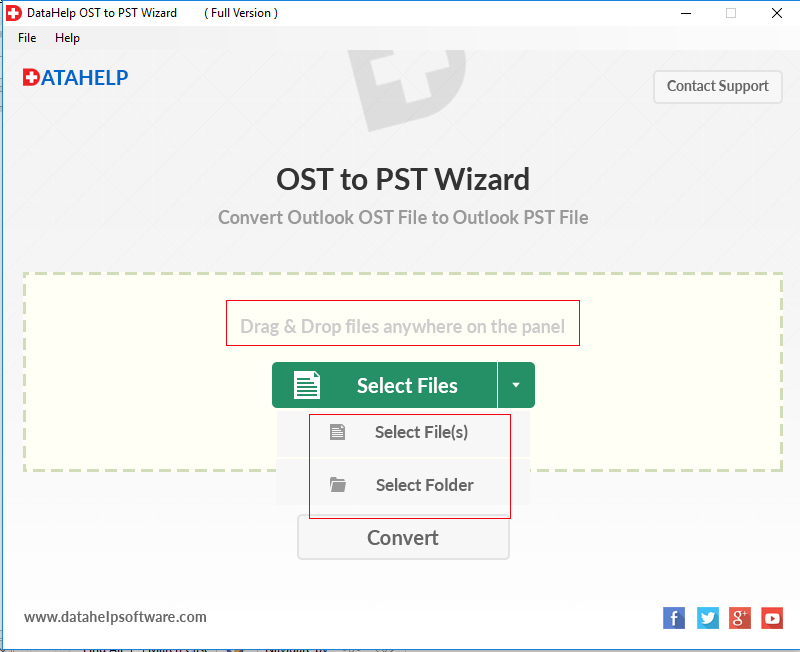
- Then Select your OST file and click on Add File.
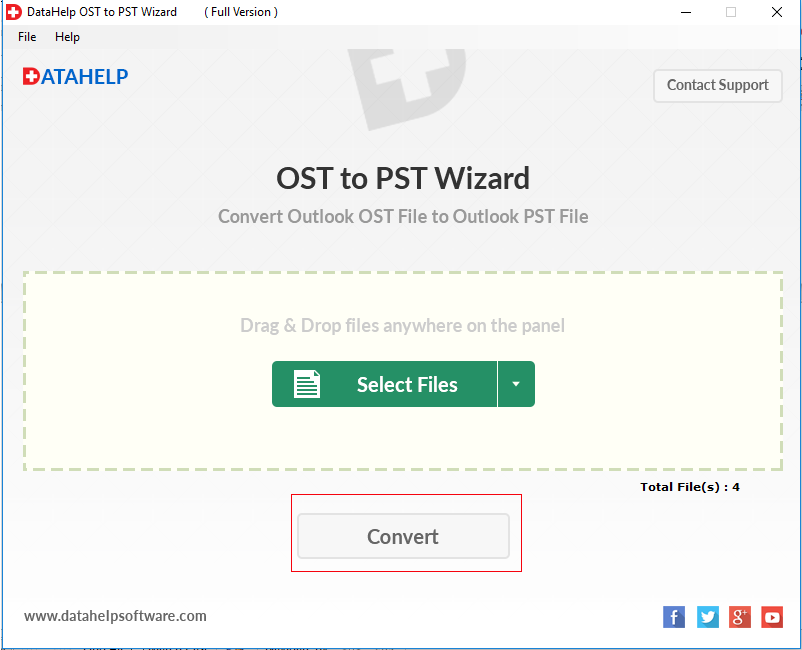
- Click on the Convert button to convert your OST file.
- The tool will show you a preview of all your emails, contacts and folders.
- Then select PST as the export format.
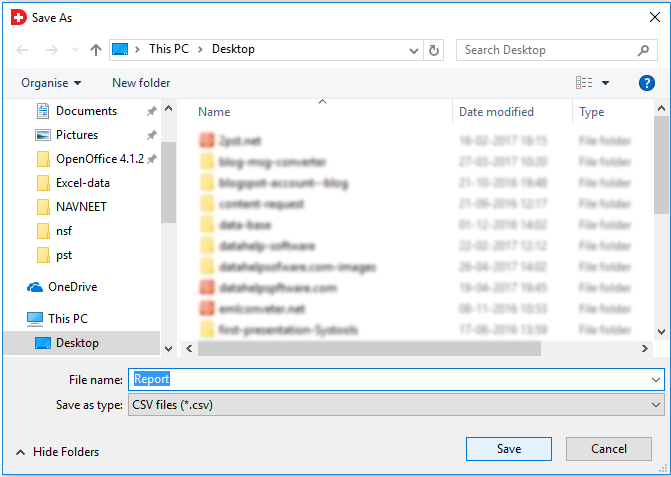
- Finally click on Save and then press the Ok button.
When Should You Copy OST File and When Not
- Want to keep your local folders but you are getting a new computer.
- You are worried about the company server deleting old emails.
- Need an offline copy for legal or personal records.
You should not copy and paste the file in these situations:
- If you want to move to a computer with a different email account.
- The file is showing Outlook data file locked error because copying an active OST file can lead to data corruption.
Frequently Asked Questions
1. Can I copy OST file to a new computer and just paste it there?
No, if you just paste it then Outlook will not recognize it on the new computer. You must convert it to a PST file by using a tool.
2. How to copy Outlook OST file if it says it is too big?
You can use the Export method in Outlook or an expert solution to break it into smaller pieces if the file is large
3. Is it possible to copy a PST file while Outlook is open?
Yes it is possible but it is better to use the Export feature or a software tool to ensure no data is lost during the move as this method is risky.
4. Why do I get file access denied Outlook OST message?
This happens because Outlook is currently using the file to connect your emails and the file is locked by the system to prevent errors.
5. What is the safest way to copy OST file while in use?
The safest way is to use a professional tool as it reads the file without changing the original data. It also ensures that you do not get a copy OST file locked error.
Conclusion
It is important to know how to copy OST file while in use for anyone who does all their work on Outlook. There is always a way to get your data whether you are dealing with a file access denied Outlook OST message or an Outlook data file locked error.
You can move your offline Outlook OST file from one place to another by following the steps mentioned above. Now you do not have to worry about the copy OST file locked message.