How to Fix Outlook PST Files Not Synchronizing on OneDrive?


Microsoft Outlook users often rely on OneDrive to keep their important files accessible across devices. However many users face a frustrating issue known as Outlook PST Files Not Synchronizing on OneDrive, which prevents emails, contacts, or calendars from updating properly in cloud storage.
This issue usually occurs because your PST files are too large, frequently updated and not designed for real time cloud syncing. As a result OneDrive may stop syncing the file and show you sync errors or fail to update changes.
So with the help of this guide we will explain why Outlook PST files are not syncing with OneDrive, what risks it may cause and the best methods to fix Outlook PST Files Not Synchronizing on OneDrive safely.
A Common User Query
“I keep my Outlook data file in my OneDrive folder so it can be backed up automatically. But recently my Outlook PST file has not been syncing with OneDrive. The sync icon displays errors and sometimes the file locks up when Outlook is running. Is there a safe way to sync Outlook PST files with OneDrive without losing emails?”
If you are also facing a similar issue like Outlook data file not syncing to OneDrive then this guide will help you understand the problem and fix it step by step solutions.
Table of Contents:
- Why Outlook PST Files Not Synchronizing on OneDrive
- Can OneDrive Sync PST Files?
- Common Sync Issues with PST Files
- 5 Methods to Fix This Issue
- Pause and Resume OneDrive Sync
- Move PST File to Local Folder
- Compress or Reduce PST File Size
- Check OneDrive Storage and Sync Status
- Avoid Opening PST File on Multiple Devices
- Alternative Way to Backup PST Files
- Tips to Avoid PST Sync Issues
- When to Consider Using OST Instead of PST
- Conclusion
Why Outlook PST Files Not Synchronizing on OneDrive
Before we start applying any fixes it is good to understand why Outlook PST Files Not Synchronizing on OneDrive. You can find below all the most common causes include:-
- PST Files Are Frequently Updated: Outlook constantly updates the PST file whenever new emails arrive or any changes occur. This constant updating can cause OneDrive to not sync properly.
- Large PST File Size: Many users have PST files that are larger than 10GB or even 20GB which is the reason that increases the chances of OneDrive PST files not syncing.
- File Locking by Outlook: When Outlook is open the PST file is actively in use and here OneDrive may fail to sync because the file is locked by the application.
- Sync Conflicts: If you try to access the same PST file on multiple devices then OneDrive may create sync conflicts or duplicate files.
- OneDrive Sync Limitations: Do you know that Microsoft officially recommends you not storing active PST files in OneDrive as it may cause corruption or sync issues.
You can also read this article on how to Fix Outlook Stuck in Offline Mode Error safely.
Can OneDrive Sync PST Files?
Many users ask on community and forums Can OneDrive sync PST files?
Well technically OneDrive can store PST files but yes it cannot reliably sync an active Outlook PST file that is constantly being modified.
Check these Important points to know:-
| Scenario | Result |
|---|---|
| PST stored in OneDrive but Outlook closed | Sync may work |
| PST actively used by Outlook | Sync may fail |
| PST accessed on multiple devices | High risk of corruption |
| Large PST files | Sync may be very slow |
Because of these limitations many users often face Outlook PST file not syncing problems.
Signs That Outlook Data File Is Not Syncing in OneDrive
If you are experiencing Outlook PST Files Not Synchronizing issue on OneDrive – you may notice the following symptoms:-
- OneDrive shows sync error or pending status
- PST file changes are not updated in cloud storage
- Duplicate PST files appear in OneDrive
- Outlook shows data file in use or locked error
- Sync stops when Outlook is open
Recognizing these signs help you identify whether the issue is related to OneDrive PST files not syncing.
How to Fix Outlook PST Files Not Synchronizing on OneDrive
We can fix this issue by using the proven steps and with the help of experts professional solutions. You can find below are the most effective methods to resolve this Outlook PST Files Not Synchronizing on OneDrive issue.
Solution 1: Pause Outlook Before Syncing PST Files
Because Outlook constantly updates PST files and due to this syncing may fail while Outlook is running. To pause it you can simply follow these steps:-
- Close “Microsoft Outlook”
- Wait for a few seconds
- Allow OneDrive to complete syncing
- Check OneDrive sync status
This simple method sometimes fixes Outlook PST file not syncing issues.
Solution 2: Move PST File Outside OneDrive Folder
There is one most recommended solution and that is not to store active PST files directly inside OneDrive folders.
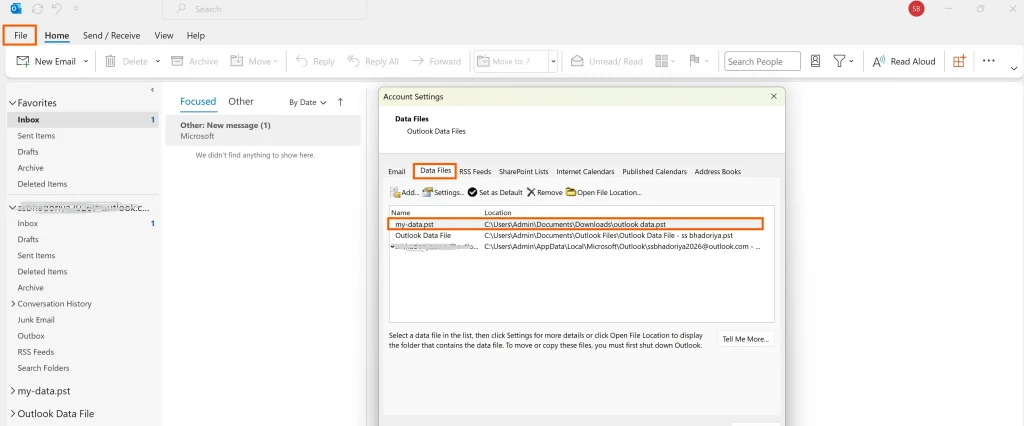
And to do this you need to follow these steps:-
- Open Outlook
- Go to File find Account Settings and click on Account Settings
- Select Data Files
- Note the PST file location
- Move the PST file to a local folder outside OneDrive
- Reconnect it in Outlook
This helps you prevent the Outlook PST Files Not Synchronizing on OneDrive and avoids sync conflicts.
Solution 3: Compress or Reduce PST File Size
Large PST files are difficult to sync and it may cause the Outlook data file to not sync to OneDrive.
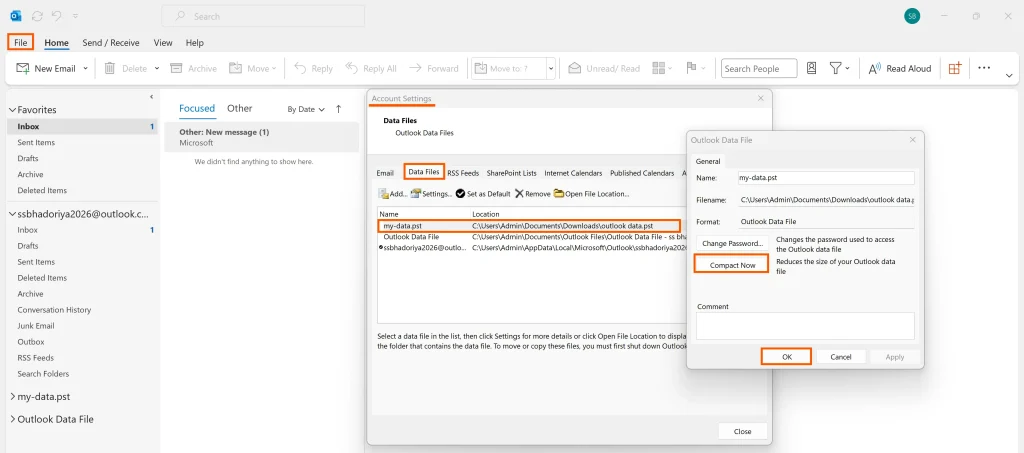
Check these steps
- Open Outlook
- Go to File → Account Settings
- Select Data Files
- Click Settings → Compact Now
Reducing the PST file size can definitely improve synchronization performance. You can check in this guide How to Reduce PST File Size Safely.
Solution 4: Check OneDrive Storage and Sync Status
Sometimes this problem occurs because OneDrive storage is full or sync is paused. You just need to check and follow these steps to check drive storage status.
- You need to click on OneDrive icon in the system tray
- Check if syncing is paused
- Resume syncing
- Ensure enough storage is available
Once you check and figure out your storage is full well OneDrive may stop syncing PST files at this stage.
Solution 5: Avoid Opening PST File on Multiple Devices
Opening the same PST file on multiple computers via OneDrive simultaneously can cause serious problems such as:
- Sync conflicts
- File corruption
- Outlook crashes
And for this reason it is absolutely recommended not to use a single PST file simultaneously across multiple devices.
Use a Professional PST Management Tool
If your PST file is already experiencing sync issues or corruption then you should try using a professional tool is a good idea.
There is one such reliable option that is trusted and tested known as DataHelp PST Repair Tool as the tool is fully capable to repair your damaged Outlook PST files and restore your emails, contacts and other mailbox data safely simply download and use with with simple drag & drop features of this tool.
You can check below the key benefits you can get with this tool
- Repairs corrupted PST files
- Recovers emails, attachments, contacts, and calendars
- Supports large PST files
- Works without Outlook installation
- Maintains original mailbox structure
So if the Outlook PST Files is Not Synchronizing on OneDrive well the simple cause is file corruption or data inaccessibility and using this tool can help you restore your mailbox data efficiently.
Best Practices to Prevent PST Sync Issues
To avoid the future problems with this issue Outlook PST Files Not Synchronizing you need to follow these best practices:-
- Do not store active PST files inside OneDrive folders
- Keep your PST file size under control
- You should close Outlook before OneDrive syncing
- Avoid using the same PST file across multiple computers
- Regularly backup Outlook data files
After you take care of all of these I am damn sure these practices will help you prevent Outlook PST file not syncing issues.
You can also read this issue to check how you can Fix Body of Email Not Showing in Outlook – Check what you can do and to fix this easily.
When to Consider Using OST Instead of PST
So if you want seamless cloud synchronization it is best to use Exchange or Microsoft 365 accounts instead of PST files as with exchange accounts:-
- Emails sync automatically
- No manual PST management required
- Data remains stored safely on the server
This will eliminate the need to sync Outlook PST files with OneDrive.
Final Thoughts
Well the issue of Outlook PST Files Not Synchronizing on OneDrive occurs mainly because your PST files are constantly updated and it is not designed for real time cloud syncing. So when Outlook is running OneDrive is not able to properly sync the file and because of this you see the errors and conflicts.
And yes by understanding the actual causes and applying these solutions discussed in this article you can easily resolve this error Outlook PST file not syncing effectively.
If your PST file becomes corrupted due to sync conflicts, it is best to rely on a professional solution like DataHelp Software offer as it can help you recover your important Outlook data safely.