How to Fix Outlook Offline but Internet Connected Error?


Imagine you are working on your computer and see a red X on your email and see the Outlook offline but internet connected status at the bottom of your screen. This can be confusing if your computer has a strong signal and then also you are not able to send or receive emails. Sometimes this can be caused by a simple setting that was caused by a corrupted file and can be fixed by the Work Offline button, restarting your connection or creating a new profile.
Here we will look at the effective ways to solve this problem and also introduce you to the professional solution to help you if your local data files become inaccessible during the Outlook stuck in offline mode error.
Table of Contents:
Why is Outlook Offline but Internet Connected?
- There is a feature in Outlook known as the Work Offline Setting that can sometimes stay on even when you want to be online.
- Microsoft needs you to re-enter your password for account authentication in some cases but the pop-up window is hidden.
- Outlook stores a copy of your mail in a local file (OST) and if this file is broken, you will see the Outlook working offline but connected to internet error.
Manual Fixes to Get Back Outlook from Offline to Online Mode
Generally it is best to start with the easiest ways when you are trying to fix an Outlook offline but internet connected error. Many times the reason for this is a simple setting that got switched by mistake in your account. Below are the various steps that you can take to get your emails working again:
Method 1: Check the Work Offline Setting
It is very easy to click the manual status button, so this should be the first thing you should check when Outlook offline but internet connected. Follow these steps to check the button:
- Open Microsoft Outlook and go to the Send/Receive tab at the top.

- Look for the Work Offline button on the right side of the screen.

- If the button is shaded or dark then it means that there is an Outlook stuck in offline mode error.
- Click the button and the status bar at the bottom will change from Working Offline to Connected.
Method 2: Restart to Fix Outlook Offline but Internet Connected
Sometimes Outlook is disconnected but the internet is working happens because the application is waiting for an important update. Look at the steps below to update and restart your Outlook:
- First close the Microsoft Outlook application.
- Open any other Office application like Word, go to File > Account and then click Update Options > Update Now.
- Finally restart your computer as this resets the network handshake and fixes the issue.
Method 3: Create a New Outlook Profile
Your current user profile may be broken if you are still facing the Outlook stuck in offline mode error. Using a new profile can solve this issue and here are the steps needed to make a new profile:
- Close the Outlook application and open the Control Panel.
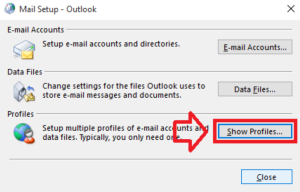
- Search for the Mail option and click on the Show Properties button.
- Click on Add and give the new profile a name.
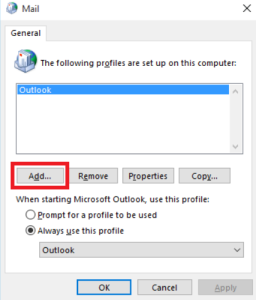
- Enter your name and if this profile works, it means that the old one was defective.
Note: If you also want to create a new Outlook PST file then you can read the proper steps required for the same here.
Method 4: Open Outlook in Safe Mode
Running Outlook safely can help fix the offline mode issue by preventing add-ins from disturbing the normal functions. To open Outlook in Safe Mode follow the steps mentioned below:
- Start by shutting the Microsoft Outlook application.
- Then press Win + R to launch the Command window.
- Type Outlook.exe/safe in the Run window and tap Enter to proceed.
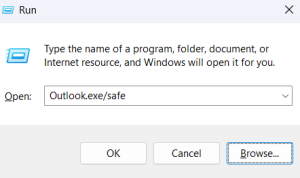
- When all this is done Outlook will start in Safe Mode.
- Now tap the Send and Receive button to continue.
- Select the default profile checkbox and press OK to move forward.
- Finally check the status bar to confirm that it has changed from offline to online.
You may need to learn how to save PST file in New Outlook to ensure that your old archived folders arel accessible in the updated layout.
Expert Tool for Outlook Offline but Internet Connected Error
The Outlook stuck in offline mode error is generally due to the corruption of the local OST file where the mail is kept. If you try to delete and recreate the file you can lose the data that was not connected to the server.
The DataHelp OST to PST Tool is an effective way to solve the problem that is caused by a damaged data file. This tool allows you to take the inaccessible OST file and turn it into a healthy PST file that you can open in any Outlook profile. It ensures that your data is safe even when Outlook offline but internet connected.
Why Choose This Tool?
- Converts orphaned and inaccessible OST files with zero data loss.
- Exports emails, contacts, calendars and attachments.
- Repair damaged OST and save into PST.
- Convert large size files without any limitations.
- Batch convert multiple OST files.
- Compatible with Windows 11 and all the below versions.
You need to know where the Outlook OST file is located before you can repair your data. You can follow the steps when you find the location of the file.
Steps to Use This Tool:
- Download the software on your computer.
- Choose the Select Folder option and then click on Ok. This option allows you to add the complete folder of OST files.
- Press the Select Files option to select the OST file from the system and then click on Open to add the files.
- Click on OK and then on the Convert button to start the conversion process.
- This tool provides many options, you can see if you want any of them and then click on the Ok button.
- Finally convert your OST content to the PST format and click OK.
- Click on the Save Report button if you want to save an export report.
Frequently Asked Questions
Q1. Why does my Outlook say “Disconnected” even when my Wi-Fi is on?
Ans. This means that the connection between your computer and the email server is blocked and the application cannot reach the data and the error Outlook offline but internet connected occurs.
Q2. Does “Work Offline” delete my emails?
Ans. No, being in the Outlook tuck in offline mode just stops the syncing. The old emails stay on your computer but you will not be able to see the new ones until you fix this issue.
Q3. How can I tell if my OST file is corrupted?
Ans. You can try to check the Work Offline button and if does not work or if Outlook freezes when you try to connect then your data file can be the reason that Outlook offline but connected to internet error occurs.
Q4. Can I fix this issue by reinstalling Outlook?
Ans. Reinstalling the application can help but it is better to try creating a new profile or checking the account settings as these are more common causes for this issue.
Conclusion
Dealing with the Outlook offline but internet connected issue is a common but an easy to fix problem. We started by identifying that the problem is generally a software problem or a setting and not the internet connection. You can check the Outlook stuck in offline mode error by clicking the Work offline button in the Send/Receive tab.
Then we looked at the Outlook disconnected but internet working issue and how to create a new profile to solve a broken setup and answer the common questions. You can get back to your work with a proper working and active inbox by following the steps mentioned above.