How Do I Disable Promotions Folder in Outlook Webmail?


If Outlook Webmail keeps sending emails to a Promotions folder and you would rather see everything in one place then you are not alone. Many users are looking for the simplest ways which they can use to disable the Promotions folder in Outlook webmail due to their important emails sometimes ending up there instead of the main inbox.
But no worries as the good news is that Outlook gives you a few ways which you can use to control how emails are organized. In most cases you can simply disable Outlook from distinguishing between promotional messages and ensure that your emails get where you expect them to.
In this guide I will explain everything in simple steps so you can understand every detail easily and fix this issue within no time.
Table of Contents:
- Why Does Outlook Create a Promotions Folder?
- Can You Disable Promotions Folder in Outlook Webmail?
- Method 1: Turn Off Focused Inbox
- Method 2: Check Inbox Rules
- Method 3: Move Emails Back to Inbox
- Method 4: Add Trusted Senders
- How to Turn Off Promotions Folder in Outlook Completely
- How Do I Get Rid of the Promotions Folder in Outlook?
- What If Important Emails Still Go to Promotions?
- Common Mistakes to Avoid
- Frequently Asked Questions
- Final Thoughts
Why Does Outlook Create a Promotions Folder?
The purpose of the Promotion form is to separate all the marketing emails from personal or business emails. Emails such as:
- Store offers
- Newsletters
- Discount coupons
- Marketing campaigns
- Product updates
may automatically be placed in Promotions instead of your Inbox.
This can help to reduce friction. But most users want to see all messages in one location. That is why they look for ways to disable the Promotions folder in Outlook webmail.
Quick Reading: If Outlook Not Working After Windows 11 Update then you read this article and find the solutions.
Can You Disable Promotions Folder in Outlook Webmail?
Yes you can disable In most of the cases you can easily change Outlook settings so the emails can stop being automatically sorted into categories.
The exact formats depend on the version of Outlook Webmail you are using. Some Microsoft 365 products have different capabilities than Outlook’s own products.
If your goal is to disable Promotions folder in Outlook webmail then the methods below usually solve the problem.
Method 1: Turn Off Focused Inbox
Focused Inbox is one of the most common reasons Outlook separates your emails. You can follow these steps to simply turn this off:
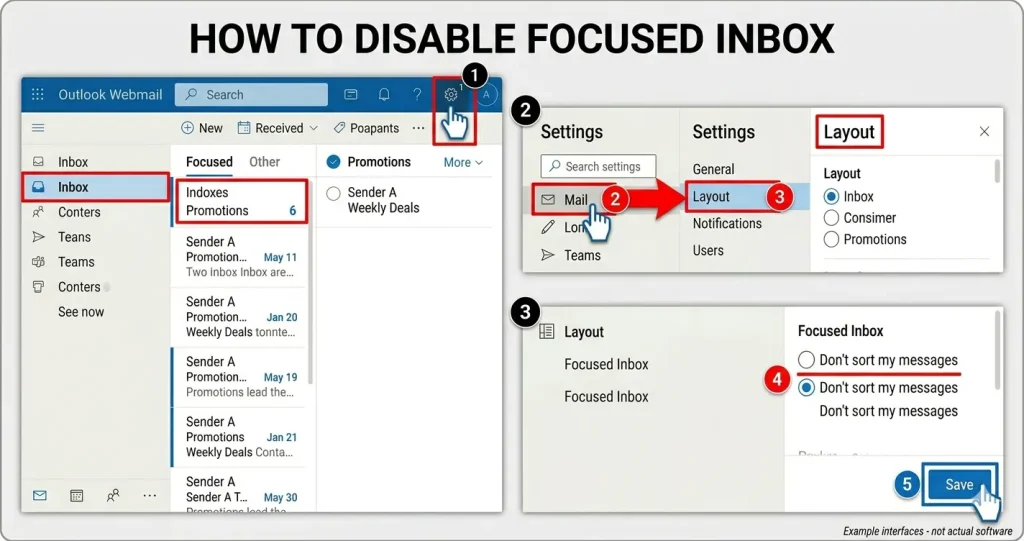
- Open Outlook Webmail.
- Click the Settings icon.
- Select Mail.
- Open Layout settings.
- Find a Focused Inbox.
- Turn it Off.
- Save the changes.
After you disable Focused Inbox then Outlook will stop separating messages into Focused and Other categories. For many users this is enough to disable Promotions folder in Outlook webmail and simplify the inbox.
Method 2: Check Inbox Rules
Sometimes the Promotions folder is not controlled by Outlook itself so a rule may be moving messages automatically. If you want to check find the steps below:
- Open Outlook Webmail.
- Click Settings.
- Select Mail.
- Open Rules.
- Review all existing rules.
- Delete or edit any rule that moves emails into Promotions.
Many users forget they created rules months or years ago so you also need to check and remove these rules so you can fix the issue immediately.
Quick Reading: Check in this article how you can fix Body of Email Not Showing in Outlook easily.
Method 3: Move Emails Back to Inbox
If Outlook only sends emails to Promotions then you can teach Outlook your preference. You simply need to:
- Open the Promotions folder.
- Select the email.
- Now Move it to Inbox.
- You Should Choose Always Move if the option appears.
You need to repeat this for important senders as well.
Over time Outlook becomes better and In the case of Outlook it is easier to understand which emails are in your Inbox.
Method 4: Add Trusted Senders
Another simple solution is adding important contacts to the Safe Senders list and to do this you need to follow the steps:
- Open Outlook Webmail.
- Go to Settings.
- Open Junk Email settings.
- And Now Add the sender address to Safe Senders.
When you add Outlook it doesn’t generally store those messages in Promotions. This method works well if your few important emails are only affected.
How to Turn Off Promotions Folder in Outlook Completely
Many users ask how to turn off promotions folder in outlook because they want a single inbox experience.
While Outlook may not always provide you a dedicated switch called “Turn Off Promotions” the combination of these actions usually achieves the same result:
- Disable Focused Inbox
- Remove email rules
- Add Safe Senders
- Move messages back to Inbox
These settings changes will surely stop most automatic sorting behavior.
How Do I Get Rid of the Promotions Folder in Outlook?
Another common question is how do I get rid of the promotions folder in outlook. And the answer depends on what version of Outlook account you are using.
For some accounts the folder is a built-in category and it cannot be completely removed. But you can stop using it and configure Outlook so that new messages arrive directly in your Inbox. For most users this provides the same result as removing the folder.
What If Important Emails Still Go to Promotions?
If emails continue to appear in Promotions after changing settings then you need to check the following:
- Outlook rules
- Organization policies
- Microsoft 365 administrator settings
- Third-party email filtering services
Business accounts sometimes have company wide email filtering policies that individual users cannot change. So now in that situation you may need help from your IT administrator.
Also Read: How to Fix Outlook PST Files Not Synchronizing on OneDrive?
Common Mistakes to Avoid
When you are trying to disable Promotions folder in Outlook webmail you must avoid these mistakes:
- Do Not Delete the Folder Immediately: Deleting folders without understanding the reason can lead to confusion later.
- Do Not Create Too Many Rules: You must avoid this as multiple rules simply conflict with each other and it will make sorting problems worse.
- Do Not Ignore Safe Senders: Keep adding trusted contacts as this is one of the easiest ways to prevent important emails from being filtered.
- Do Not Forget to Save Changes: Many users change settings and immediately close the page without saving the setting so you need to save it.
If you want to disable Promotions folder in Outlook webmail then you should start by turning off Focused Inbox. Next you need to check your inbox rules and remove any rule that moves emails automatically. Now move your important messages back to the Inbox and add trusted senders to your Safe Senders list. These simple changes will solve the issue for most Outlook Webmail users.
Frequently Asked Questions
Q1. How do I disable Promotions folder in Outlook webmail?
You need to open Outlook Webmail first and then disable Focused Inbox. Then you can review your inbox rules and you need to remove any rule that moves emails into Promotions.
Q2. How to turn off promotions folder in outlook?
Turn off the Focused Inbox and bring relevant content straight to your Inbox. Outlook will gradually learn what you want.
Q3. How do I get rid of the promotions folder in outlook?
Some Outlook accounts do not allow complete removal of the folder. However you can stop using it and receive emails directly in the Inbox.
Q4. Why are my emails going to Promotions instead of Inbox?
Outlook may identify them as marketers or advertisers. Email policies and filter settings can also cause messages to be redirected.
Q5. How to disable Promotions folder in Outlook webmail permanently?
You cannot always remove the folder itself but you can stop Outlook from automatically sorting messages into it by adjusting mailbox settings as suggested in this article.
Final Thoughts
If Outlook keeps sending your messages to Promotions then you do not need to worry as in most cases the fix only takes a few minutes. Turning off Focused Inbox checking mailbox rules and adding trusted senders are usually enough to stop unwanted email sorting.
Once these settings are updated Outlook becomes much easier for you to manage and important emails are far less likely to be missed.