Outlook Not Working After Windows 11 Update


If your Outlook is not working after Windows 11 update well you are not alone as there are many others who are facing the similar problem. Many users face issues like Outlook not opening, It is crashing, freezing or search not working after installing a Windows update.
But the good news is that in most of the practical cases I have witnessed that this is only a software level issue and your valuable emails are still safe. You just need the right steps to fix this error correctly.
After reading this guide you will easily learn why Outlook not working after Windows 11 update happens and how you can fix this issue step by step.
Table of Contents:
- Find Quick Solution
- Why Outlook Not Working After Update?
- Common Symptoms You May Notice
- Quick Fixes for Outlook Issues
- Run Outlook in Safe Mode
- Fix Outlook Search Not Working After Update
- Create a New Outlook Profile
- Check Outlook Data File (PST/OST)
- Advanced Recovery Solution
- When Users Panic Most
- Safe Troubleshooting Strategy
- Frequently Asked Questions
- Final Thoughts
Outlook Not Working After Windows Update – Find Quick Solution
| Issue | Solution |
|---|---|
| Outlook not opening | Safe Mode / Repair Office |
| Outlook crashing | Disable add-ins |
| Search not working | Rebuild Index |
| Severe issue | Use recovery tool |
Why Is My Outlook Not Working After Update?
Well after a Windows 11 update many users are reporting as they are unable to open Outlook. So you need to deep dive into this as Outlook may stop working due to the following reasons:-
- Compatibility issues with new system files
- Corrupt Outlook profile
- Add-ins conflict
- Broken search indexing
- Damaged PST/OST file
- Incomplete Windows update
This is the reason why many users often report:-
- outlook not opening after windows 11 update
- outlook search not working after windows 11 update
Common Symptoms You May Notice
- Outlook won’t open at all
- Outlook keeps crashing or freezing
- Emails not syncing
- Search not returning results
- “Outlook not responding” error
So If you are facing any of these signs well your outlook not working after windows 11 upgrade issue needs very immediate attention.
Fix Outlook Not Working After Windows 11 Update
Let’s go from basic to advanced fixes and for this you need to start by opening the control panel and look for a repair office or you need to run Outlook in safe mode. Check the complete steps below and fix this error in 8 easy steps.
1. Restart Your System
Sometimes Windows updates don’t fully apply until you restart your system. This is a basic quick fix step. You just need to restart your PC and try opening Outlook again. Sometimes this fixes the issue completely.
2. Run Outlook in Safe Mode
Once the restarting system again does not work well now you can run Outlook in safe mode as this will help you identify if add-ins are causing the issue.
Simply Follow These Steps to Run Outlook in Safe Mode.

- Press Windows + R
- Type: outlook.exe /safe
- And Press Enter
Here you can check if Outlook works you can disable add-ins and for this you need to find the following and few setting changes.
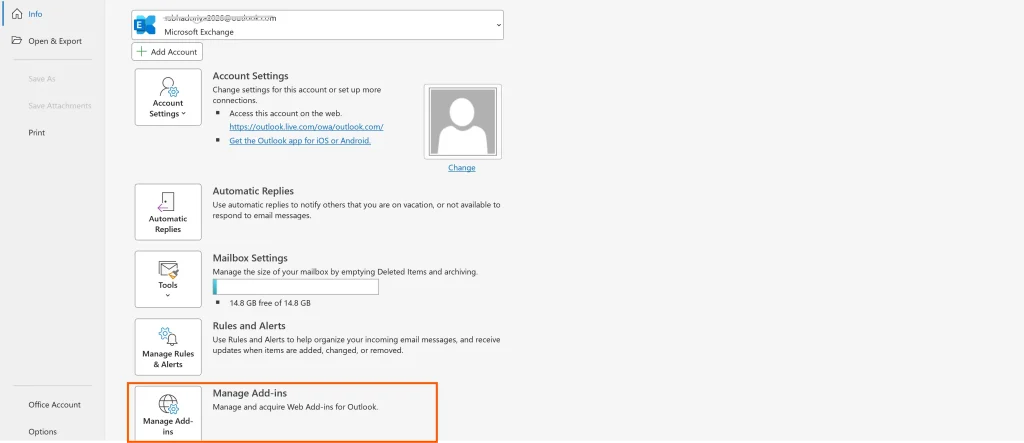
- File → Options → Add-ins
- Disable all → Enable one by one
3. Repair Microsoft Office
So if Outlook is not opening after Windows 11 update here you can proceed with repairing Office as this can fix your corrupted files.
To Repair Corrupted Files Follow these Steps.
- Go to Control Panel
- Programs → Programs & Features
- Select Microsoft Office
- Click Change → Quick Repair / Online Repair
4. Update Outlook and Windows
It is a fact that sometimes updates itself causes bugs and Microsoft releases patches.
Steps:
- Open Outlook → File → Office Account
- Click Update Options → Update Now
You can also update Windows
- Go to Settings → Windows Update
5. Fix Outlook Search Not Working After Windows 11 Update
Let me summarize this for you as this is a very common issue and we can easily fix this. You just need to follow the steps carefully.
Rebuild Search Index
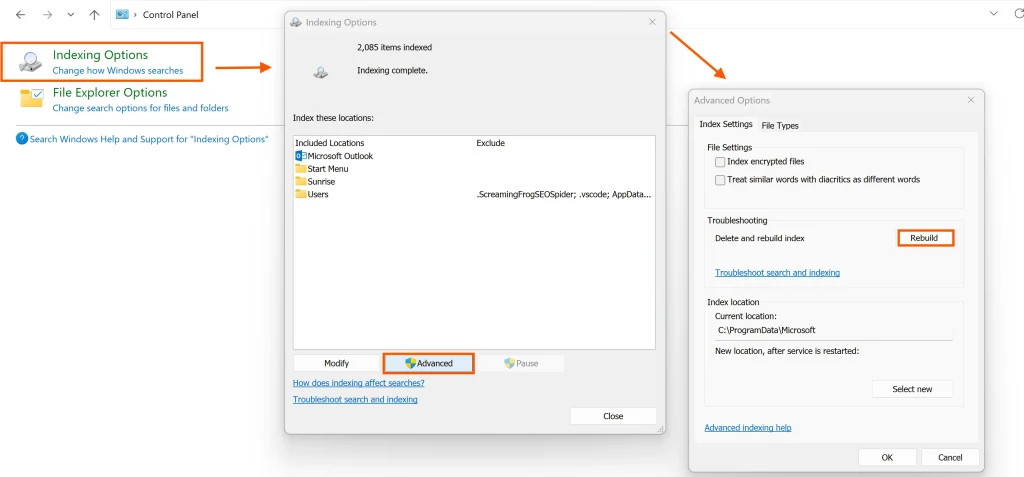
- Control Panel → Indexing Options
- Click Advanced → Rebuild
This fixes Outlook search not working after the Windows 11 update in most of the cases.
6. Create a New Outlook Profile
This is one such a good step creating a new profile as Corrupt profile = Outlook not working with Windows 11.
Follow the Steps to Create New Outlook Profile
- Control Panel → Mail → Show Profiles
- Click Add → Create new profile
- You can Set this as default
7. Disable Compatibility Mode
Do you know sometimes Outlook runs in older compatibility mode after update so you can simply disable this and your issue is fixed after.
Steps:
- You can right click on Outlook icon
- Go to Properties → Compatibility
- Now Uncheck all options
8. Check Data File (PST/OST)
If Outlook crashes after updating to Windows 11 well your data file may be corrupted.
You Can Use Inbox Repair Tool (ScanPST)
- Locate ScanPST.exe
- Run scan on PST file
- Repair errors
Quick Reading: You can check this article and learn How to Repair PST File Without ScanPST and repair your file easily.
Advanced Solution When Nothing Works
If your Outlook not working after the Windows 11 update so this is due to severe PST/OST corruption and in such a case manual methods may fail to repair this so you must rely on a professional software like DataHelp PST Recovery Tool to easily fix these issues without any hassle simply Download the tool and install on your system. A reliable solution to fix Outlook issues after updates as it can:
- Repair your severely corrupted PST files
- You can easily recover emails, contacts and attachments
- Fix Outlook not opening issue
- And restore inaccessible mailbox
Suggestion: Always save your recovered data to a new location. And if you wanted to know Where is the Outlook OST File Located read this article.
When Users Panic Most
It is absolutely normal for users to panic in this situation as they fear losing their important emails and data. These are the cases when users panic most.
- Outlook not opening after Windows 11 update
- Important emails are missing
- Outlook keeps crashing
- Search not working
Safe Troubleshooting Strategy
- Do not uninstall Outlook immediately
- You must avoid deleting your PST files
- Try safe mode first
- You can use repair tools carefully
- Take backup before major steps
FAQs
Q1. Does Windows Update Cause Outlook Issues?
Yes absolutely a Windows update can sometimes cause Outlook issues. After a Windows 11 update your system files, drivers or compatibility settings may get changed and which can affect how Outlook works. This is the reason why users often experience problems like Outlook not opening, crashing or search not working.
Q2. Why Is My Outlook All of a Sudden Not Working?
See if Outlook in your system suddenly stops working well it is usually due to one of the following reasons you can check these all.
- A recent Windows 11 update
- Corrupt Outlook profile or data file
- Conflicting add-ins
- Incomplete or failed updates
- Search indexing issues
Q3. Does Windows 11 Update Affect Outlook?
Yes it is as Windows 11 updates can affect Outlook if there are compatibility issues between the update and your Outlook version. Also some of the users report that their Outlook stops responding, fails to open or search features break after they updated to Windows 11. You must keep your Windows and Outlook both updated.
Q4. How Do I Get My Outlook Email Back to Normal?
To get your Outlook email back to normal you should follow these steps carefully:
- Restart your system after the update
- Open Outlook in Safe Mode to check add-ins
- Repair Microsoft Office
- Rebuild the Outlook search index
- Create a new Outlook profile if needed
If the issue is caused by file corruption well there is only a perfect solution that is a professional recovery tool to restore your emails safely.
Final Thoughts
I know the Outlook not working after Windows 11 update issue is frustrating for you but this is not permanent as in most of the cases.
- It’s a compatibility or corruption issue
- Your data is still safe
- And you can fix this with the right steps
At last if basic fixes don’t work at this stage Stop Every DIY Steps and look for a DataHelp recovery solution that will ensure your data stays protected.