How to Export Email Addresses from Outlook?


If you are one of those people who want to know how to export email addresses from Outlook then you are at the right place. Exporting email addresses from Outlook is no longer as simple as it used to be and if you have recently tried to find the Import/Export Wizard and could not locate it well, you are not alone as this has become a common query of many users. Let me tell you Microsoft has silently shifted millions of users to the New Outlook, where many traditional export options simply don’t exist anymore in 2026.
This guide will answer all your questions, whether you want to:
- Build a mailing list and want to know how you can do it fast.
- Move contacts to Gmail
- Backup your Outlook data
- Extract emails from Inbox/Sent items
- Export company directory (GAL)
You will find 6 working methods in this guide from basic to advanced steps with proper instruction and to avoid any wrong actions.
Why Exporting Email Addresses from Outlook Is Harder in 2026
Here is the core issue – New Outlook (default in 2026) removed the Import/Export Wizard that simply means:
- Users can not export PST
- No direct mailbox export
- And there is limited contact export options
So it all depends on your Outlook version as the process is completely different for the different versions.
Check Outlook Problems and Quick Solutions
| Problem | Solution |
|---|---|
| Import/Export missing | You’re on New Outlook |
| CSV empty | Wrong folder selected |
| Weird characters | Save as UTF-8 |
| VBA error | Enable Outlook Library |
| 0 contacts exported | Selected wrong node |
| Outlook freezes | Export in batches |
| Too many columns | Use Map Fields |
Table of Contents:
What Outlook Actually Stores?
Before you try to export email addresses from Outlook, it is equally important for you to understand where Outlook actually stores your data. There are many users who fail to export complete email lists because Outlook keeps contacts, cached addresses and directory data in separate locations. Outlook doesn’t store all email addresses in one place.
There are 4 different sources you can check below:
- Contacts Folder (main exportable data)
- Suggested Contacts (auto saved)
- Auto complete cache (.NK2)
- Global Address List (GAL – company directory)
Key Insight
- Classic Outlook: There is full export features
- New Outlook: You can find Limited export (contacts only)
How to Check Your Version
- Go to File → Office Account → About OR
- Look at UI (New Outlook has simplified layout)
Note: If your interface looks clean/minimal now it confirms that you are likely using New Outlook 2026, where the traditional export option is missing. Also if your Outlook Not Working After Windows 11 Update you can read this article to find the solutions.
Method 1: Export Email Addresses from Outlook
If you are using Classic Outlook on Windows then this is one of the easiest and most reliable ways to export email addresses from Outlook. This built-in method that allows you to export all your contacts into a CSV file.
Check Steps to Export Outlook Contacts to CSV
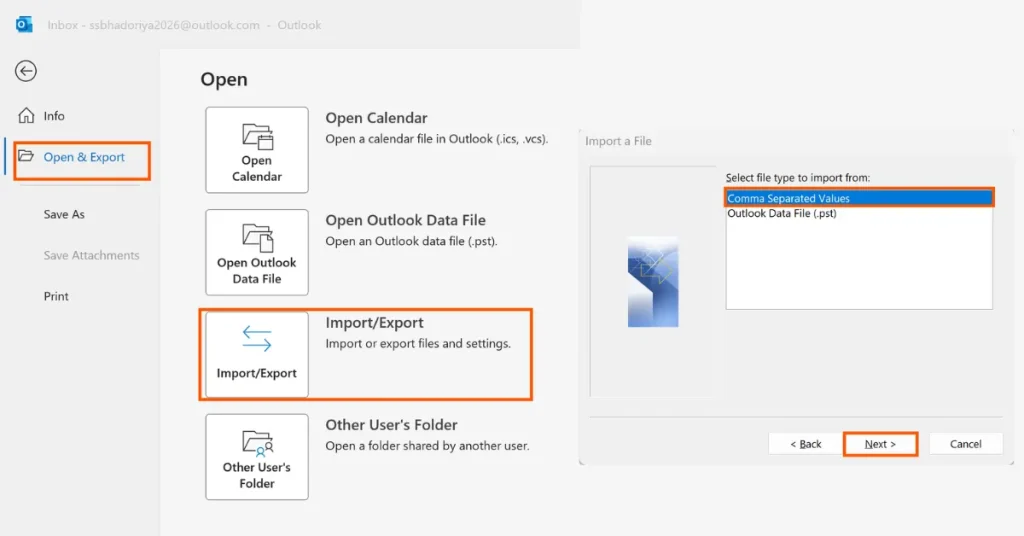
- Go to File → Open & Export → Select Import/Export
- Select Export to a file → and Click Next
- Choose CSV (Comma Separated Values)
- Select your Contacts folder
- Now choose a location → and click Finish
Important Step (Don’t Skip)
Click Map Custom Fields and you need to make sure “Email Address” is properly selected there. This ensures your exported file contains email addresses in a correct manner.
Avoid Common Mistakes
- Selecting the main mailbox instead of Contacts folder
- Not mapping fields → results in empty email column
Do Not Ignore CSV File Warning
After exporting you can take these actions:
- Open your file in Excel
- Always use Save As → CSV UTF-8 (Comma delimited)
Otherwise:
- Your email data may get corrupted
- Special characters may not display it properly
Method 2: New Outlook 2026 & Outlook Web (OWA)
This method is best for Microsoft 365 users and works on Desktop + Web both.
Steps for (New Outlook Desktop)
- Click People icon
- Go to Manage Contacts
- Click Export Contacts
- Choose All contacts OR specific folder
- And Click to Export
Steps for (Outlook Web)
- Go to Outlook Web
- Click People
- Now Select Manage → Export Contacts
- Choose All Contacts → Export
Major Limitations in 2026
- There is No PST export
- No option to export mailbox
- No Import/Export Wizard
How to Switch Back to Classic Outlook?
- You need to toggle off “New Outlook” (top-right)
- And Restart Outlook
Method 3: Extract Email Addresses from Inbox/Sent Items
You can use this method to export email addresses not saved as contacts in Outlook. It helps you extract emails from Inbox or Sent Items. So this is ideal for recovering unsaved contacts.
Steps:
- Go to File → Import/Export
- Choose Export to CSV
- Select Inbox or Sent Items
MOST IMPORTANT STEP
You need to click Map Custom Fields
- Remove everything
- Add ONLY:
- From (Address)
- To (Address)
- CC (Address)
Clean in Excel:
- Remove duplicates
- Delete blanks
Method 4: VBA Macro (Advanced Extraction)
This is an advanced method that will help you extract all email addresses from Outlook using VBA and it is ideal for large scale data. Best suited for users needing bulk extraction with automation.
Why Use This?
- To extracts ALL addresses
- It works across folders
- Auto removes duplicates
Steps:
- Press Alt + F11
- Insert → Module
- Paste macro
- And Press F5
Keep in Mind Security Warning
Macro attacks are increasing so before running you must:
- Verify code
- Enable only trusted macros
- Disable after use
Method 5: Export Global Address List (GAL)
This method helps you export email addresses from Outlook Global Address List (GAL). This is a company wide email directory and it is mainly used by IT admins to extract organizational contact data.
Workaround (Non Admin)
- Open Address Book (Ctrl + Shift + B)
- Select GAL
- Select all → Add to Contacts
- Export via Method 1
Admin Method (PowerShell)
Use:
- Get Mailbox
- Export CSV
Method 6: Export Outlook Contacts on Mac
This method is best for Mac users so if you are using Outlook on a Mac – you can easily export your Outlook contacts in CSV or OLM format.
Check the easy steps you need to follow.
- Go to File → Choose Export
- Now Choose Contacts
- And Save File as (.OLM OR CSV)
What are the Key Differences
- No Import/Export Wizard
- There are limited options
Points to remember
- OLM files don’t work on Windows
- Use CSV for portability
Clean and Use Your Exported Email List
After exporting your email addresses from Outlook it is very important to clean and organize complete data before use.
Clean Data
- Remove duplicates
- Delete blank rows
Save Format
You should always use CSV UTF-8
Import Options
- Gmail → Google Contacts
- Outlook → Import CSV
- CRM → HubSpot / Zoho / Mailchimp
Note: For users who are planning to move their cleaned Outlook data to Microsoft 365, DataHelp PST to Office 365 Solution can simplify bulk migration with complete accuracy.
Which Method is Best to Export Email Addresses from Outlook?
| Method | Version | Unsaved Emails | Admin Needed | Mac | Free | Difficulty |
|---|---|---|---|---|---|---|
| Method 1 | Classic | ✕ | ✕ | ✕ | ✓ | Easy |
| Method 2 | New Outlook | ✕ | ✕ | ✓ | ✓ | Easy |
| Method 3 | Classic | ✓ | ✕ | ✕ | ✓ | Medium |
| Method 4 | Classic | ✓ | ✕ | ✕ | ✓ | Hard |
| Method 5 | M365 | ✓ | ✓ | ✕ | ✓ | Advanced |
| Method 6 | Mac | ✕ | ✕ | ✓ | ✓ | Easy |
Suggestion: You can also read this article How to Fix Outlook Offline but Internet Connected Error and fix it easily with proven methods without loosing Outlook data.
FAQs
Q1. Can I export email addresses not saved as contacts?
Yes, you can export by using Method 3 or VBA (Method 4). Follow these two steps and thereafter you can easily export your email list.
Q2. How to export all email addresses to Excel?
If you want to quickly export as CSV → just open in Excel → clean data.
Q3. Why is Import/Export missing?
The Import/export option is missing because you are using New Outlook 2026.
Q4. Does New Outlook support CSV export?
Yes it supports CSV export but only for contacts.
Conclusion
How to Export Email Addresses from Outlook? so to export your email addresses from Outlook efficiently you must choose the right method Classic Outlook users use Method 1, New Outlook users can use Method 2, and for unsaved contacts there you can follow Methods 3–4, IT users can check Method 5 and last for Mac users can follow Method 6 to safely export email addresses.