PST Corrupted After Windows 11 KB5041587 Update – Fix Safely


Quick Answer: If your PST corrupted after Windows 11 KB5041587 update then the issue is usually caused by interrupted Outlook syncing, OneDrive conflicts, damaged mailbox indexing, incomplete update installation or Outlook forcibly closing during the update reboot process. In this situation the safest fix is to stop using the PST file immediately, move it out of synced folders, check Outlook compatibility, repair Office and recover the file using professional PST repair software if Microsoft’s built in repair tool is unable to repair this.
The purpose of Windows updates is to improve system performance and security but yes sometimes they create unwanted issues in Outlook. After installing Windows 11 KB5041587, many users reported problems such as:
- Microsoft Outlook not opening
- PST file suddenly becoming inaccessible
- Missing emails after reboot
- Outlook freezing on startup
- “Cannot open Outlook data file” errors
- OneDrive syncing conflicts with Outlook files
- Mail folders disappearing
For many users, the problem begins with something like this “your system installs Windows 11 KB5041587” – the PC restarts – Outlook opens – and your PST file becomes unreadable.
This is where users start searching for PST corrupted after Windows 11 KB5041587 update as their emails, contacts and business related communications suddenly become inaccessible.
Table of Contents:
- What Is Windows Update KB5041587?
- Why PST Files Get Corrupted After KB5041587 Update
- Signs Your PST File Is Corrupted
- Open Outlook in Safe Mode
- Move PST File Out of OneDrive Folder
- Repair Microsoft Outlook Installation
- Restore a Previous Version of PST File
- How to Repair PST File Without ScanPST
- Use Professional Method
- How to Prevent PST Corruption After Future Updates
- Frequently Asked Questions
- Final Thoughts
What Is Windows Update KB5041587?
Windows 11 KB5041587 is a cumulative Windows update that is completely released for system stability, security improvements and performance enhancements it may include:
- Security patches
- File Explorer fixes
- OneDrive syncing improvements
- Windows stability updates
- Authentication patches
Although this update does not directly target Outlook, changes occurring in the background system could affect your locally stored mailbox files. This situation becomes even worse when PST files are stored within it:
- OneDrive folders
- Desktop
- Documents folder
- Network drives
Why PST Files Get Corrupted After KB5041587 Update
If your PST corrupted after Windows 11 KB5041587 update then these are the most common causes you will notice.
1. OneDrive Sync Conflict
This is one of the biggest hidden causes as many users store PST files here:
C:\Users\Name\OneDrive\Documents\Outlook Files
During update reboot:
- Outlook closes unexpectedly
- OneDrive starts syncing
- File gets locked
- PST becomes corrupted
Microsoft generally recommends users to avoid active PST storage in OneDrive-synced folders.
2. If There is Forced Restart During Outlook Activity
If you open Outlook while the update is being installed then you may notice the following:
- Active mailbox rights suddenly stop working
- PST indexing is interrupted
- And file headers may become corrupted
3. Incomplete Update Installation
Sometimes users think How To Fix Update KB5041587 Not Installing On Windows 11 but let me tell you that partial updates may damage your system files that Outlook depends on.
4. Outlook Add-in Conflicts
Some plugins stop working after Windows updates you check below examples:
- CRM add-ins
- Antivirus integrations
- And backup plugins
5. Damaged Outlook Profile
Windows updates may affect Outlook account settings and because of this file may be corrupted.
Symptoms That Confirm PST Corruption
There are some certain symptoms that confirm your PST may be damaged. You can notice these symptoms to confirm the corruption.
- If Outlook won’t launch
- When Outlook crashes immediately
- If you find missing folders and attachments
- Send/receive errors
- Outlook data file cannot be opened error
- Outlook not responding properly
First Step: Open Outlook in Safe Mode
Before you start assuming file corruption you can test Outlook by pressing:
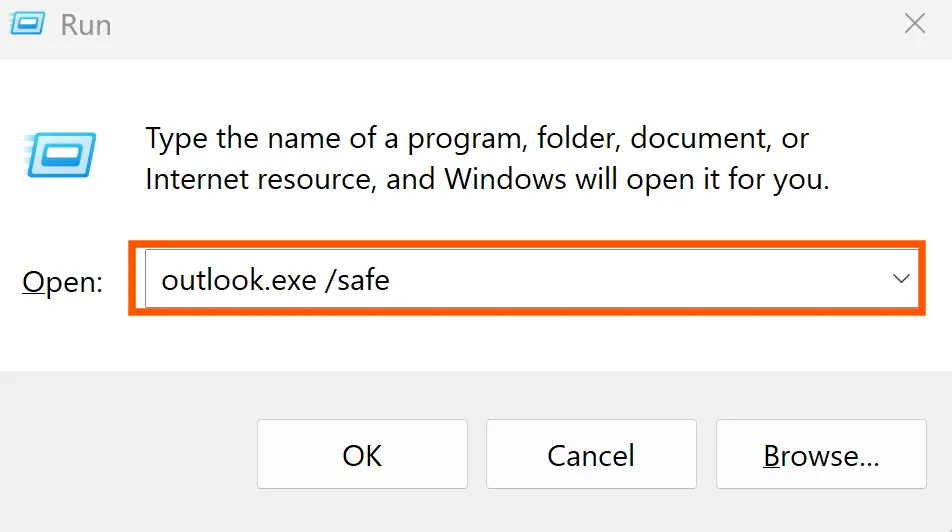
(Win + R) key and type: outlook.exe /safe
This will help you diagnose whether add-ins caused the actual issue. Now if Outlook opens you need to disable problematic add-ins.
Move PST Out of OneDrive Folder Immediately
If your file is stored in OneDrive you should move it to:
C:\Users\YourName\Documents\Outlook Files
As this prevents future syncing corruption issues.
Repair Outlook Installation
To repair you can simply Go to: Control Panel → Programs → Microsoft Office → Change
And Choose:
- Quick Repair
- Online Repair
This may fix Outlook startup issues.
Restore Previous Version of PST File
To restore you need to Right click PST file → Properties → Previous Versions. If Windows has created restore points, well you can recover a previous version.
How to Repair PST File Without ScanPST
Microsoft’s built-in Inbox Repair Tool known as (ScanPST.exe) often fails in the following condition:
- If PST is severely damaged
- Your File is oversized
- Folder hierarchy breaks
- Or headers are corrupted
In such cases, you should check our complete guide on How to repair a PST file without ScanPST for advanced recovery methods.
Use Professional Repair Software
The best solution that is safe and reliable If your PST corrupted after Windows 11 KB5041587 update and manual fixes continuously fail at this stage only professional repair tools become the safest option. You can download and use DataHelp Outlook PST Repair Tool that will helps safely recover:
- Emails
- Attachments
- Contacts
- Calendars
- Notes
- Deleted folders
It can easily repair PST file:
- Large PST files
- Corrupt headers
- Password-protected PST files
- Severe mailbox corruption
How to Prevent PST Corruption After Future Windows Updates
There are few important things that you should keep in mind to prevent your PST file from severe corruption.
- Close Outlook before installing updates
- Keep backups of PST files
- Avoid storing PST files in OneDrive
- Disable risky add-ins
- Keep Outlook updated
FAQs
Q1. Does KB5041587 directly corrupt PST files?
Not directly but this issue is typically caused by interruptions in synchronization, a forced shutdown or conflicts within Outlook.
Q2. Should I uninstall KB5041587?
Yes, only if multiple system related issues persist.
Q3. Can I recover deleted Outlook emails after corruption?
Yes you can recover the PST file if it is repaired properly.
Final Thoughts
If your PST corrupted after Windows 11 KB5041587 update, well I would say don’t panic and don’t keep reopening the damaged file repeatedly. Instead you should take right and quick steps to identify whether the issue is caused by OneDrive sync conflicts, Outlook crashes or it is because of incomplete updates.
Once you find the issue, the next step is to start with safe troubleshooting steps and if necessary you can use advanced tools. The faster you take action the chances of recovering your critical Outlook data is higher.