How to Fix Errors Have Been Detected in the OST File


If you use Microsoft Outlook then you may have faced a message that says errors have been detected in the OST file. This can be frustrating as it prevents you from opening the inbox or sending important emails. The local copy of your mailbox has a problem if Outlook data file errors have been detected and you may notice that this can be right after a computer crash or a power cut.
An OST file is designed to let you work offline and then sync with the server when you are back online. You can end up with Outlook OST file errors if the connection is disturbed. Today we will see why these problems happen and provide you with simple and easy methods to clear this error so that you can get back to work.
Table of Contents:
What is the Errors Have Been Detected in the OST File Message?
The OST file allows you to read emails even when you are not connected to the internet. When you see the message that errors have been detected in the OST file then Outlook is telling you that the map it uses to find your data is broken.
You will find Outlook constantly reporting OST data file is corrupt every time you restart your computer if you ignore this. This error does not mean that your emails are gone from the server but it does mean that your computer is not able to talk to them and it is one of the most common Outlook OST file errors that people are facing these days.
Reasons For This Error
Understanding why these errors occur can help you prevent them from coming back. Some of the common reasons for the Outlook data file errors have been detected are as follows:
- If your computer shuts down while Outlook is still open.
- The mailbox becomes weak when its size is over 20GB or 50GB.
- Errors between your computer and the server during the synchronization process.
- The way Outlook saves data can be disturbed by some of the third- party tools.
- Sometimes viruses can target data files which can lead to an Outlook error in the file.
Methods to Solve Errors Have Been Detected in the OST File
Dealing with these errors can be frustrating but the good news is that there are many ways to get your email back. We have provided the solutions whether you are a technical user or someone who just wants their Outlook to work again.
Method 1: Recreate the OST File
One of the easiest ways to fix Outlook OST file errors is to delete the broken file and let Outlook make a new one as Outlook is just a copy of what is on the server. If you try to back up your file and get a File in Use error message then you should learn how to copy an OST file while in use. Let us look at the following steps to create a new file:
- First close the Microsoft Outlook application.
- Then press the Windows Key + R, type %localappdata%\Microsoft\Outlook, and hit Enter.
- Look for the file ending in .ost that is causing the problem.
- Then right-click the file and select Delete.
- Open Outlook again and it will start downloading a copy of your emails.
Method 2: Use the ScanPST.exe Tool
Microsoft Outlook provides a built-in tool to fix small Outlook data file errors have been detected. It can work on OST files also even though the tool is named ScanPST. If the error is not solved after this then it means that the damage is too deep for this tool to solve. Use the following steps:
- Close Microsoft Outlook and search for ScanPST.exe on your computer.
- Open the tool and locate your OST file.
- Click the Start button and it will offer a Repair button if it finds the issues
- Finally press Repair and wait for the process to finish.
Pro Tip: You can check our guide on where is the ost file located to find the path for your version of Windows.
Method 3: Run Outlook in Safe Mode
Sometimes an Outlook error has been detected in the file which can be due to a bug in the plugin rather than the file itself.
- First press Windows Key + R.
- Then type outlookexe/safe and click the OK button.
- An Add-in is the reason if Outlook opens without saying errors have been detected in the OST file.
- Go to File > Options > Add-ins and disable them one by one to find the broken one.
Note: If you want to learn how to open OST file without Outlook then you can read this.
Method 4: Use a Professional Repair Tool
If Outlook constantly reporting OST data file is corrupt is an issue after you have tried the manual methods then it means that the damage is deeper than what the Windows tool can reach. Using an expert solution is an effective way to protect your emails if the manual methods have failed to do so.
The DataHelp OST Repair Tool is designed to extract your data from the damaged OST and move it into a healthy and new file format. It can recover deleted data from the OST files and repair the corrupted files.
Features of This Tool:
- Saves recovered data in PST, MSG, EML and PDF format
- Repair corrupted OST files and save them in a healthy format.
- Advance Scan mode can repair highly corrupted OST files.
- No file size limit as it can repair large-sized OST files easily
- Repair OST files of Outlook 2019, 2016, 2013, 2010, Etc.
Steps to Use This Tool:
1: Download, install, and run the tool.
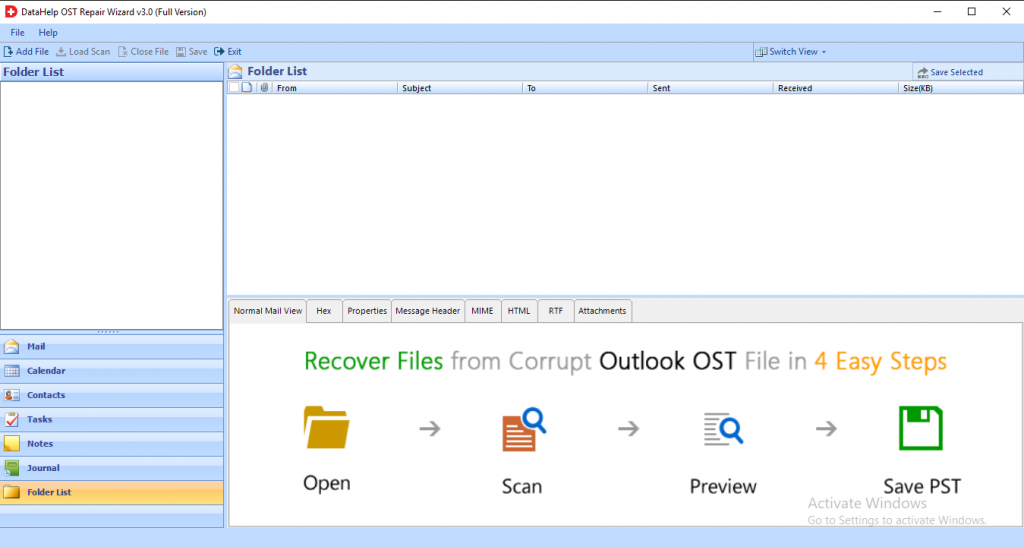
2: Add the corrupted .ost files by using Select File or Search File option available in the software panel.
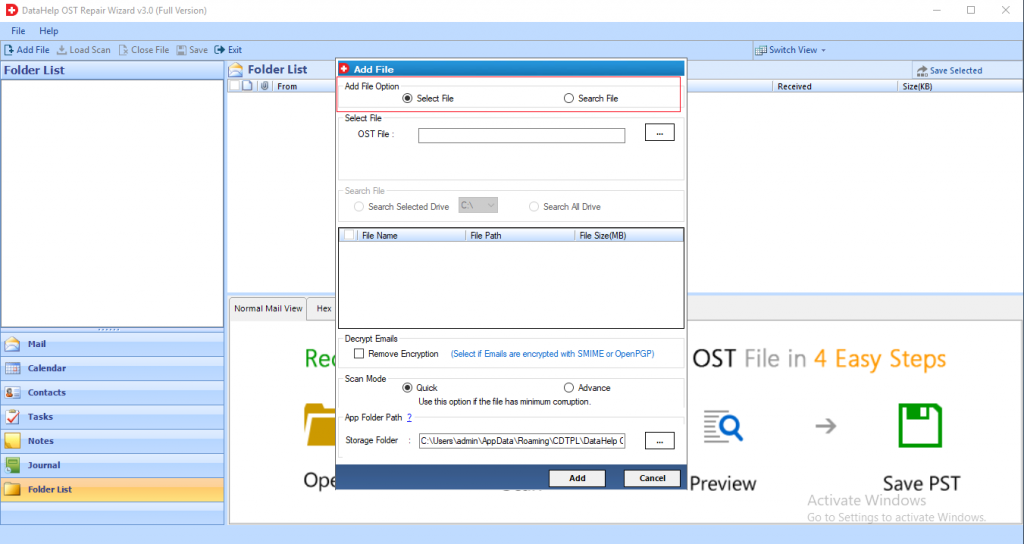
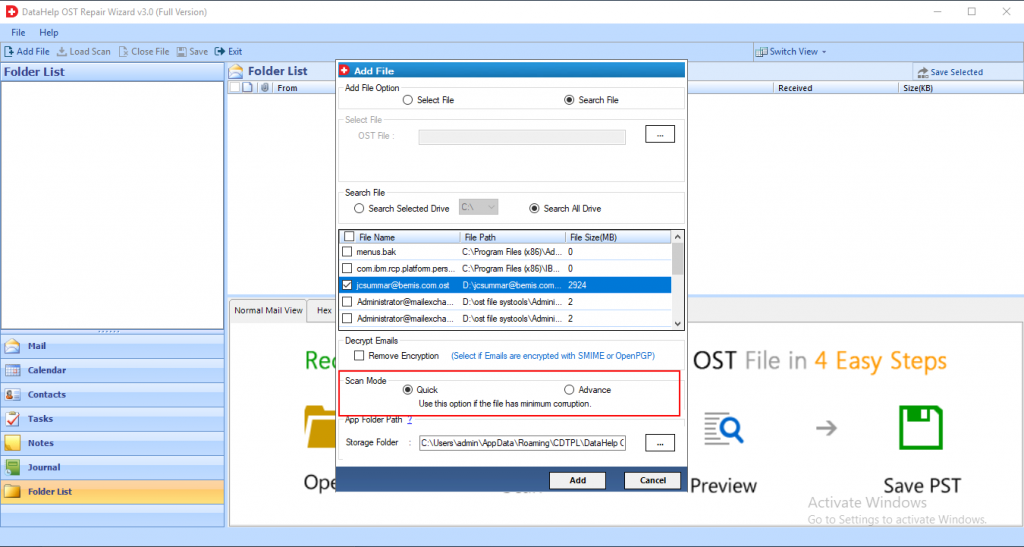
3: Then, choose the Quick scan or Advance Scan option to restore the emails from OST.
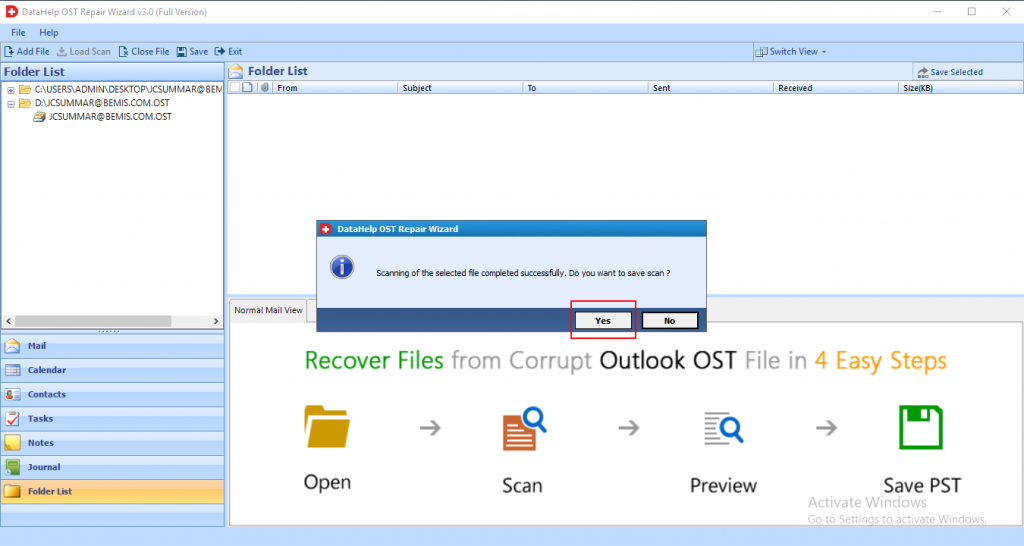
4: Now, the software starts the scanning process.
5: Select the file format to save the recovered data.
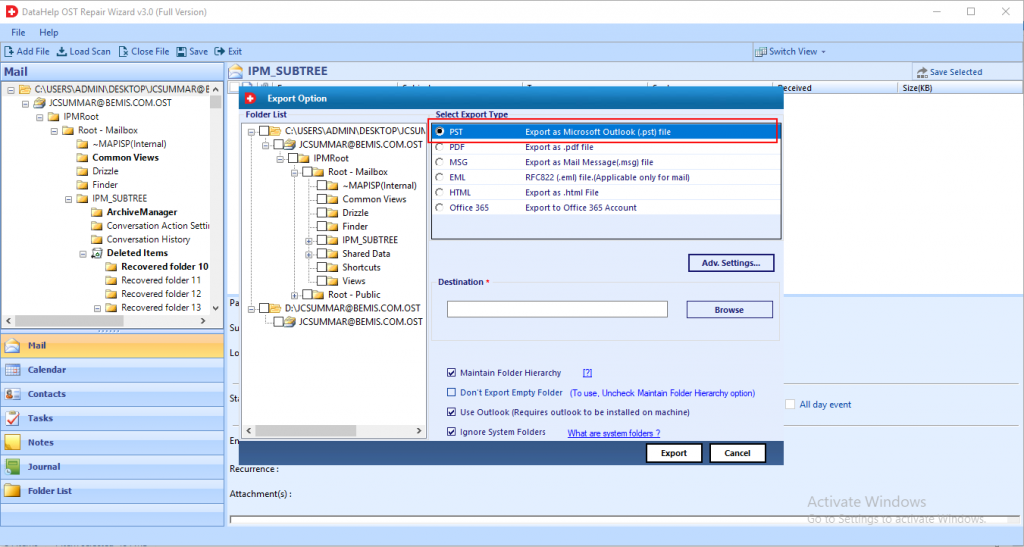
6: Now, the OST file gets successfully recovered. To Save the exported report click on the Save button.
Summary
Dealing with a message that says errors have been detected in the OST file can be frustrating but it does not have to be that difficult to solve. We have explained that this error happens when your local email becomes unreadable due to crashes, large sizes or sync bugs. Then we saw that it affects your ability to work when Outlook file errors have been detected.
We also saw the different methods to solve this problem from the manual ScanPST tool to the professional tool. You can solve the Outlook OST file errors and ensure that communication stays on track by following the methods mentioned above.