Why Mail Body Not Showing in Outlook – Solved


Quick Summary: If your mail body is not showing in Outlook then this issue is caused by view settings, add-ins, formatting issues or due to corrupted Outlook data files. You can fix this issue by resetting the view, disabling add-ins, updating your Outlook and by repairing the PST and OST file.
This is absolutely frustrating when you are facing the issue where your email body is not showing in outlook and due to this your important emails appear completely blank or it is partially visible. This issue occurs suddenly as many users have reported this issue in online community forums and are facing this issue even though their emails were working properly earlier.
If the message body is not showing in outlook well it could be due to some identified reasons like display glitches, faulty add-ins or a corrupted data file. Understanding the complete error and why the mail body is not showing in Outlook is the must as this will help you choose the right fixes and can quickly restore to normal functionality.
In this guide we will discuss all possible causes and proven solutions to fix the email content not showing in outlook issues quite effectively.
Why Mail Body Is Not Showing in Outlook
Before jumping to fixes it is important to understand the root causes why this happens you can check all the actual causes:
- Corrupted Outlook PST/OST file
- Faulty or conflicting add-ins
- Incorrect view settings
- Disabled images or formatting
- Outdated Outlook version
- Hardware acceleration issues
Common Scenarios of This Issue
What I have found based on the experience handling Outlook issues and monitoring online community forums users typically report:
- Email opens but body is completely blank
- Only header (To, From, Subject) visible
- HTML emails not displaying properly
- Body visible in preview but not when opened
Methods to Fix Mail Body Not Showing in Outlook
There are some certain things which we need to focus on and fix. We will discuss seven proven steps which you can use step by step to fix this issue.
- Reset Outlook View Settings
- Remove Certain Antivirus Software from Outlook.
- Check the Font Color Set for Plain Text Messages.
- Disable Add-ins
- Change Email Format Settings
- Update Your Outlook Application
- Use An Automated Wizard (If Outlook Data File Corrupted).
Now, let’s understand each solution in detail:
Method 1: Reset Outlook View Settings
First start with basic change and resetting view is one of them as Incorrect view settings can hide email content.
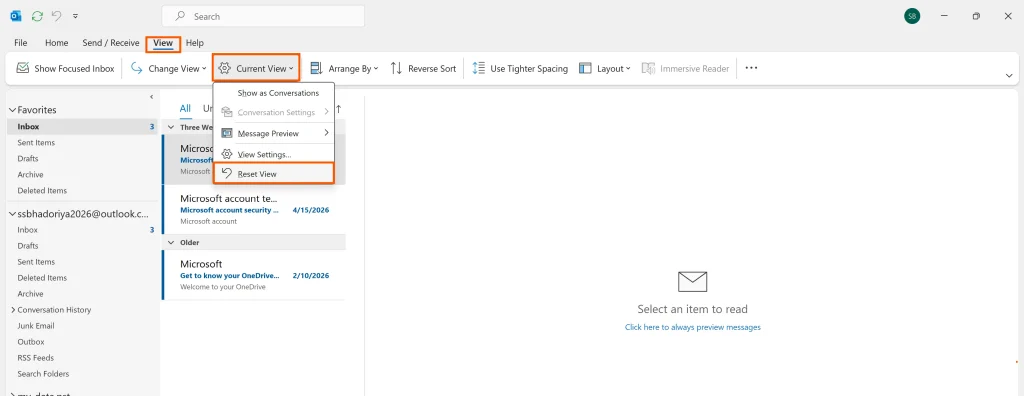
Steps:
- You need to open Outlook
- Go to View tab
- Click Reset View
This will restore default display settings. If you don’t know How to Reset Outlook View to Default Settings refer this article to know everything about.
Method 2: Remove Certain Antivirus Software
Use of certain “Antivirus Software” can result in the Body of Email Not Showing in Outlook issue and it happens in the following manner:
- You receive an email message in the Exchange mailbox and it is automatically synchronized with Outlook.
- Now, these antivirus software are added to Outlook automatically. So if you have these software installed, then they may delete the contents of the message received in Outlook.
- The message is then automatically synchronized with the server.
But you can prevent the Body of email missing in Outlook problem from appearing in the first place, by removing these antivirus software from your PC.
Now certain antivirus add-ins can also cause the Body of email not appearing in Outlook problem and result in the same behavior. It is advised to remove these kinds of add-ins, in the following manner:
For Outlook 2010, 2013, 2016, 2019
- Navigate to “File” >> “Options” >> “Add-ins”.
- Now remove the “Antivirus “Add-in”.
For Outlook 2007
- Navigate to “Tools” >> “Trust Center” >> “Add-ins”.
- Now remove the “Antivirus “Add-in”.
This method should fix your Body of email not appearing in Outlook error . But if it doesn’t then you should try another method.
Method 3: Check the Font Color Set for Plain Text Messages
In certain cases, there is Email content missing in Outlook, when the emails received by a user are in plain text format. So this error is likely occurring because the font color has been set as White, for reading and writing text messages.
You can fix this Body of email not appearing in Outlook error by performing the following steps:
- Open “Outlook” and double-click on the blank email message.
- Then Go to “file” >> Options >> “Mail”.
- Right, Click on the “Stationery and Fonts” section, to launch the “Signatures and Stationery” utility.
- Now under the “Composing and reading plain text messages” section, choose the “Font option”. It will open a new window.
- Go to the “Font color” option and ensure that it is selected as “Automatic” only.
- Now in the drop-down list (appearing next to “Automatic section”), ensure that the selected color is “Black”.
Now restart the “Outlook” application to check whether the Body of Email Not Showing in Outlook problem is fixed or not. If it is not fixed, then try another method.
Method 4: Disable Add-ins
You need to desirable all active Add-ins as it often interferes with email rendering. Check the steps below:
- Go to File → Options → Add-ins
- Click Go (COM Add-ins)
- Uncheck all add-ins
- Restart Outlook
You can enable them one by one to find the culprit.
Method 5: Change Email Format Settings
Sometimes formatting causes display issues so it is good to change format settings.
- Open Outlook
- Go to File → Options → Mail
- Change message format to:
- HTML or Plain Text
Method 6: Update Outlook to Fix Email Body Not Showing Issue
Through an MS office update, you may be able to tackle the Body of email not appearing in Outlook problem. So, to check for an update, perform the following steps:
- Go to File >> Account >> Select “Update” option.
- By clicking the “Update Now” tab, you may be able to fix the email content missing in Outlook error.
Now, after completion of the update, restart Outlook to check if you still Can’t see body of email in Outlook.
Method 7: Use Automated Wizard If Outlook Data File Corrupted
The Body of Email Not Showing in Outlook problem can also occur because of a corrupt Outlook data file. Now if the PST file size is small and the errors are of minor category, then you may be able to fix them via Scanpst.exe Tool.
But if you are still unable to fix the error, then you can use our specially designed Outlook PST Repair Tool. It will repair both small and large-sized highly corrupted PST files in one go. With a user-friendly interface, you will also be able to deal with Outlook data file.
Now let’s go ahead and understand the working of the tool:-

Step 1: Open the tool and right-click on “Add files” to add the corrupted/damaged PST file(s).
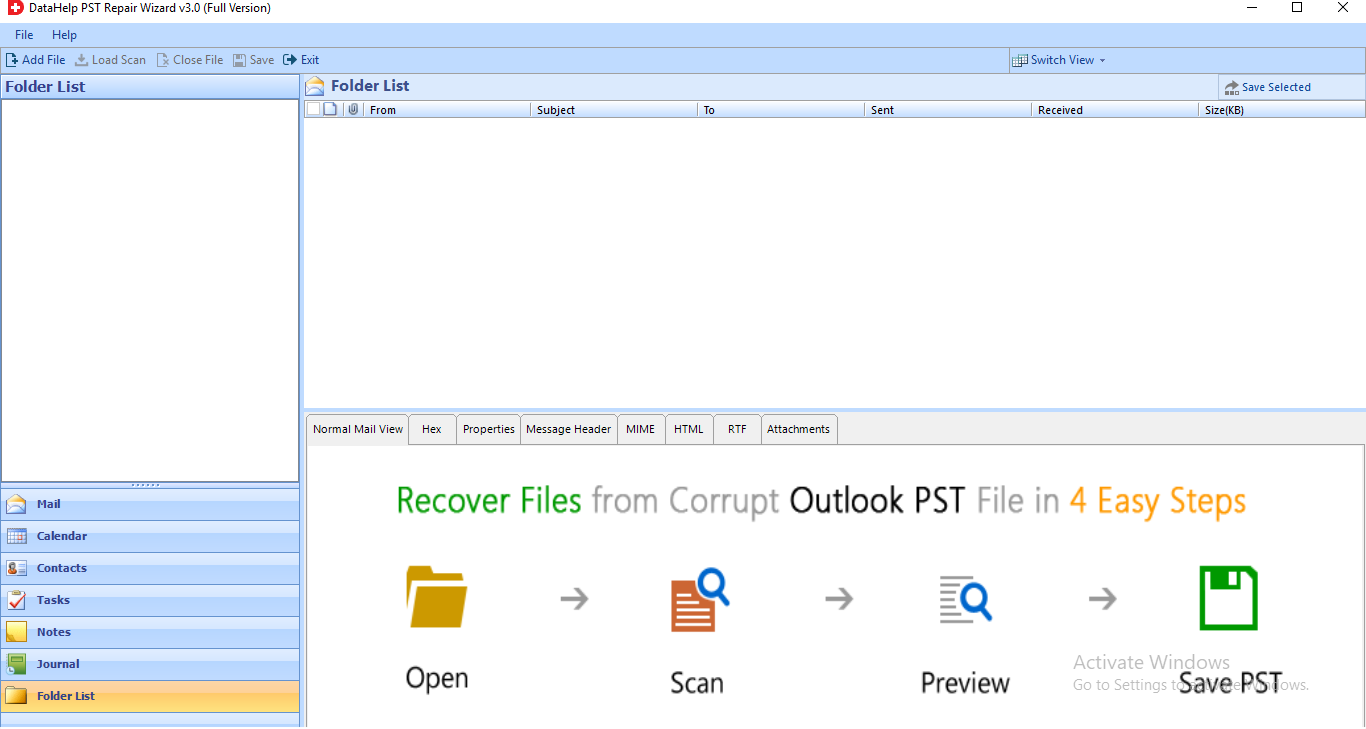
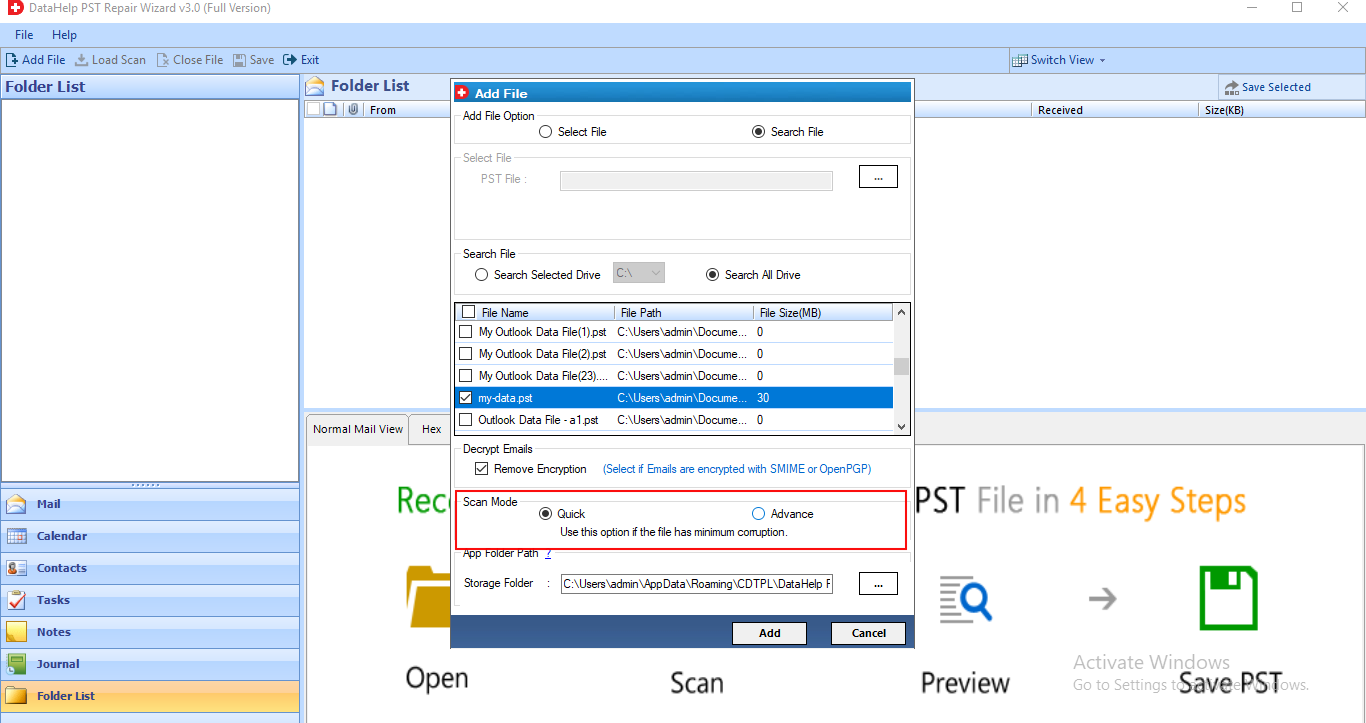
Step 2: Now a pop-up window will appear, which will ask you to select between the two scan options.
- Quick: Select this option for a faster recovery.
- Advance: If your file is highly corrupted then select this option.
Step 3: Now click on “Export” and the repair process will start:
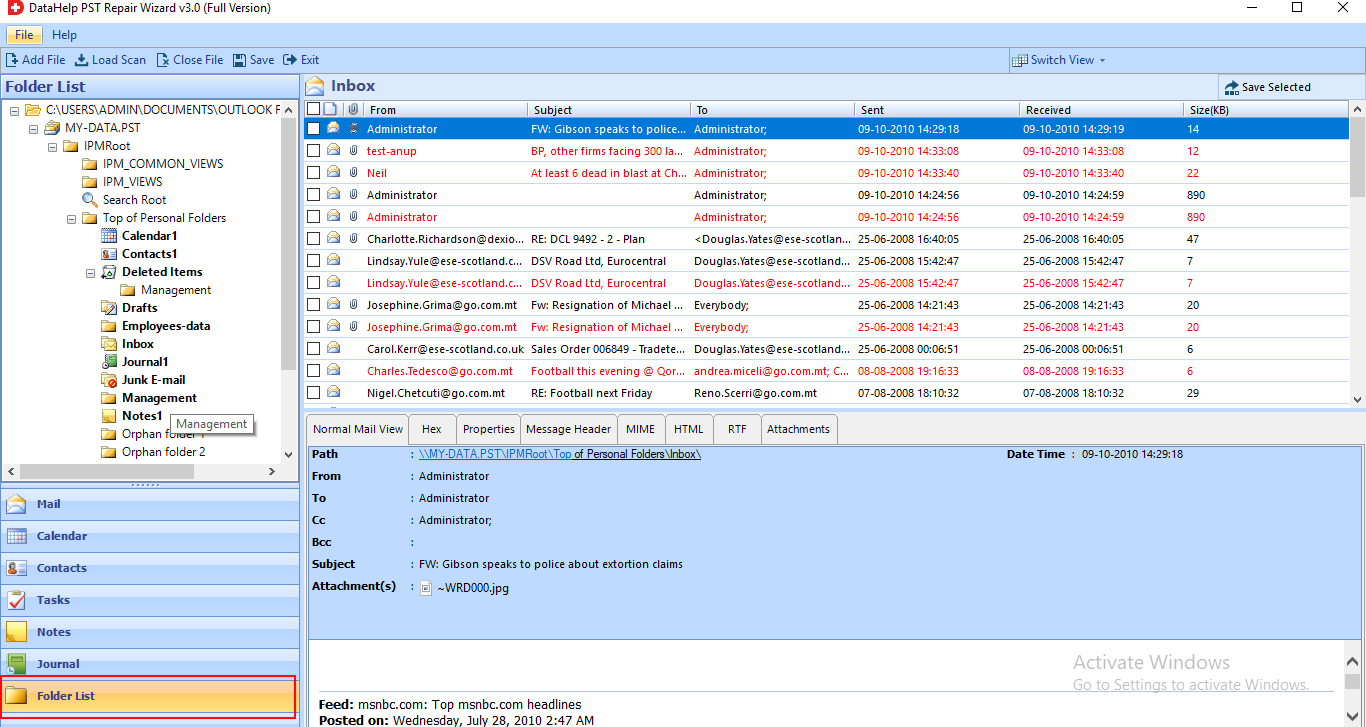
Select a PST Export type, and save complete data on your system. After that Import the PST in your Outlook.
A Few Closing Thoughts
A lot of Outlook users face the Mail Body Not Showing in Outlook problem and one of the major reasons behind this problem’s origin is a Corrupted file.
So if you are looking for a solution to body of email missing in Outlook / mail body not showing in Outlook problem, then follow the steps mentioned above.