How to Manage Email Subscriptions on Gmail Without Data Loss


Blog Overview – Your Gmail inbox is not meant to be like this. Every time you open it, there is a wave of newsletters, promotions, and updates you don’t know when you signed up for or subscribed to it. If you are searching for how to manage email subscriptions on Gmail. You are likely trying to clean up your inbox to have a more organized Gmail experience. The real challenge is not just unwanted emails in inbox, it is fear of losing important data while fixing it.
In this blog, we will discuss how to exactly unsubscribe from unwanted emails and manage your inbox effectively. In a way that keeps all your important emails safe and your mind at peace.
Table of Contents:
Why Our Gmail is Flooded With Subscriptions
The problem of inbox overload starts very quietly. We sign up for a service or download a free brochure. Our email automatically gets added into a list. Imagine we repeat this process many times over the years. Now each list sends us emails individually; it seems harmless. Together, they create havoc, and we as individuals feel disorganized.
This is the reason why our inbox looks crowded, just because of our need to download that free PDF guide, which we will get after we enter our name and email address. Which is a lead magnet for the business, but starting point of a long-term clutter for people like you and me.
How to Manage Email Subscriptions on Gmail (Step-by-Step)
Management of subscriptions in Gmail is simple. As Gmail helps you in identification of subscription-based emails, but we as individuals need to take this action carefully as our goal is to clean our inbox without deleting anything important. The process of how to manage email subscriptions on Gmail can be done through two methods.
Use the Unsubscribe Option Inside Emails
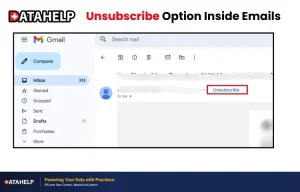
Open a promotional email and look near the sender’s name. You will see an Unsubscribe button.
Click on it and confirm. In many cases Gmail will redirect you to sender’s website. This usually happens when the sender manages their own mailing list.
Important to Remember:
- It can take a few days for emails to stop hitting your inbox.
- This step only unsubscribes you from a specific sender, not all subscriptions.
Related Read – How to save Gmail emails to flash drive
Gmail’s Manage Subscriptions Feature
Gmail offers an efficient way that gives you a view of frequent senders in one list. Through this, the user can identify which subscriptions are active and which to unsubscribe from. For more clarity it is like reviewing all your magazine subscriptions at once, through this Manage Subscription feature. User can see the bigger picture and act faster. To do this:
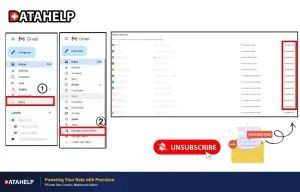
Desktop Process
- Sign in to your Gmail account.
- On left Pane, click more.
- Click on option “Manage subscriptions”
- Click unsubscribe from the list of all subscriptions.
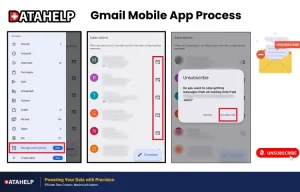
Gmail Mobile App Process
- Open Gmail app.
- Click on hamburger menu.
- Click on “Manage subscriptions.”
- Hit unsubscribe icon.
Related Read – Delete emails older than a certain date in Gmail
Important Tips While Managing Email Subscriptions
When you are managing subscriptions in Gmail, there are some important points most users never notice that.
- Unsubscribing will remove your email from only one mailing list. Not all the emails from that sender.
- It may be required for some senders that you complete the process of unsubscription on their website.
Hidden Risks of Cleaning Your Gmail Inbox
The process of how to manage email subscriptions on Gmail sounds simple. There are some risks most people ignore. There are emails in your inbox that may look unimportant today but contain important elements like: Bank papers, receipts, and passwords.
Deleting them without cross-checking is just like throwing important documents without clearly reading them. Once deleted, their recovery can be difficult. This is the main reason many users regret cleaning their inbox too quickly.
Smarter Way to Clean Your Gmail Safely
Before you start the unsubscribing process or deletion. It is recommended to create a backup. Using Datahelp Gmail Backup tool. You can safely create an error-free backup and store your Gmail data in your desired location, like on your system or hard drive. This way, even if some important Gmail data gets deleted during the unwanted emails removal process. You still have a copy to refer to.
Simple Workflow for a Clean Inbox:
- Create a backup of your Gmail data.
- Identify subscription-based emails.
- Unsubscribe from senders you don’t want to receive future emails.
- Delete unnecessary messages. Report the ones you think are spam.
Following these steps keeps inbox highly organized, clean and protected. We hope from this information, you now have a clear idea on how to manage email subscriptions on Gmail.
Final Thoughts
Planning for how to manage email subscriptions on Gmail is first step for a cleaner inbox. Executing it without a proper plan can cause mistakes and lost information. We suggest cleaner inbox should give you calmness and control not risk. When you merge Gmail’s built-in features with a safe approach. Best results are assured.
Frequently Asked Questions
Q – How can I unsubscribe from all emails at once in Gmail ?
A – No, Gmail do not provide you with a bulk unsubscribe option. You have to unsubscribe from each sender individually or via list view from Manage subscriptions.
Q – Why I am still receiving emails after unsubscribing?
A – It may take few days for a sender to accept or process your request. Some emails can also come from different mailing lists.
Q – What is the safest way to manage email subscriptions on Gmail ?
A – The safest approach is to first create a backup, then unsubscribe and clean your inbox step by step.